
Why your HubSpot import is failing
A HubSpot import fails when the file itself is rejected, when its columns don't match HubSpot properties, or when single values such as dates, numbers or dropdown options don't parse. Open the import from the imports list and download the error file to see which: it lists each failing row with its error.
By Operelio team · Updated October 23, 2026
On this page14
- 1.First, get the real error
- 2.Error message lookup
- 3.The file itself was rejected
- 4.Your columns did not match HubSpot
- 5.Individual values were rejected
- 6.Duplicates and identifiers
- 7.Importing companies and contacts together
- 8.It said it worked, but nothing changed
- 9.The ones you cannot fix in the file
- 10.The imports that do not fail
- 11.Importing an Apollo export into HubSpot
- 12.A checklist that prevents most of it
- 13.Fixing it once instead of per error
- 14.Frequently asked questions
First, get the real error
HubSpot does not fail an import as one lump. It imports the rows it can and lists the rows it could not, with a reason against each. That list is the useful part, and it is easy to miss.
Open the import from the imports list and download the error file. It gives you the failing rows with the error name attached, which turns a vague failure into a specific fix. Everything below is keyed to those error names.
Worth knowing before you go back to the spreadsheet: some of it can be fixed inside the import tool. At the mapping stage you can replace a value and HubSpot applies the change to every row in that column where it appears, which handles a misspelling repeated across hundreds of rows. That works well for one or two bad values. It stops being the quicker route when several columns need work, or when the same file arrives every month.
If the whole import was rejected before it got to the rows, it is almost always one of the file-level problems in the next section. HubSpot checks the shape of the file before it looks at the contents.
Error message lookup
Find the message from your error file below, then go to the section that fixes it. The error names are HubSpot's own, as its Review and troubleshoot record import errors article lists them (updated September 25, 2026). The table covers the errors this page fixes; that article lists every one and says what it means, and this page says how to fix the file.
| Error in the error file | Where it's fixed on this page |
|---|---|
| Incorrect number of columns, Invalid file type, Invalid sheet count, Invalid spreadsheet, Row data too large | The file itself was rejected |
| Property definition not found, Missing required property, Invalid required property, Property validation rule error | Your columns did not match HubSpot |
| Invalid enumeration option, Ambiguous enumeration option, Could not parse date, Could not parse number, Could not parse row, Failed validation of Email, Could not find owner, Multiple owners found | Individual values were rejected |
| Duplicate unique property value, Duplicate record ID, Invalid record ID, Multiple companies with this domain | Duplicates and identifiers |
| Association record not found, Invalid association identifier, Duplicate association ID, Failed to create association, Failed to find record for associations, Association label not found, Association limits exceeded | Importing companies and contacts together |
| Create only import, Update only import | It said it worked, but nothing changed |
| Limit exceeded, GDPR blocklisted email | The ones you cannot fix in the file |
The file itself was rejected
Most of these stop the import before a single row is read; Row data too large skips only the row that is too big. They are the quickest to fix and the most common cause of a file that will simply not upload.
| Error | What it means | The fix |
|---|---|---|
| Incorrect number of columns | At least one column has data in it but no header | Give every column a header, or delete the stray column. A single value pasted into an unlabeled column does this. |
| Invalid file type | The file is not a .csv, .xls, or .xlsx | Save or convert it. A .numbers, .tsv, or Google Sheets link will be refused. |
| Invalid sheet count | The workbook has more than one sheet | Send one sheet. Export the sheet you want on its own. |
| Invalid spreadsheet | The file is corrupt or not really a spreadsheet | Open it, save it again as .csv or .xlsx, and retry. |
| Row data too large | A single cell or row holds more than 1 MB | Find the offending cell. It is usually a note or description field with something pasted into it. |
A file refused for having far more rows than you can see is carrying rows that only look empty: formatting or a stray value far below your data makes them count. Press Ctrl+End to see where Excel thinks the data ends, delete the rows and columns past your data, then save and check again. A file that really is too big has to go in as several; see how to split a large file for a CRM import.
Your columns did not match HubSpot
These are about the header row and the properties behind it. HubSpot has to turn each of your column names into one of its own properties, and it will tell you when it cannot.
| Error | What it means | The fix |
|---|---|---|
| Property definition not found | A column header does not match any HubSpot property | Map it to an existing property during the import, or create the property first. Renaming the column to the exact property name avoids the question. |
| Missing required property | A property HubSpot requires has no value in some rows | Fill the gaps, or filter those rows out and handle them separately. |
| Invalid required property | A required property has a value HubSpot will not accept | Check the format that property expects. This is usually email, a date, or a number. |
| Property validation rule error | A value breaks a validation rule set on the property | Look at the rule on the property in HubSpot. Someone on your team set it, and the file has to satisfy it. |
Individual values were rejected
These are the ones that let most of the import through and quietly drop the rest, which is why an import can look successful and still leave you short.
| Error | What it means | The fix |
|---|---|---|
| Invalid enumeration option | A dropdown value does not match any existing option | Either correct the values in the file or add the option in HubSpot. This is the classic one behind a country column with fourteen spellings. |
| Ambiguous enumeration option | The value matches more than one option, or uses the label where HubSpot wants the internal value | Use the internal value, not the display label. |
| Could not parse date | The date does not match the format you picked during the import | HubSpot asks you to choose a date format when you import. Pick the one your file actually uses, or convert the column to match. |
| Could not parse number | A number property contains something that is not a number | Strip the currency symbols, commas, and any text such as n/a. |
| Could not parse row | The row cannot be processed at all | Usually a stray delimiter or line break inside a cell. Re-save the file as CSV and check that row. |
| Failed validation of Email | The address is not shaped like an email | Fix or remove it. Dead addresses import fine, so this is about format, not deliverability. |
| Could not find owner | The owner value does not match an active HubSpot user | Use the owner's email address rather than their name. |
| Multiple owners found | The owner name matches more than one user | Use the email address instead. |
Duplicates and identifiers
HubSpot matches on a unique identifier, usually email for contacts and domain for companies. Most of these errors mean your file disagrees with itself about which record is which.
| Error | What it means | The fix |
|---|---|---|
| Duplicate unique property value | Two rows carry the same unique identifier | Deduplicate the file before importing. HubSpot will not choose between them for you. |
| Duplicate record ID | The same record ID appears more than once | Keep one row per record, the most recent one. |
| Invalid record ID | A record ID does not exist in HubSpot | Export the current records to get real IDs, or match on email instead. |
| Multiple companies with this domain | The domain matches several company records | Merge the duplicates in HubSpot first, then re-import. |
Email matching is case-insensitive in HubSpot, but a leading or trailing space is not the same address. If updates are landing as new contacts, check for whitespace before you check anything else.
Importing companies and contacts together
You can bring contacts and their companies in with one file or two. In one file, each row holds a contact and its company, with an identifier for each: Email or Record ID for the contact, Company domain name or Record ID for the company. Leave the identifiers out and HubSpot creates duplicate records instead of linking each contact to its company.
A contact who belongs to two companies takes two rows, with the same email and a different company domain in each. With two files, one for contacts and one for companies, both need a column in common that connects the records. If both files carry Record IDs, name the columns apart, for example Record ID - Contacts and Record ID - Companies.
Company domain name keeps only the domain: anything after it, such as /about, is removed on import. When one domain matches several companies already in HubSpot, HubSpot leaves that company unchanged and lists Multiple companies with this domain. Merge or delete the extra companies, or import with Record ID instead.
| Error | What it means | The fix |
|---|---|---|
| Association record not found | An identifier used to link the records is missing, has a line break, or runs past 100 characters | Fill in the identifier, or export the existing records and use their Record IDs. |
| Failed to create association | HubSpot imported the records but could not link them in this format | In one file, give each object its own identifier column. In two files, pick a column both files share. |
| Failed to find record for associations | The same identifier was used for different records of one object in a multi-object import | Make each identifier unique. On an update-only import, check the values exist in HubSpot. |
| Association label not found | A label in your Association label column does not exist in HubSpot, so the records are linked without it | Create the label first, or match the spelling of an existing one. Importing association labels needs a Professional or Enterprise subscription. |
| Invalid association identifier | The column that links the records is not a unique property, or its values have line breaks or run past 100 characters | Link on Email for contacts, Company domain name for companies, or Record IDs. |
| Duplicate association ID | The column your two files share has values that are not unique | Pick a different shared column, one whose value stands for a single record on the other side, such as the company name for the contacts who work there. |
| Association limits exceeded | The import adds an association past a limit set in your account | Raise the limit if the records should be linked, then import again or link them by hand. |
With Association record not found, Invalid association identifier, Failed to create association, Association label not found and Association limits exceeded, the records still import. Only the link or its label is missing, so you can fix the file and import again, or link the records by hand in HubSpot.
It said it worked, but nothing changed
This is not really an error, and it catches people out more than the errors do. HubSpot asks whether the import should create records, update them, or both, and it does exactly what you chose.
Create only import means your file matched existing records and HubSpot left them alone, as instructed. Update only import means the opposite: rows that matched nothing were skipped rather than created. If you meant to do both, choose create and update, and run it again.
The ones you cannot fix in the file
Some errors are about your HubSpot account rather than your spreadsheet, and no amount of cleaning will move them.
Limit exceeded means you have hit your record allowance. GDPR blocklisted email means those contacts cannot be added by import at all, whatever the file says. Those two are HubSpot-side decisions, and the file is not the lever. Association errors are mostly about the file, and they are under Importing companies and contacts together.
The imports that do not fail
Every error above announces itself. The imports that cause real trouble are the ones that succeed. Nothing is rejected, the summary looks healthy, and the damage only surfaces days later when a report is wrong or a rep asks why a contact went cold.
Experienced HubSpot admins consistently name the same handful. An import can overwrite Original Source, which is the field your attribution reporting rests on. It can move Lifecycle Stage, sometimes backwards. It can replace tidy dropdown values with free text typed by whoever built the file. It can break company associations, change record owners and the routing that depends on them, and land values in the wrong property entirely because two columns had similar names. See CRM imports.
The one that surprises people most: an import can trigger workflows. If enrollment criteria match the records you just touched, automation fires on all of them at once, and that can mean live emails going out to a few thousand people who were not expecting them.
The question worth asking before any import is not whether the file is clean. It is: what is this file allowed to change? Everything else follows from the answer.
Importing an Apollo export into HubSpot
An Apollo people export usually imports into HubSpot with few errors. The trouble is in what it brings with it: more than 70 columns, some named so that HubSpot maps them to the wrong property. These are the ones to deal with before you upload.
Check for the locked placeholder email
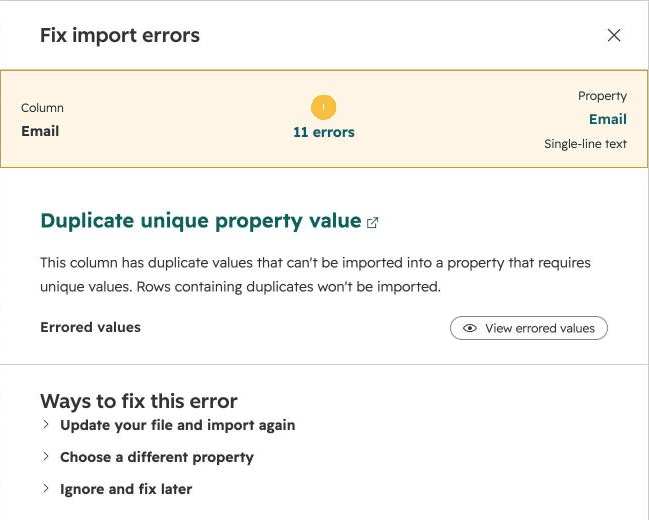
Apollo now asks you to access each email, at a credit apiece, before it exports a contact. Older exports can still carry rows where every unrevealed email is the same placeholder, email_not_unlocked@domain.com. HubSpot imports the first of those rows and rejects the rest with a Duplicate alternate ID error, so only one of those people arrives. Filter them out, or reveal the contacts in Apollo and export again.
Decide what to do with Email Status
Apollo marks each address, for example Verified or Unverified. HubSpot has no field for it and doesn't suggest one. Import only the Verified rows, or create a custom contact property and map the column to it so you can filter later.
Choose which phone goes where
Apollo exports five phone columns: Work Direct, Home, Mobile, Corporate and Other. HubSpot maps Mobile Phone to Mobile Phone Number on its own. Map one work number to Phone Number by hand. Corporate is usually the switchboard, so Work Direct is the better choice when it is there.
Keep person and company columns apart
The person's location is in City, State and Country, next to the company's Company Address, Company City, # Employees and Annual Revenue. Map the person columns to the contact. The company columns belong on the Company record, in a separate company import.
Check every row HubSpot maps for you
HubSpot fills in the mapping from the column names and can get it wrong: in our test it mapped Company City to Company size. Go down the list before you click Next. To skip a column, choose Don't import column in its Import as dropdown, then check Continue without mapping all columns.
Set Lifecycle Stage and Lead Status yourself
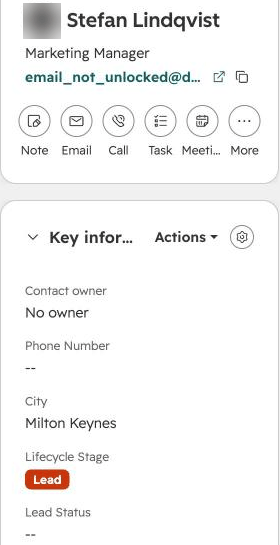
The export carries neither. Its Stage column is Apollo's own stage, such as Cold, so don't map it to Lifecycle Stage. New contacts get your account's default lifecycle stage and no Lead Status, so add both columns to the file, for example Lead and New, to land them in the views and workflows that filter on them.
Match Account Owner to HubSpot users
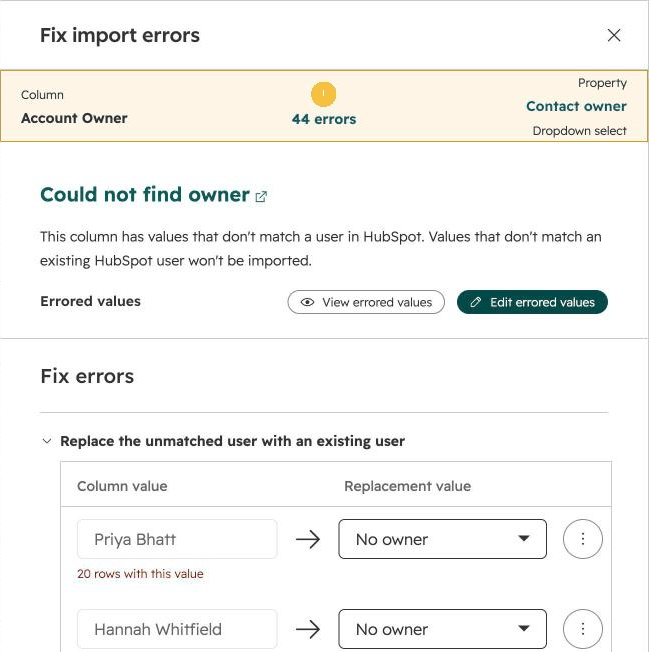
Account Owner holds the Apollo user's email address, and the export's Contact Owner column holds the same one. If that address belongs to a HubSpot user, map Account Owner to HubSpot's Contact owner property. If not, the mapping screen says Could not find owner and lets you pick a HubSpot user for each value. Left as No owner, the contacts import without one.
Operelio's Apollo.io to HubSpot template, under Templates for prospecting exports below, makes most of these choices for you: it maps Mobile, the first work number and the person's City, State and Country, leaves out Home Phone and Apollo's Stage, sets Lead and New, and puts Seniority, Departments and Apollo lists into Notes with their labels.
A checklist that prevents most of it
None of this is difficult. It is the difference between an import you can undo and one you cannot.
Export a backup of the records you are about to touch
Before anything else. HubSpot's restore tool can roll an import back within 14 days, but only a Super Admin on a paid hub can run it, and property history only tells you what changed one record at a time. An export you already have is worth more than any amount of care afterwards.
Run a sample first
Twenty or thirty rows. Import them, then open two or three of those records and read the property history to see exactly which fields the import wrote. This is the step people skip and then wish they had not.
Decide what the file is allowed to change
Map only the columns you intend to update. A column that is in the file but should not overwrite anything is safer left unmapped than mapped and hoped about. Treat Original Source, Lifecycle Stage, and owner fields as protected unless changing them is the actual goal.
Check what automation will fire
Look at which workflows enroll on the properties you are about to write. If the import should not set anything off, turn those workflows off for the duration, or import into a staging property instead.
Put untrusted data in its own field
When a list comes from a conference badge scanner or a bought file, the job title in it is a claim, not a fact. Writing it into a separate imported or submitted field keeps your clean data clean and still gets the new information in.
Fixing it once instead of per error
Most of the list above comes from three things: a header row that does not match, values that do not match a dropdown, and duplicates. HubSpot lets you patch some of these in the import tool one value at a time, which is fine once. It is the wrong shape when the same export arrives every month, because you are redoing the same corrections by hand each time.
Clean Headers standardizes the header row and removes the blank and duplicate names behind Incorrect number of columns and Property definition not found. Find & Replace collapses the spelling variants behind Invalid enumeration option. Deduplicate removes the repeated identifiers behind Duplicate unique property value. Excel to CSV takes one sheet out of a multi-sheet workbook, which is Invalid sheet count. The CRM Formatter maps your columns onto HubSpot's real property names and shows a preview of what will be created and updated before anything is written.
Dates have two fixes and it is worth knowing both. HubSpot asks you to pick a date format during the import, so choosing the one your file already uses often solves it without touching a cell. When the column itself is inconsistent, which is the harder case, Data Health Check flags the mixed formats and its Standardize dates fix converts them to YYYY-MM-DD, reading the column in its own day and month order. A date that could be either, in a column that doesn't settle it, is left as it is for you to check.

Map your columns onto HubSpot's real property names and see what will be created and updated before it writes.
Templates for prospecting exports
 Apollo.io to HubSpot
 ZoomInfo to HubSpot
 Cognism to HubSpot
 Lusha User Data to HubSpot
 LinkedIn Sales Navigator to HubSpot
Related
- How to split a large file for a CRM import
- How to format a CSV for HubSpot import
- How to find, merge and prevent duplicate contacts in HubSpot
- How to fix Salesforce import errors
- Trade show lead management: get show leads into your CRM
- CRM migration: a step-by-step checklist
- How to remove spaces in Excel
- HubSpot import templates and field internal names
- CRM import limits
- CRM Formatter: map, clean, and push
- The CRM import problem
Frequently asked questions
Why does my import say Incorrect number of columns when the columns look fine?
There is data in a column with no header. It is often a single stray value pasted to the right of your real data, or a formatting mark Excel kept. Delete the empty column entirely rather than clearing the cell, then save again.
Why did HubSpot import the contacts but leave some fields empty?
Those values were rejected individually while the row itself succeeded. It is almost always Invalid enumeration option on a dropdown property, or Could not parse number or date. The error file lists them.
Why is my update creating new contacts instead of updating existing ones?
The unique identifier is not matching. Check that the email column is mapped as the identifier, and check for leading or trailing spaces, which make an otherwise identical address a different one.
Can I import into HubSpot from Excel, or does it have to be CSV?
Both work. HubSpot accepts .csv, .xls, and .xlsx, but the workbook must contain only one sheet. Multi-sheet workbooks are rejected with Invalid sheet count.
What date format does HubSpot want?
There is no single one. You choose the format during the import, and the error appears when the file does not match your choice. If the column is consistent, pick the matching format. If the column has mixed formats, which is the usual cause, Data Health Check flags it and converts the column to YYYY-MM-DD.
Can an import trigger my workflows?
Yes, and this catches people out badly. If a workflow enrolls on a property your import writes, it fires for every record you touched, which can mean live emails to thousands of contacts at once. Check which workflows enroll on the properties you are mapping before you import, and turn them off for the run if they should not fire.
How do I check what an import actually changed?
Open a few of the affected records and read the property history, which shows the previous value and what the import wrote over it. Do this on a small sample import before running the full file. HubSpot's restore tool can roll the import back within 14 days if a Super Admin on a paid hub runs it. Otherwise the only real safety net is the export you took beforehand.
Why did my import create new contacts when the emails already existed?
Usually the unique identifier was not set to email, or the import mode was create-only. Differences in capitalization are also reported as a cause. Lowercasing the column and trimming stray spaces costs nothing and removes the question entirely.
Why does HubSpot reject my email column?
Failed validation of Email means a value is not shaped like an address: no @, a space in the middle, two addresses in one cell, or a period at the end. HubSpot checks the shape, not whether the inbox exists, so a dead address imports without complaint. Check the email column for those four things, and verify the list separately if bounces matter.
What format do phone numbers need to be in?
A plus sign, the country code, then the number, for example +14155550123, with any extension added as ext123. That is the format in HubSpot's import guide. Mixed formats in one column are the usual problem, so convert every row to that format.
How do I fix an import that has already run?
Start with the error file. Fix only the rows that failed and import those on their own, so the rows that worked are not written twice. If the import wrote wrong values, a second import in update mode with the corrected values puts them right, matched on email. To reverse the whole import, use HubSpot's restore tool or your backup, both covered in the checklist above.
Will importing overwrite data already in HubSpot?
It can, depending on the mode you pick and whether the column has a value. If you are pushing from Operelio, the push card shows how many records will be created, updated or not sent, and you can choose to fill only fields that are currently empty.
How do I import Apollo contacts into HubSpot?
Export the people list from Apollo as a CSV, remove any rows with the locked placeholder email, map Mobile Phone and one work phone, check every column HubSpot mapped on its own, add Lifecycle Stage and Lead Status, and import it to Contacts. Company columns such as employee count and revenue go in a separate import to Companies.
Can I import contacts without an email?
Yes, but HubSpot can't tell who they are. Its Deduplicate records article says a row with no Email or other unique identifier is imported as a new contact, so a person already in HubSpot gets a second record, and importing the file twice adds every such row twice. To update an existing contact that has no email, map its Record ID instead. If you have each person's name and company website, the Email Verifier & Finder can look for the address before you import.
Ready to get started?
Upload a file and run your first transformation. Free, no credit card required.