
How Operelio works
Get every lead into your CRM, clean.
Leads reach you from forms, files, email and webhooks, each in a different shape. Operelio cleans each one, checks it against your CRM, scores it and picks its owner, then pushes it to HubSpot, Salesforce or Pipedrive, or holds it and tells you why. Do each step yourself in Operelio, let Bridgeant do them, or run them from your own code and AI assistant.
Part 1 · Get ready
Know your leads before you automate them
Before you build anything, write down where your leads come from and what your CRM needs from them.
List your lead sources
Data providers, web forms, events, partners. For each one, note how it arrives, how often, about how many rows, and who owns it. Sources that arrive the same way can share a trail.
 Apollo exportsDownloaded weekly · Wei Chen10,400
 Webinar sign-upsExported after each event · Sarah Pentland600
 Partner referralsEmailed monthly · David Garcia150
Check a recent file from each
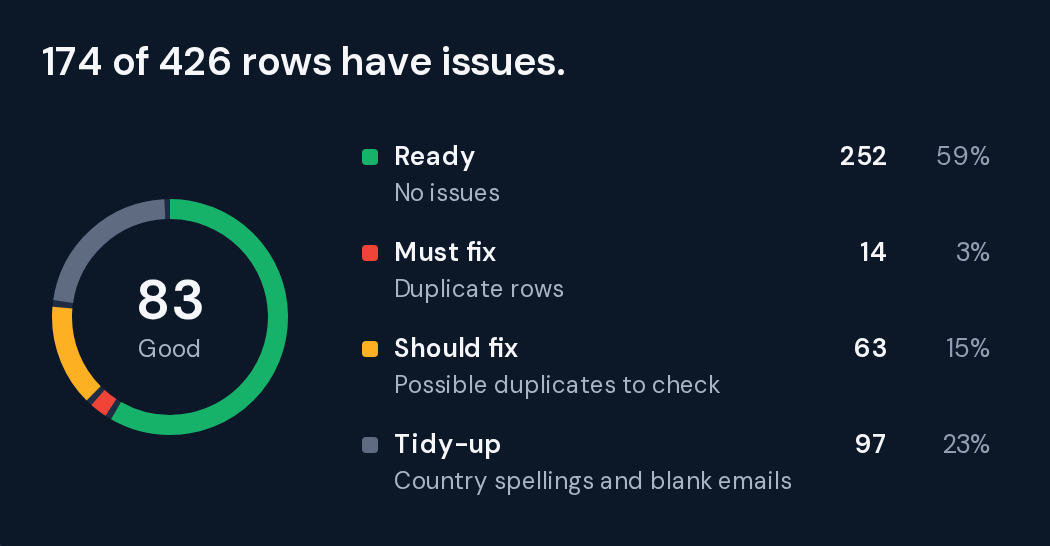
Choose the fields you can't do without, like email, company and country. Then look for blanks, duplicates and mixed formats, and count how many rows fit who you sell to.
Find out what your CRM expects
Note which fields it requires, which values each dropdown accepts, and what's in it already. Decide whether new leads come in as contacts or leads, how a duplicate is spotted, and who owns it.
 What your CRM expects
Gather four things
A recent file from each source, a login to your CRM, your Do Not Contact list, and the addresses that email you files. Start with the source that brings the most leads, or the most trouble.

Part 2 · Your lead flow
Get your lead flow running
A trail is the steps each new lead goes through on its way into your CRM. Bridgeant builds it from one sentence, or you build it yourself in Operelio.
With Bridgeant
Describe it in one sentence
- Tell it about the flowWhere the leads come from, what counts as junk, and who should get them.
- Answer its questionsOne round, about whatever your sentence left open.
- Review the trail, switch it onIt builds with your real CRM fields and owners, tests on your sample, and leaves the trail switched off for you.
 Bridgeant
 HubSpot
Changes work the same way: ask, and Bridgeant saves a draft you test before it goes live.
By hand in Operelio
Build it step by step
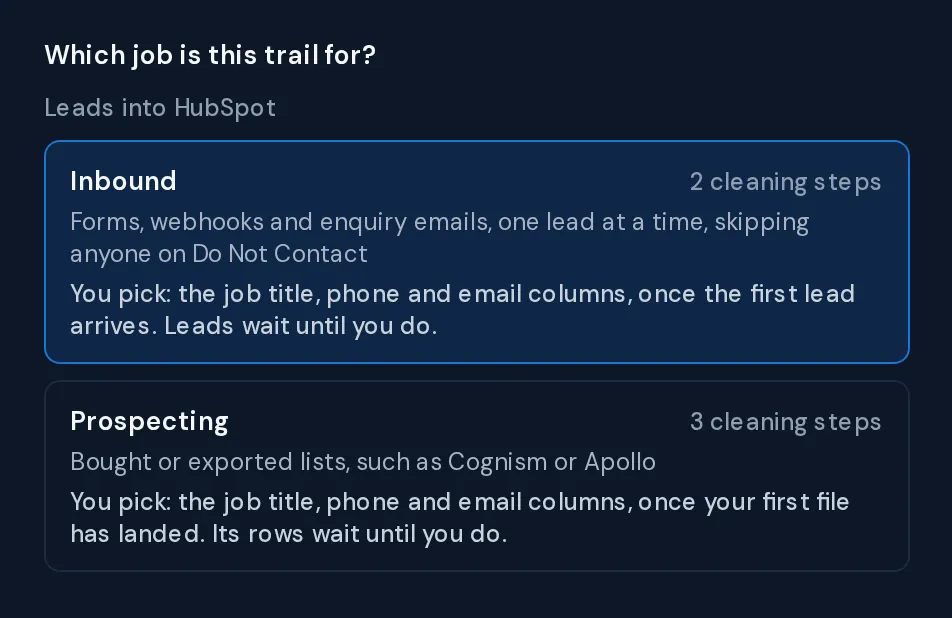
- Start from a templateThere are twelve, or you can start blank.
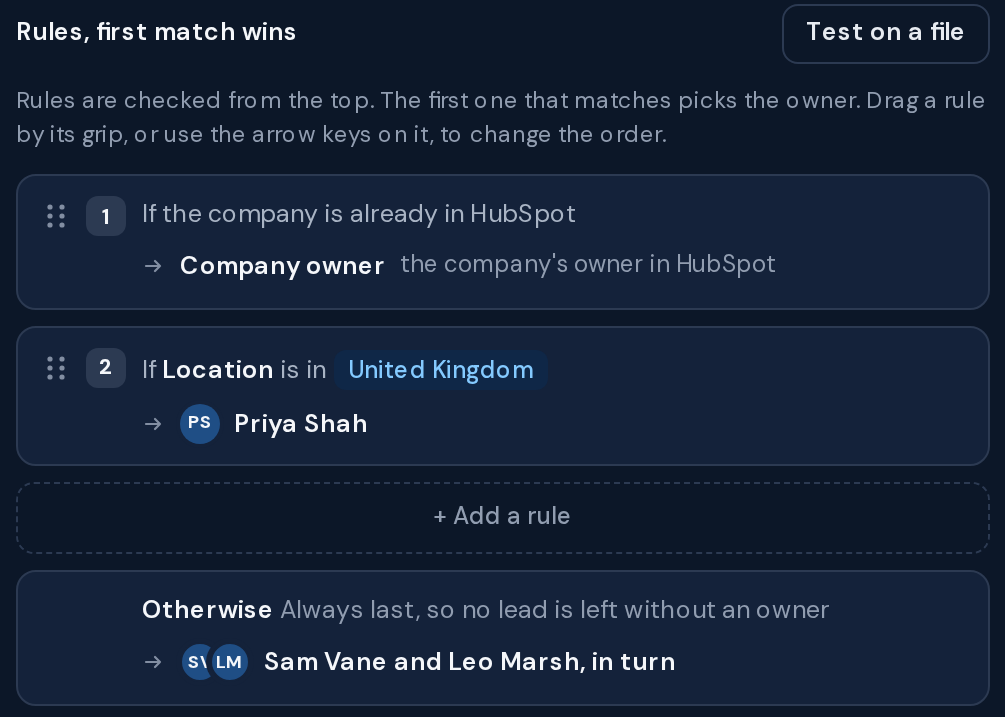
- Add the stepsCleanup, the CRM check, scoring, and the rules that pick each lead's owner.
- Test it, switch it onSend a real lead through the sandbox. Nothing reaches your CRM.
Building and testing are free. Switching a trail on needs Starter.
Then, for every lead
Built by Bridgeant or by you, the trail runs the same way.
Picks up each lead as it arrives
One lead at a time from your website form, Typeform, a webhook or an email, or a whole file by email, upload, the API or on a schedule.
Cleans it and looks it up in your CRM
It fixes spellings, drops duplicates and Do Not Contact rows, and verifies the email. Then it checks your CRM: already there, a new person at a company you have, or new.
Scores it and gives it an owner
Your scorecard rates each lead from 1 to 5. Your rules pick the owner, and the lead goes into your CRM with that owner set.
Holds the doubtful ones for you
By default a 3 waits for your yes or no and a 1 or 2 stays in Operelio. You choose what each score does. Each one shows why.
Bridgeant checks it every morning
If a trail fails, a CRM login is about to expire, held leads pile up or bounces rise, Bridgeant messages you with the fix. On Starter and up.
Bridgeant This morning
Part 3 · One-off files
Clean a one-off file
For a list you get once, like a trade show export. Tell Bridgeant what you need, or run one of Operelio's 17 tools yourself.
With Bridgeant
Describe the result
- Add the file, say what you needFor example: ready to go into HubSpot.
- Answer its questions, approve the planYou see each step and its row counts. Nothing runs until you approve.
- Download the clean fileOr push it straight to your CRM.
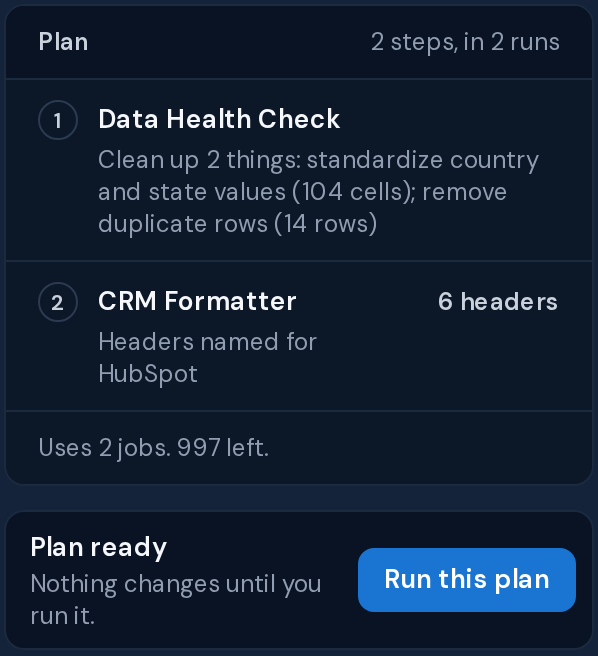
On Free, Bridgeant tells you which tools to run. On Starter and up, it runs them for you.
By hand in Operelio
Pick the tool
- Open the tool for the jobDeduplicate, Merge Files, Split File and 14 more.
- Check the counts firstPreviews don't use a job, so try settings until the numbers look right.
- Run itYou get a new file and a summary of what changed.
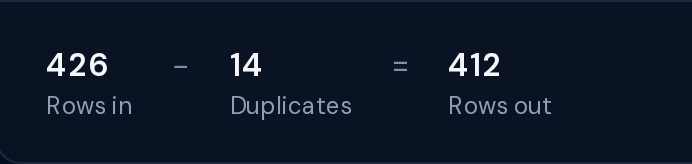
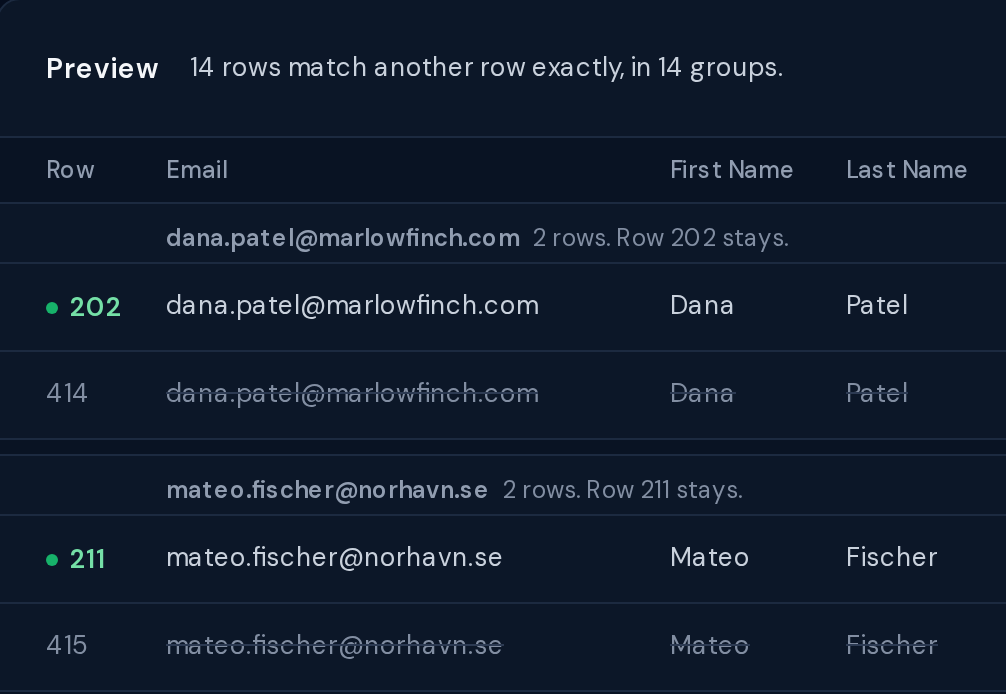
On Starter, save a chain of tools in Workflow Builder and run it on the next file.
Either way
You get a new, clean file. Your original stays as it was.
Part 4 · CRM push
Replace your CRM's import tool
Push leads and clean files straight into HubSpot, Salesforce or Pipedrive, instead of downloading a CSV and running the CRM's import.
Connect your CRM once
Sign in to HubSpot, Salesforce or Pipedrive once, and every way of pushing below uses it.
With Bridgeant and Trails
It pushes for you
- Bridgeant matches the fieldsWhen it builds a trail, it maps to your CRM's own fields and matches each owner to a CRM user.
- The trail pushes every leadEach lead that passes its checks goes in with its owner set. No file to download, no import to run.
- Anything flagged waits for youHold every push for your review, or let the clean ones go on their own.
Inbound leads Push to HubSpotA run the checks or Bridgeant flag always waits for you.
By hand in Operelio
Push with CRM Formatter
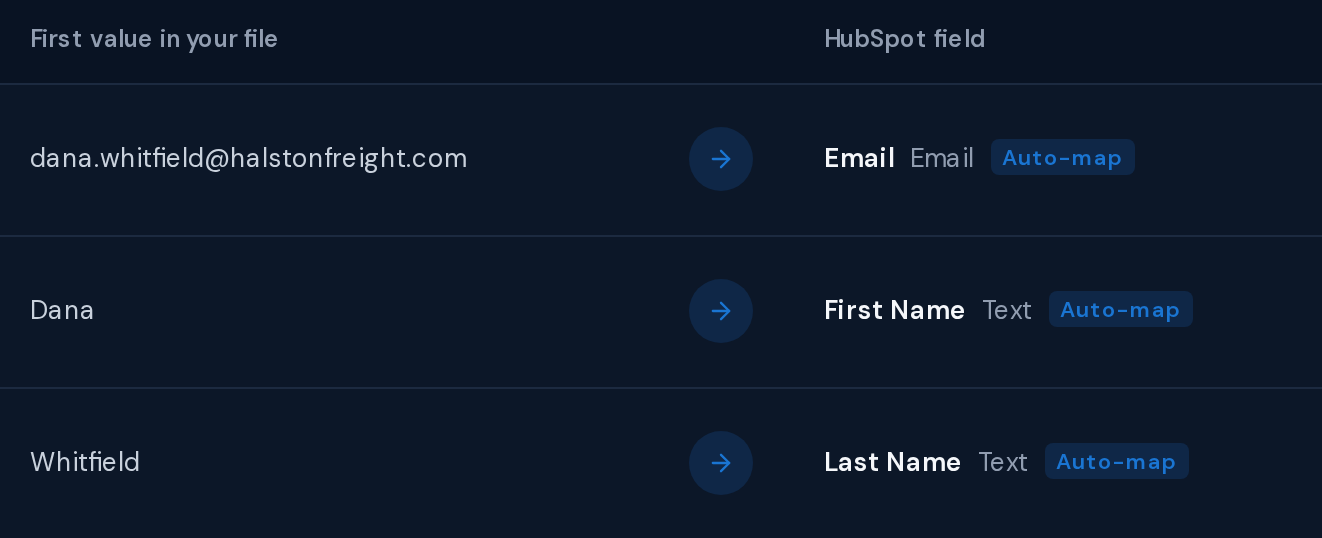
- Match your columns onceCRM Formatter reads your CRM's own fields, custom ones too. Save the mapping and later files line up the same way.
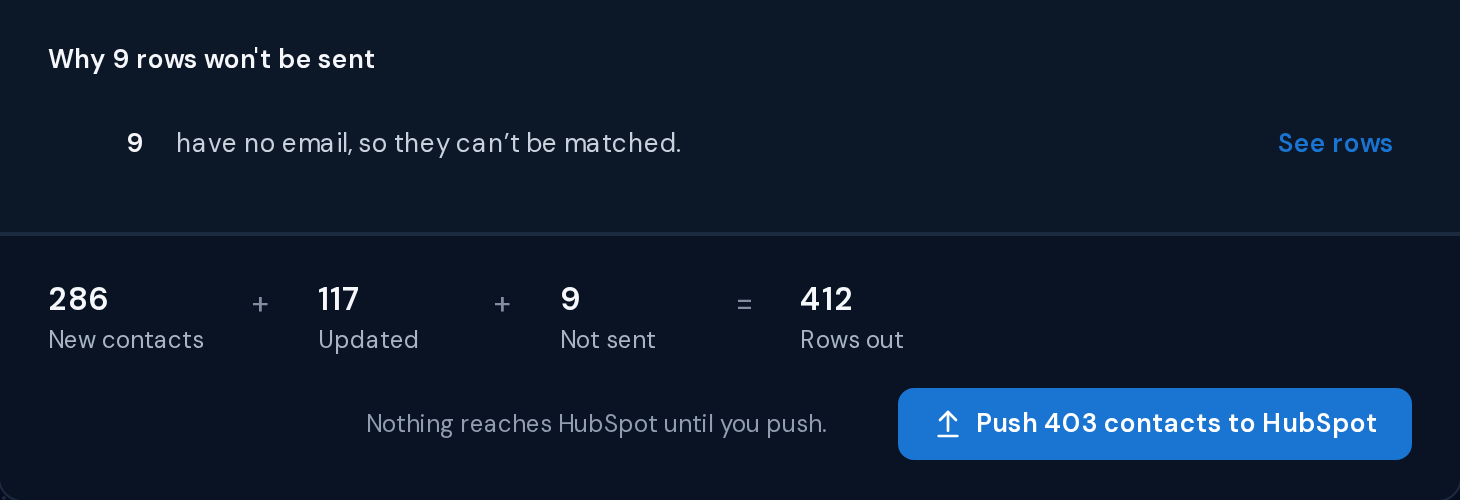
- Read the report before you pushIt shows how many records are new, how many get updated, and which rows won't go and why.
- Push, and keep what is thereOnly blank fields are filled, unless you choose to overwrite.
Either way
A contact your CRM already has is updated, not added twice.
See what each push did
A file's push shows what was created and updated, and why any row was skipped. A trail adds up every run since you switched it on.
Last run Today at 9:42 AM, pushed cleanly
Parts 2 to 4 · Your own tools
Run it from your code or AI assistant
Trails, tools and CRM pushes also run outside the app. Your code calls the Operelio API. Your AI assistant, like Claude or ChatGPT, connects to the Operelio MCP server.
From your code
Call the API
- Make an API keyIn Integrations. A read-only key can look but can't change anything.
- Read what happenedYour trails and runs, where each lead went and why, which leads are held, and your Analytics figures.
- Get told when it happensA webhook calls your URL when a lead is held, a lead is pushed, a run finishes or a trail pauses.
- Act on itPause or resume a trail, change who is on a team, run a tool or workflow, push to your CRM, or add to your Do Not Contact list.
curl -G \
  https://operelio.com/api/v1/leads \
  -d state=held -d trail=4f2a… \
  -H "Authorization: Bearer op_…"
{
  "data": [
    { "state": "held", "score": null,
      "heldReason": "missing_field" },
    …
  ],
  "nextCursor": "…"
}
The API and webhooks are on Pro and Agency.


From your AI assistant
Ask in your own words
- Add Operelio to your assistantIn Claude or ChatGPT, sign in to Operelio once. Your assistant can then read your trails, runs and leads, run tools on your files, check Do Not Contact, pause a trail, push to your CRM and ask Bridgeant.
- Ask what you want to knowFor example, which leads are held and why.
- Approve each changeTools that change your trails or CRM are marked, so your assistant asks you before running them.
ClaudeorChatGPTWorks on every plan, within your plan's limits.
Same rules either way
Calls from your code or your assistant go through the same trails and checks as the app.
In your CRM
Clean records, each with the right owner
HubSpotSalesforce Pipedrive
Your data
Three things Operelio never does with your file
Bridgeant never reads your rows
Bridgeant is sent a summary of your file: your column names, how full each column is, the row and column counts and the problems found. The values in your cells are never sent to it.
It never guesses
Every change is made by a tool, not by the AI. Run the same file through the same steps and you get the same result.
It never overwrites your file
A run saves a new file and leaves the one you uploaded alone. From Starter, Files keeps every version, so you can open an earlier one and download it.
If you connect Claude or ChatGPT, it sees only what you ask it for, through your own Operelio account.
Common questions
Questions before you start
Which should I use: a trail, Bridgeant or a tool?+
In Operelio, use a trail for a lead flow, where new files or single leads keep arriving from your sources. Bridgeant can build it from one sentence and, on Starter and up, checks on it every morning. For a one-off file, ask Bridgeant to plan the job, or use a tool when you know which one you need. You can use any of them without the others.
Do I need a data audit before I automate lead imports?+
You don't need a formal data audit before you automate lead imports with Operelio. For a team's lead flow, list your lead sources and run Data Health Check on a recent export from each. Bring in a consultant if you're auditing every data source across a large company.
See what Data Health Check looks forHow do I automate lead imports into my CRM?+
Tell Bridgeant in one sentence and it builds the trail, or set one up yourself from a template. Leads come in by your website form, Typeform, a webhook, email, upload, the API or on a schedule. The trail cleans each one, verifies its email, checks it against your CRM, scores it and gives it the owner your rules pick. Test it in the sandbox, then switch it on.
Will Operelio overwrite what's already in my CRM?+
Operelio only replaces values already in your CRM if you choose to. For a record that's already there, pick Update their record or Keep what your CRM has. By default only blank fields are filled, and a run that would replace values always stops for review first.
What happens to a lead that waits for review?+
A lead that waits for review stays in Operelio, on the Leads tab, with the reason it waited, like a score of 3 or a form that stopped sending an email. Nothing reaches your CRM until you say yes. Its details are kept for 30 days on Starter and Pro and 90 days on Agency, and a lead still waiting after that can't be sent. For a new trail's first week, every single lead waits for your yes or no.
Do I still need my CRM's import tool?+
With Operelio, you don't need your CRM's import tool for HubSpot, Salesforce or Pipedrive. Connect your CRM once and push from Operelio. You see how many records are new, updated or not sent before you confirm. For other CRMs, you download a file ready for their import.
Can I start by hand and automate later?+
Yes, you can run Operelio's tools by hand first and automate later. Use the tools on a few files first. When the steps are clear, build a trail, or describe them to Bridgeant and it builds one. A column mapping you saved in CRM Formatter can be added to the trail.
Get started
Start with one file, or automate the whole flow.
Free to start, and no credit card needed. See the CRM automation use cases for the jobs teams run this way.