
Leads cleaned, scored and routed
into your CRM.
Leads arrive from your inbox, a form on your own site, Typeform, Zapier, Make or your own code, and in the files you drop in. Trails cleans them, scores them and routes each one to the right owner in HubSpot, Salesforce or Pipedrive, with approval built in, and can verify the emails in every file. Set a trail up once for a source, like a trade show export or an inquiry inbox, and it runs every lead and file from there, even when the columns are named a little differently.



A 5,000-row provider list lands. Dead companies and bounced emails never reach Salesforce, values you already hold are protected, and you approve the push.
CRM data cleansing →Every way in, into one trail.
Every way a lead reaches you can feed the same trail, so a form fill and a trade show list land in one place, scored and routed by the same rules.
- Forms, Typeform or Zapier
Paste the folder's form code into your site, connect Typeform with its own Typeform secret, or post each lead to its webhook from Zapier, Make or your own code.
POST /api/webhooks/… - Anything by email
Point your form's emails at the folder, or email in anyone a rep met, written as Name and Email lines, and each becomes one lead. Attached sheets, PDF and Word files become rows.
Name: Nadia Kerr Email: nadia@fernwayhq.co - Files
Drop a CSV or Excel file in the folder, or upload it through the API.
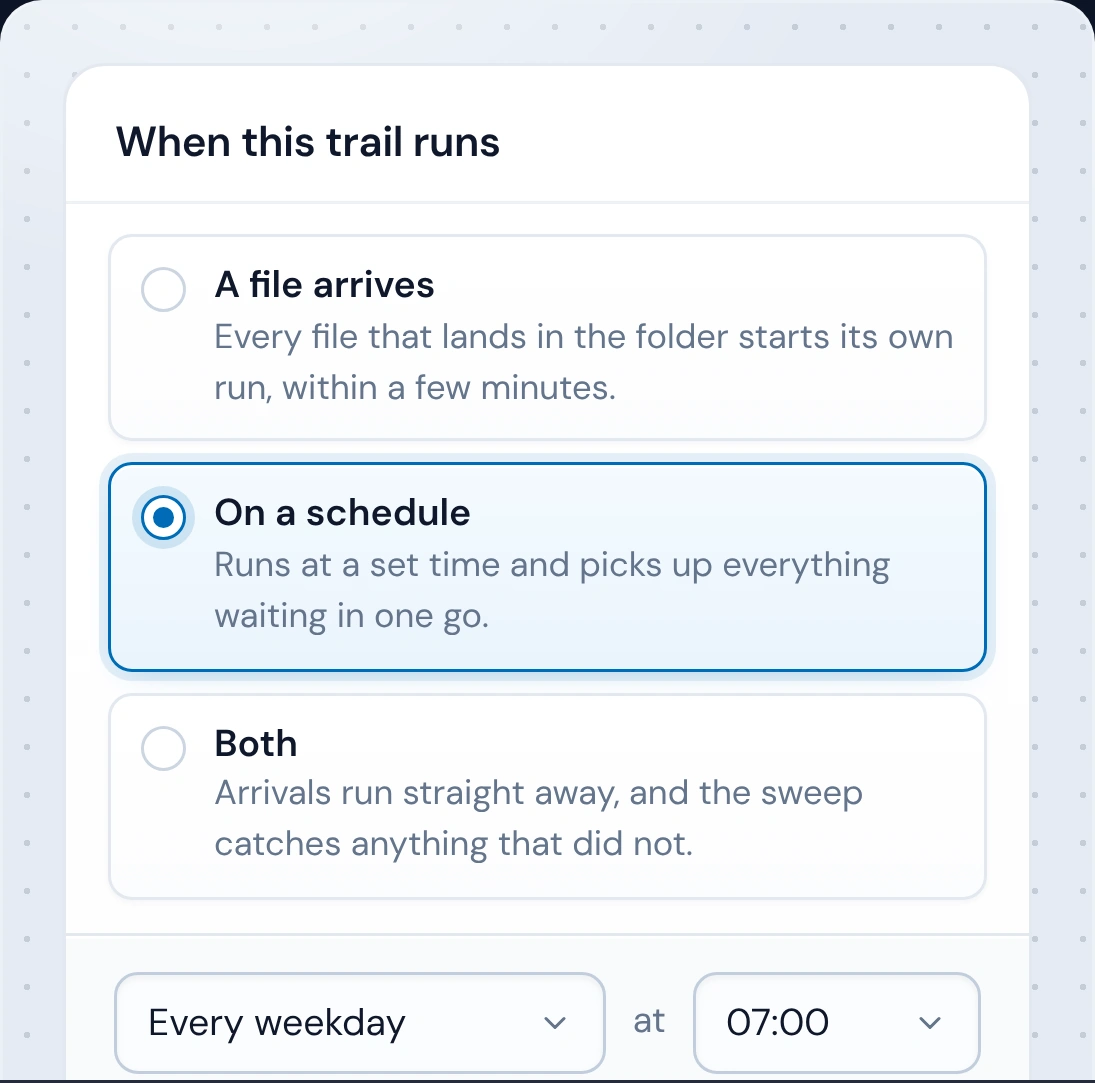
calder_badge_scans.xlsx - A schedule
Run the trail every day, weekdays, weekly or every 6, 8 or 12 hours, for the file that turns up on its own.
Every weekday at 7:00 AM
Past 60 leads a minute or 1,000 an hour, the extra leads are gathered every 10 minutes into one run, so a busy sender costs one job, not hundreds.
Single leads and lists go to HubSpot, Salesforce and Pipedrive. Folders start on Starter.

Lead management
Every source lands in one place, cleaned and checked before your CRM.
→
Lead capture
Every form, list and inbox, straight into your CRM.
→
Lead routing
Each new lead with the right rep, by owner, territory or turn.
→
Lead scoring and qualification
Know which leads to call first.
→
Speed to lead
New leads reach their rep without waiting for someone to sort them.
→
CRM data cleansing
Every list in one clean format before it reaches your CRM.
→
Duplicate contacts
Fewer duplicates in your CRM, caught in the file before import.
→
Email list cleaning
Fewer bounces: every address checked before you send.
→
CRM imports
Any list into your CRM, knowing what it will do first.
→
CRM migration
Move contacts and companies from your old CRM's export, cleaned and in the right order.
→
Data entry automation
PDF and Word forms into CRM records, with nobody typing them.
→Nothing to code.
Live the same day.
No engineer, no automation consultant, no twenty-step workflow tool. Start from a template or a blank canvas, try it on a real file, put it live. The sandbox is free.
Pick where it starts
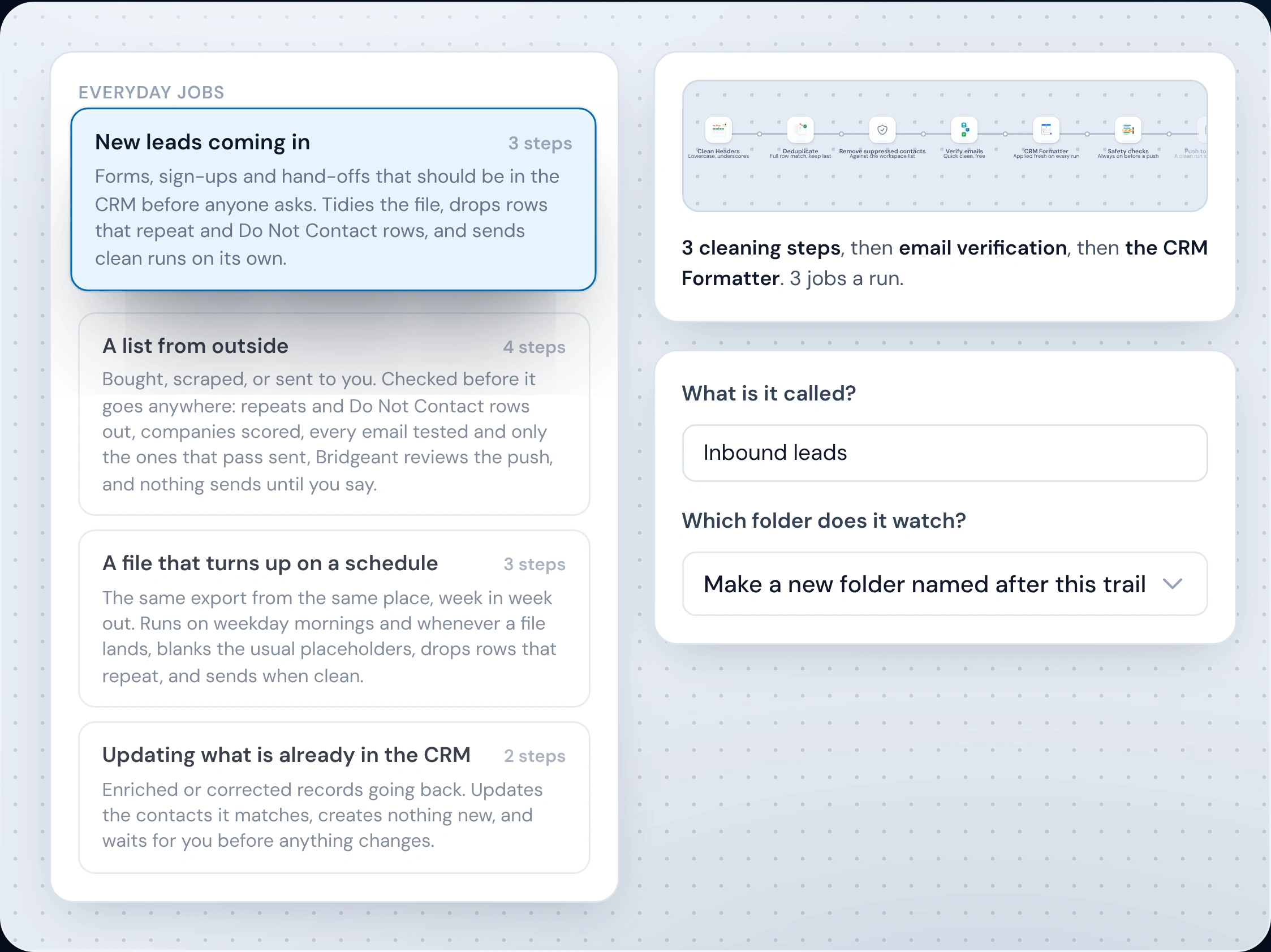
Three ways in: a template, a blank canvas, or a copy of a trail you already have. The templates cover the everyday jobs, new leads coming in, a list from outside, a file that turns up on a schedule, and come with the cleaning steps already in place, so you see the whole trail before you name it.
Build it out on the canvas
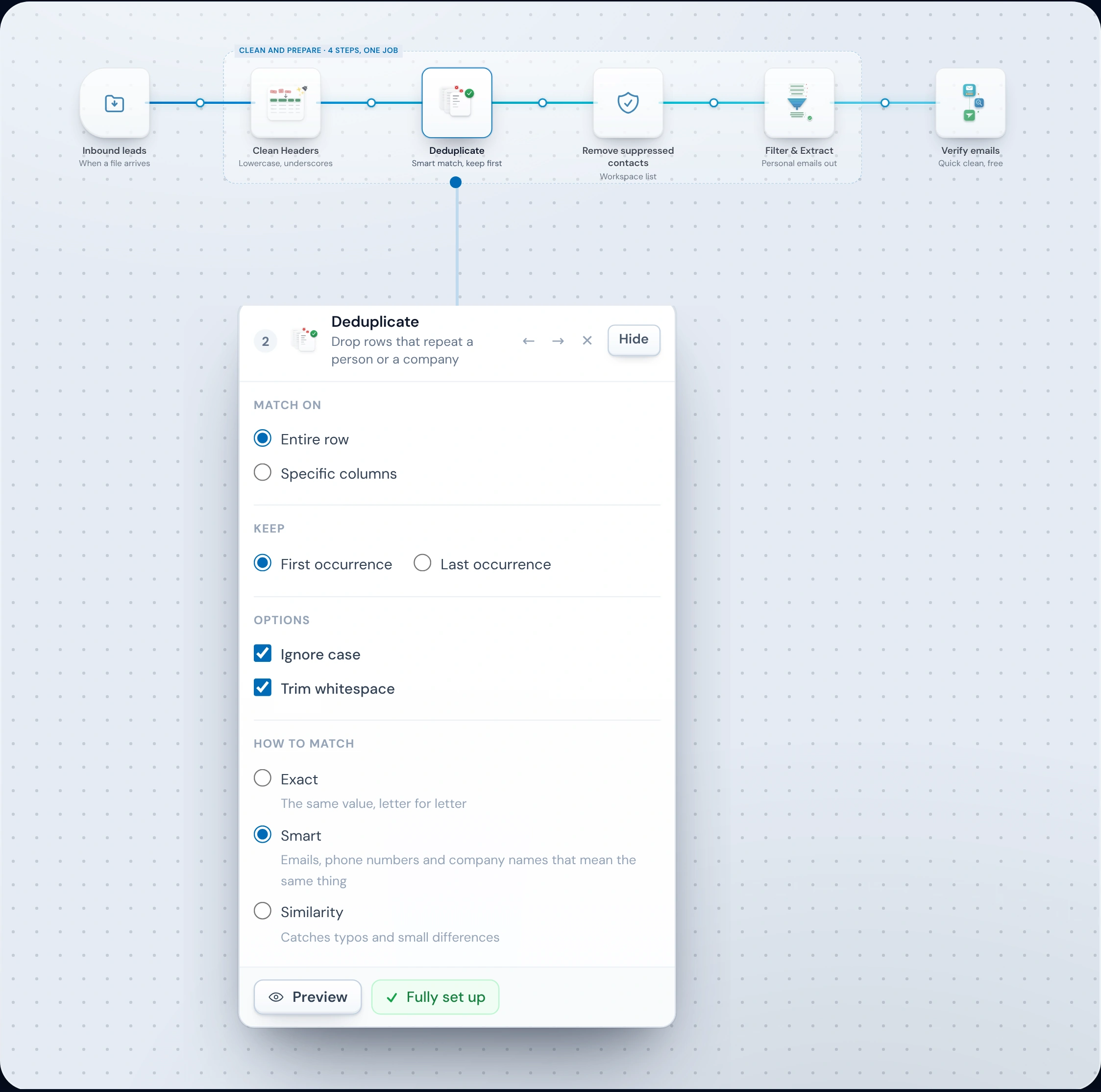
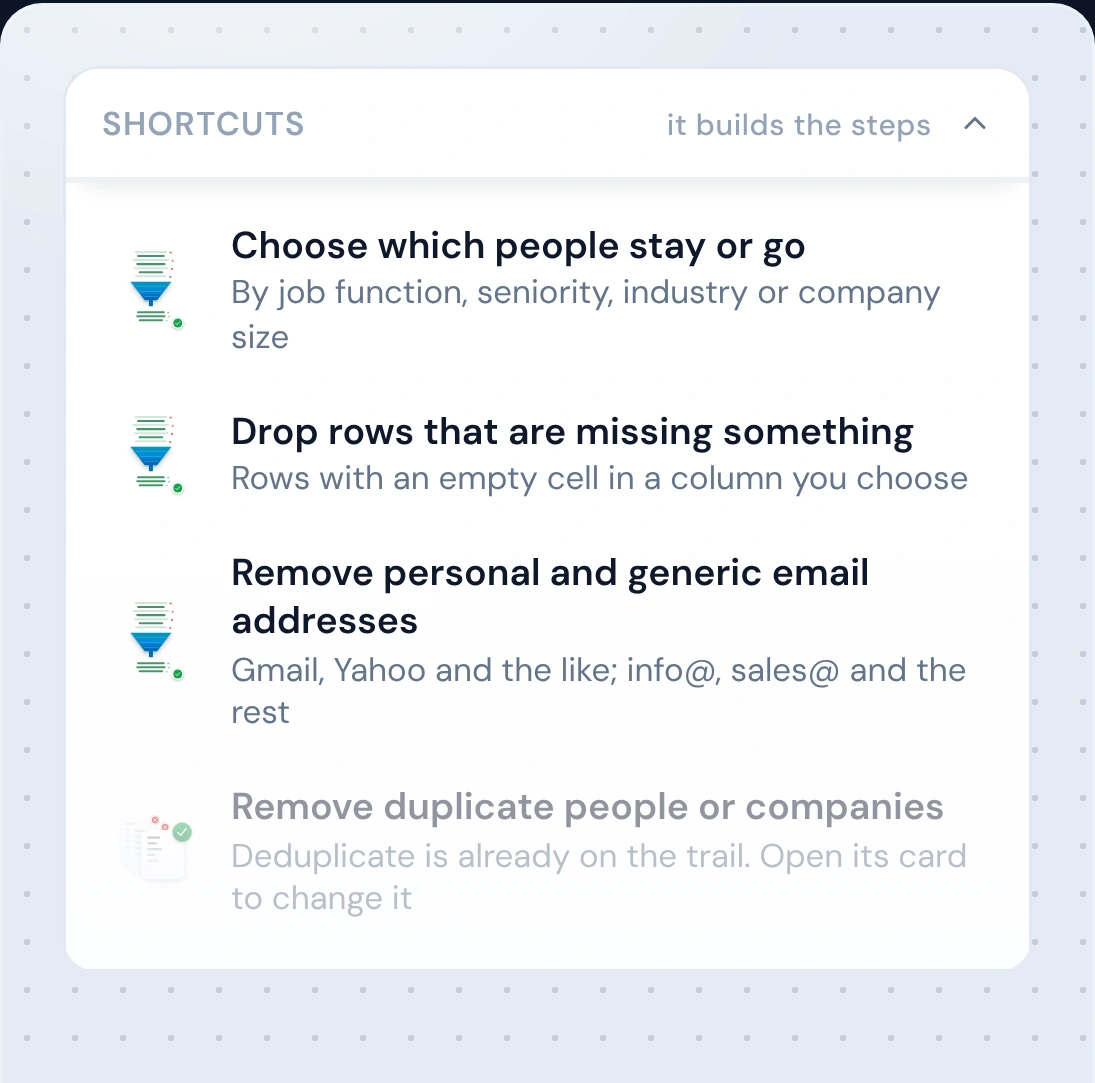
Each step is a tile. Add one, or click one that is already there, and its settings open underneath. Want a step without setting it up yourself? Pick a shortcut and it is built for you: remove personal email addresses, tidy up country names, add a seniority column from the job title.
Test it on a real file
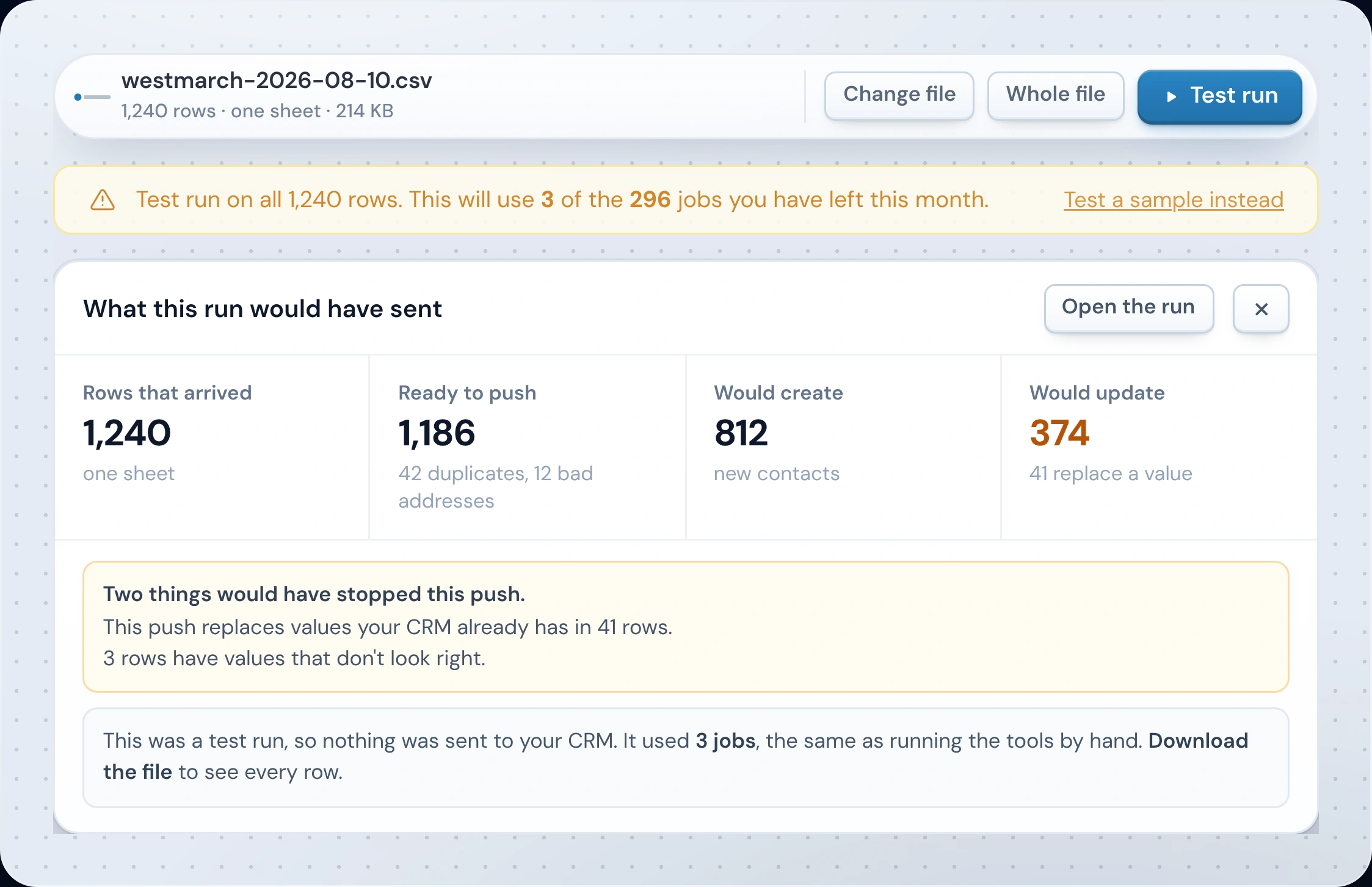
Upload one of your own files and run it. A dry run is free and shows what would happen. A test run does the real work and shows what it would have sent to your CRM: how many rows arrived, how many are ready, what would be created or updated, and anything that would have stopped it. Nothing is sent.
Put it live
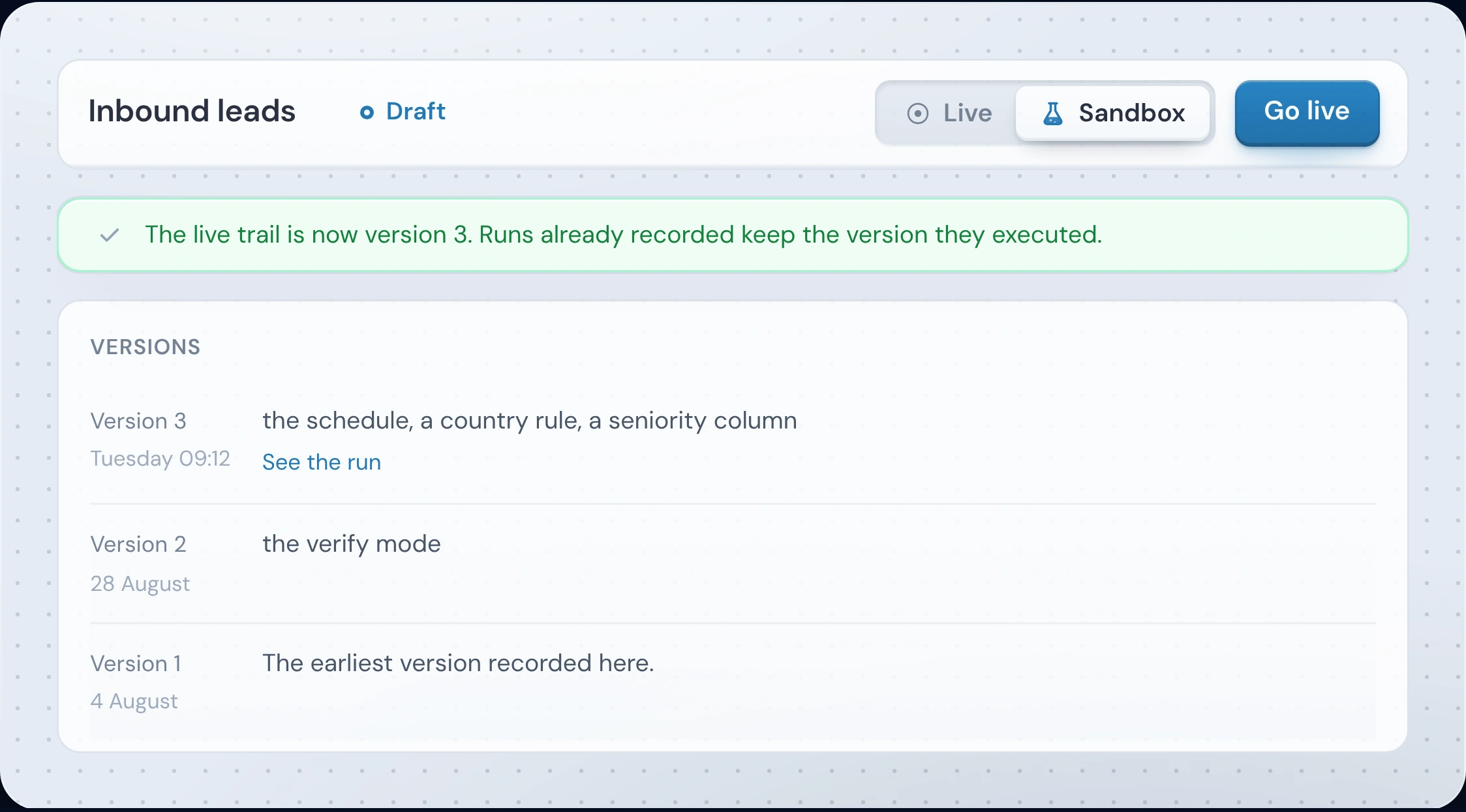
Put it live, then switch it on, and the next file that lands is handled by the trail. Later changes are made in the sandbox and only reach the live trail when you put them live, so a live trail never changes by accident. Every version is kept. For its first week, every single lead waits for your yes or no, so you see what the trail does before it sends on its own.
Score every lead before it reaches the CRM.
Write points rules you can read: words in the job title, a phone or email present, a verified email, a free email domain, or any test on a column. Points add up to a score from 1 to 5, and you choose what each score does.
The score is the number. Qualifying is the yes or no it drives, and you set that for each score.
- Rules from -100 to 100 points, up to 50 on a card.
- Bridgeant can suggest title words and columns from your column names. Nothing is scored by a model.
- A single lead's score can make a deal for 4s and 5s when deals are on. On HubSpot and Salesforce it can also set the lifecycle stage or Lead Status.
 ScorecardScores each lead from 1 to 5, with its reasons
- Job title has Director, Head of or VP+3
- Has a phone number+1
- Email is verifiedCounts only after a full Email Verifier step+2
- Email is on a free domain-2
- 56 points or moreSend on
- 44 to 5Send on
- 32 to 3Review queue
- 20 to 1Hold in Operelio
- 1Below 0Hold in Operelio
Everything a trail needs, built in.
Cleaning, email verification, validation, CRM matching, lead routing and approval come with every trail. Nothing extra to add on, and nothing to connect.
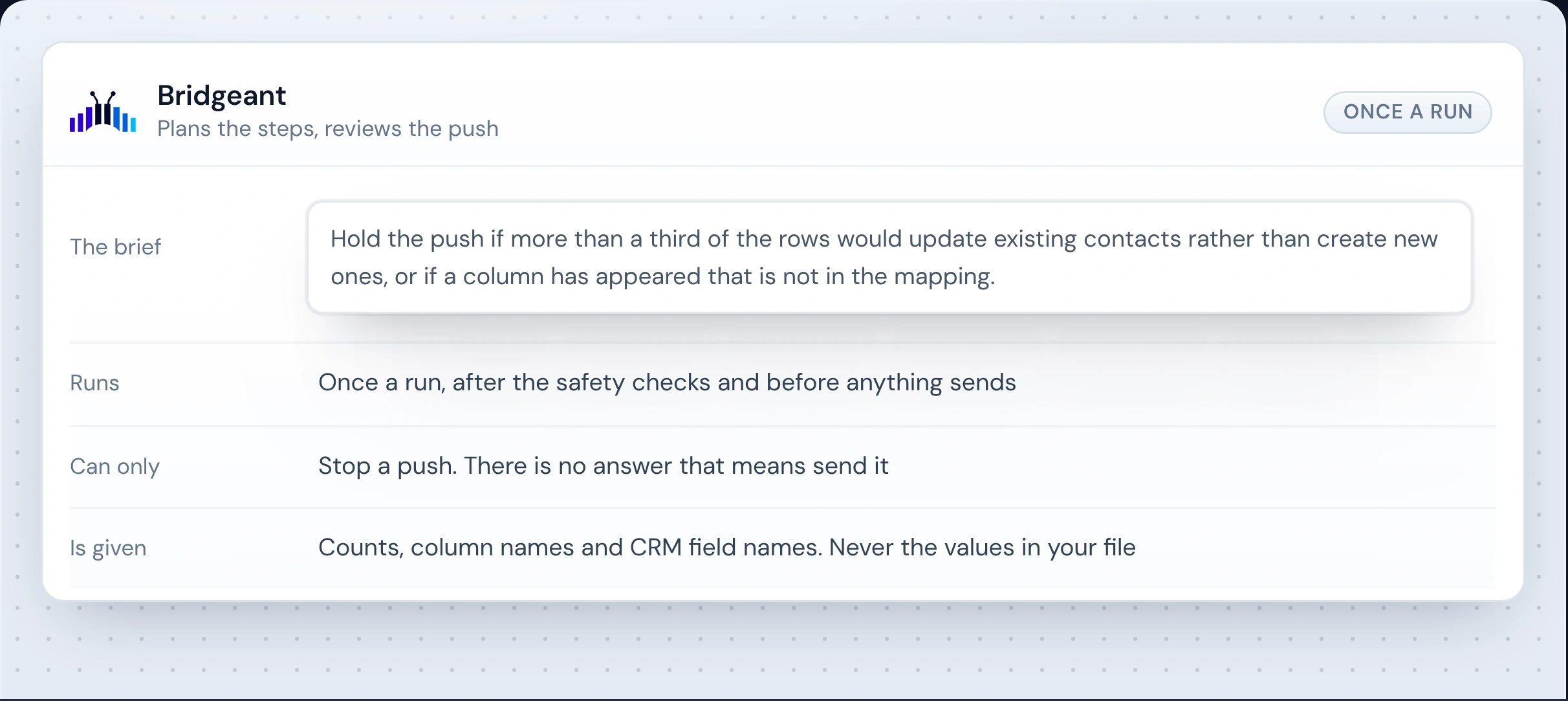
Bridgeant can review each push
Switch the review on for a trail and write what should stop a push, the way you would tell a colleague. Bridgeant reads it once a run, after the checks, and can only hold the push. It is given counts, column names, CRM field names and your instructions, never the values in your file. Each review uses one Bridgeant message.
Runs when a file or lead arrives, or on a schedule
A file landing in the folder starts it, and so does a single lead from a form or an email. Or set a time: every day, weekdays, weekly, or every 6, 8 or 12 hours.
Shortcuts that build the cleaning steps
Pick what you want done and the step is built for you: remove duplicates, drop Do Not Contact rows, remove personal email addresses, tidy country names, strip Ltd and Inc from company names.
Check every email and every company
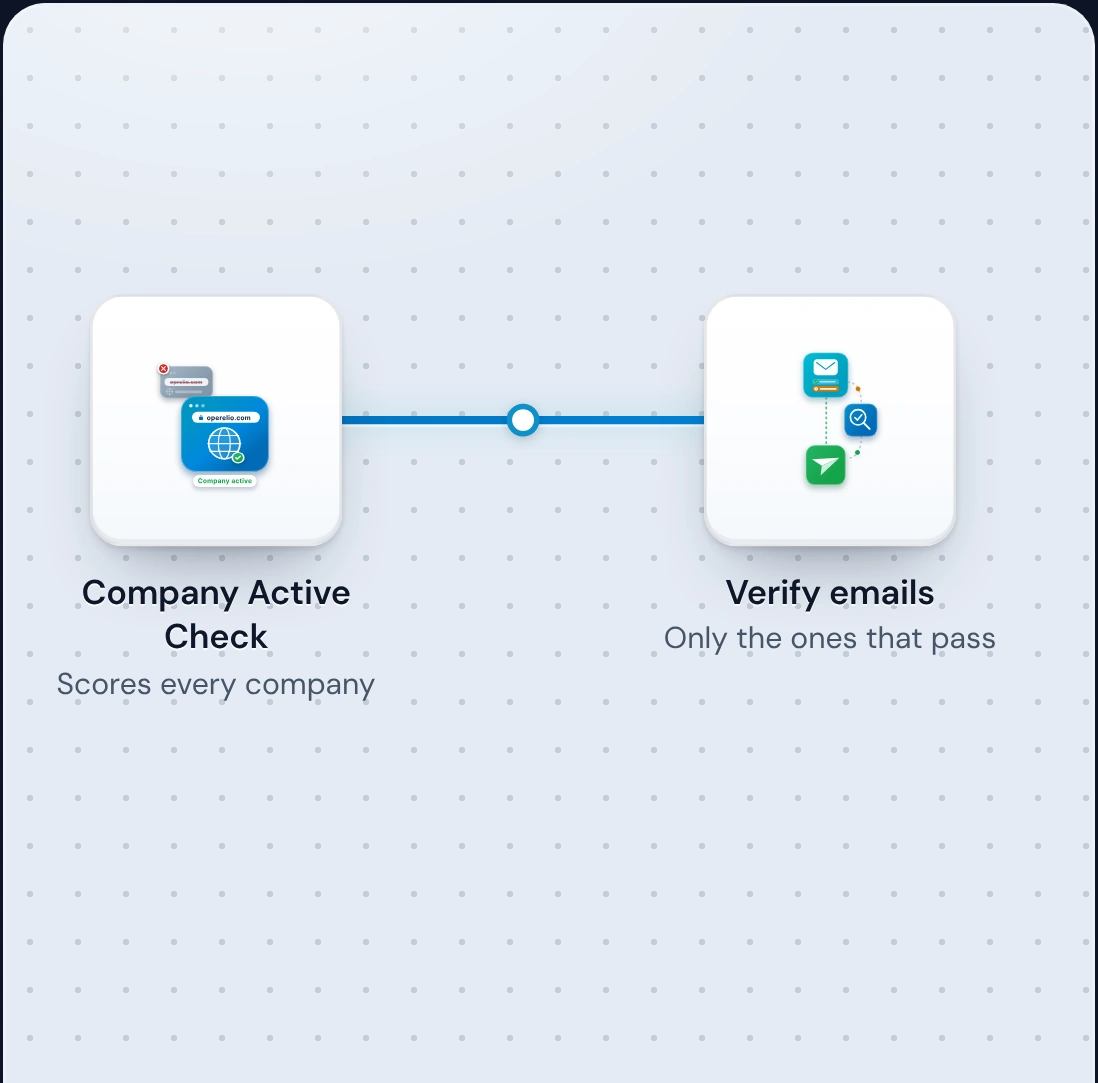
Bad email addresses and companies whose website has gone dark are caught before the push, and those rows stay in the file for you to see, not sent. Each person is also checked against the CRM: already in it, new at a company you have, or new.
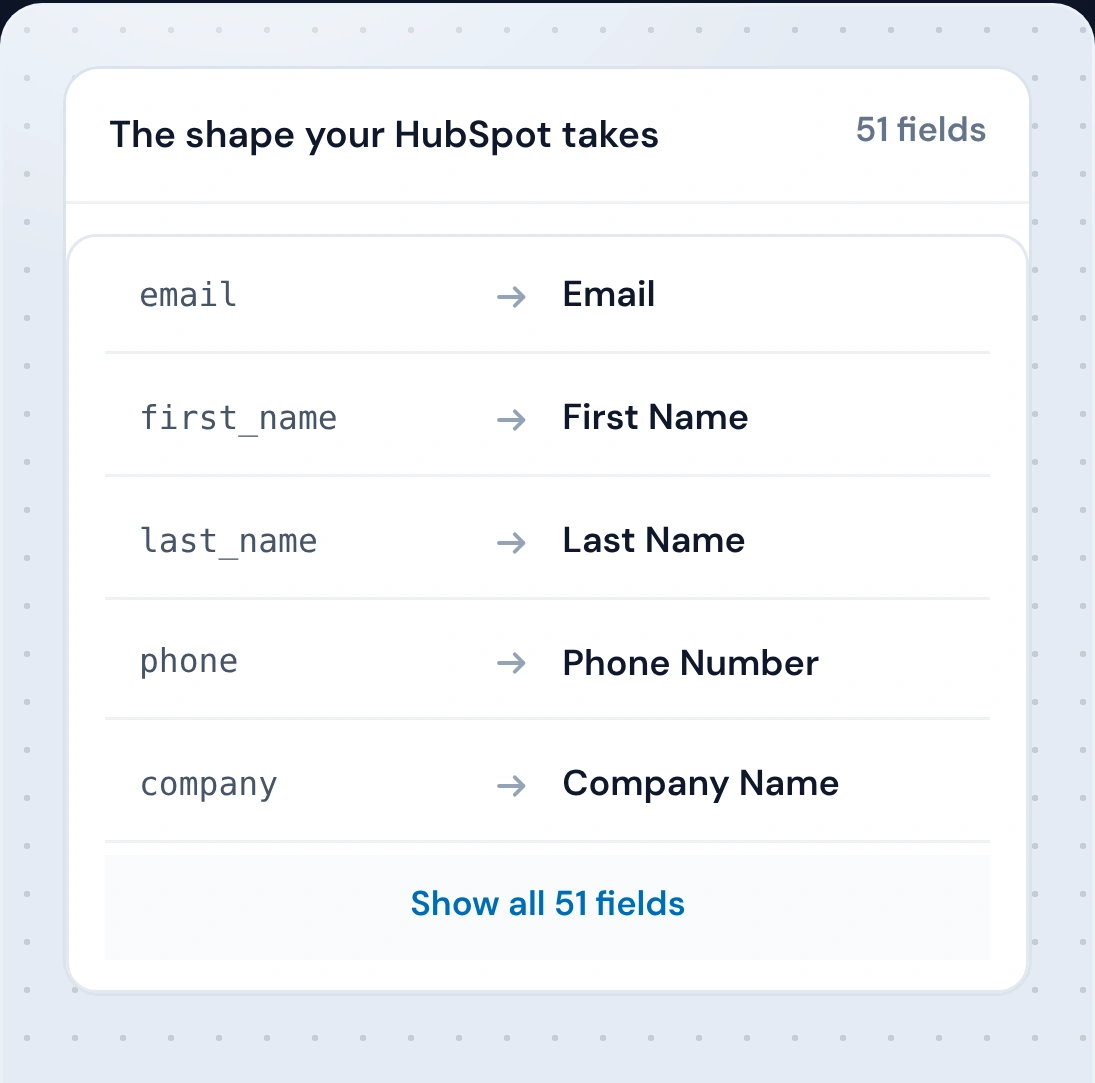
Matched to your CRM's own fields
The CRM Formatter reads the fields your HubSpot, Salesforce or Pipedrive actually has, custom ones included, and matches the columns on every run. When a new file names a column differently, like Mail address for Email, the trail finds it and says so on the run. After a real run, it remembers the name for the next file. People or companies: HubSpot contacts and companies, Salesforce contacts, leads and accounts and Pipedrive people and organizations.
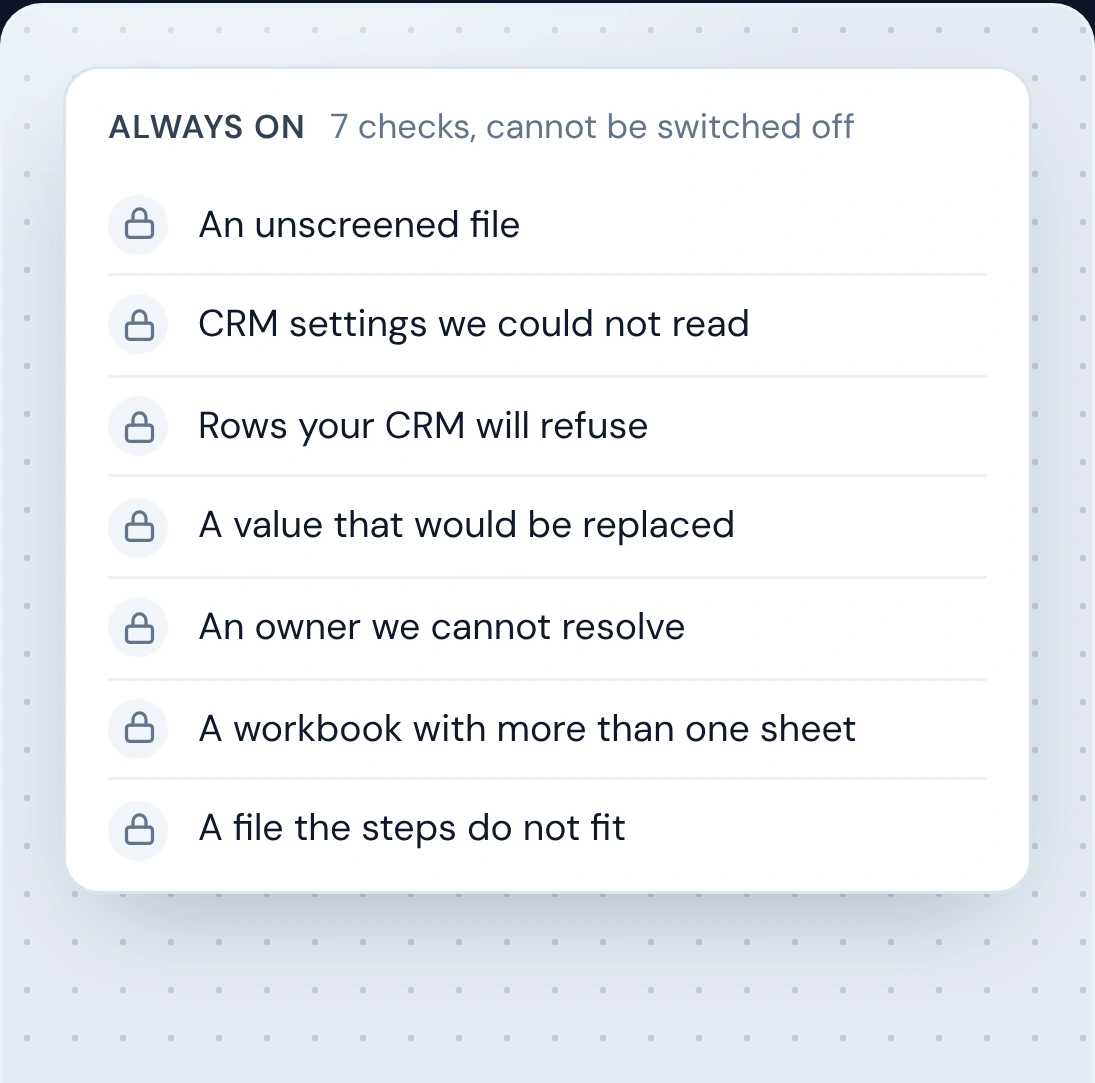
Nine checks that cannot be switched off
A Do Not Contact screen that could not run, rows your CRM will refuse, a value that would be overwritten, an owner that cannot be found. Each one holds the push. Two more thresholds are yours to set.
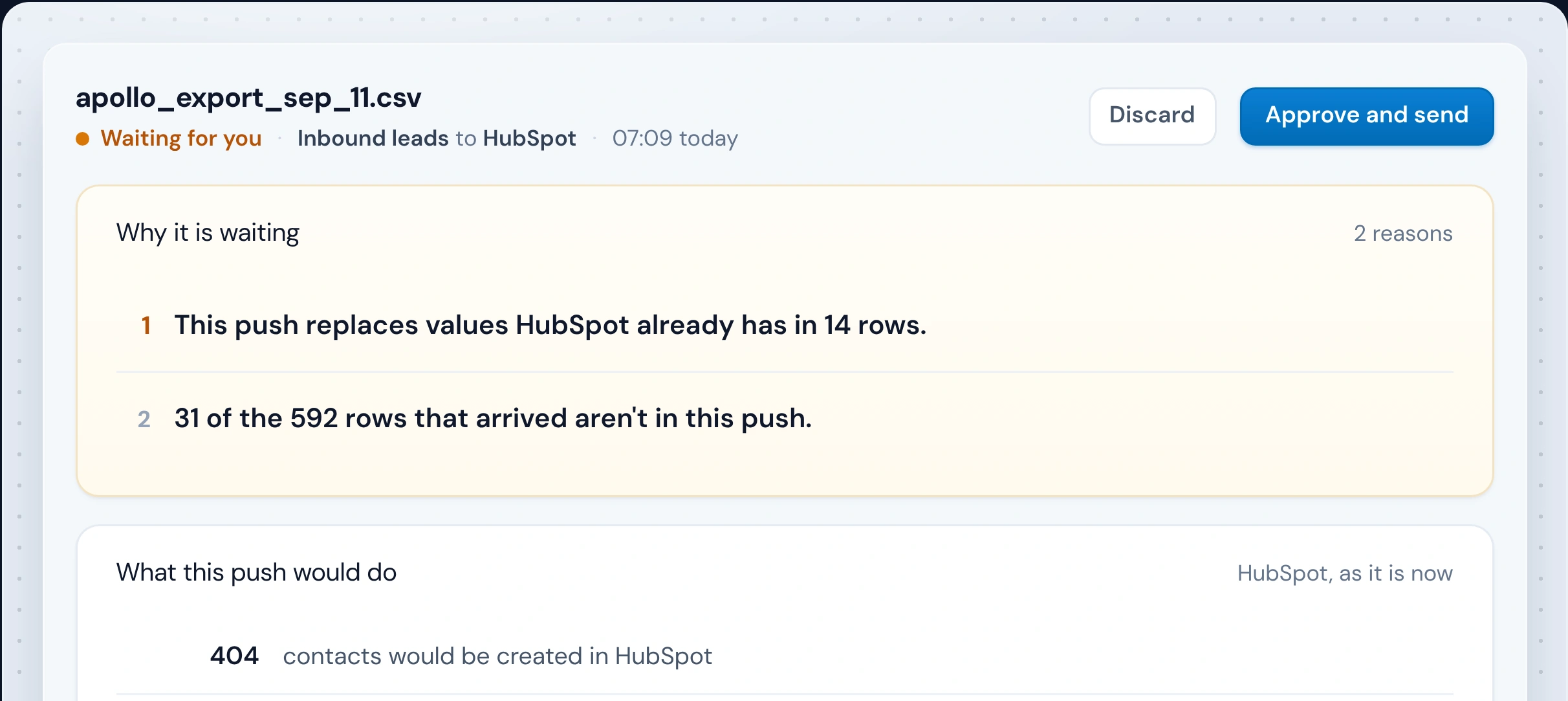
One click to approve, and a record of every run
When a run needs you, you get an email and a page that says why it is waiting. Approve it and the push is checked once more against your CRM as it is now. Every run and every version stays on the record.
Every lead goes where you choose.
Write rules on the push: each lead goes to the first one it matches, and Otherwise catches the rest. A rule tests a column, the score, the source or what your CRM already knows about the person, and sends the lead to a person, a team in turn, the company's owner or the review queue. Automated lead routing and round-robin lead assignment are part of the push, not another tool.
Push to HubSpotWhere leads go, who owns them, and whenRules are checked from the top. The first one that matches picks the owner. Drag a rule to change the order.
Each lead stops at the first rule it matches. This one, a form fill that scored 5, went to Tom Reid, whose turn it was.
A team in turn
A team in turn deals leads round the people you pick, one each unless you give someone a bigger share, and remembers whose turn is next between runs, so a quiet Monday doesn't hand the next lead back to the top of the list.
The company's owner
A new person at a company already in your CRM can go straight to that company's owner, whether they came in a file or one at a time. The company is matched on its website, then the email's domain, then its name. A company with no active owner falls through to the next rule.
The order is yours
Drag a rule, or use the arrow keys, to change the order. Otherwise always stays last.
When a lead needs a look, it waits.
A lead that can't go straight through waits on the Leads tab with its reason, under To review or Held. It might be a score 3 waiting for a yes or no, a trail in its first week, a form that stopped sending a name or email, a rep who isn't active in your CRM any more, a CRM that refused it, or a new source with columns to map. Each one says what to do, like pick another owner or send it with no owner, and goes on once it's fixed.
Every lead in one list: lead management.
Data automation for the lists that feed your CRM.
Data automation is running repeated data jobs, such as moving, cleaning and checking records, without someone doing each step by hand. Most data automation tools do the moving: when something happens in one app, they copy the record into another.
A trail automates one job: getting lead lists into your CRM. Each file that arrives runs the steps you chose, such as cleanup, email verification and routing each lead to an owner, before it reaches HubSpot, Salesforce or Pipedrive. The push waits for your OK unless you let clean runs send on their own.
For connecting other apps to each other, like sending a form reply to Slack or adding a row to a sheet, a general tool such as Zapier, Make or n8n fits better, though you build the steps and any checks yourself. We compared them in Zapier alternatives.
Build one for free. Run them on Starter and up.
Free gets one trail in the sandbox, with test runs on your own file. On a paid plan a run uses the jobs, verify credits and Bridgeant messages the plan already has. The main limits are how many trails you can build, how many can be switched on at once, and how many single leads a month come free before each 10, or part of 10, uses one job: 1,000 on Starter, 5,000 on Pro, 20,000 on Agency.
Agency ceilings and single leads are shared across your workspaces, your own included. You can set a limit for any client workspace.
Trails, answered.
What is a trail?
Does every file need the same columns as the first one?
What is data automation?
Which CRMs can a trail push to?
How do leads and files get into a trail?
Does anything reach my CRM without me?
How does it stop duplicates getting into the CRM?
Can I try it before I pay?
What does a run cost?
What happens when a run stops?
Does it work with a bought or scraped list?
What does Bridgeant see when it reviews a push?
What if the file is a workbook with several sheets?
What if my CRM changes while a run is waiting for me?
How is a trail different from a data automation tool like Zapier or Make?
What does lead management look like in Operelio?
Does a trail do automated lead routing?
What is the difference between lead routing and lead distribution?
Does it score leads?
What happens when the rep a lead should go to has left?
Can single leads go to Pipedrive?
How fast does a lead reach its owner?
How do I keep a burst of form fills from flooding the CRM?
Who can build or change a trail?
Simple to set up.
Safe to leave running.
Build the first trail in the sandbox, run a real file through it, and put it live when it does what you want.