
Trade show lead management: get show leads into your CRM
After the show, get the lead export from your scanner app, the organizer or the booth sheet, tidy it, and mark every row with the show's name. Then look up each email in your CRM, so existing people get their records updated and nobody ends up in it twice, import the file, and give every lead an owner that week. Every step works by hand in Excel and your CRM's importer. Operelio does the tidying, marking, matching and pushing, but doesn't scan badges or send the follow-up email.
By Operelio team · Updated October 13, 2026
On this page16
- 1.Trade show lead management after the show
- 2.What's in a lead retrieval export, and what each column breaks
- 3.Several lists from one show: combine them first
- 4.Clean the list before it touches your CRM
- 5.Mark every lead with the show
- 6.Rep notes and qualifier answers in each CRM
- 7.Trade show leads into HubSpot
- 8.Trade show leads into Salesforce
- 9.Trade show leads into Pipedrive
- 10.Doing it by hand: when that's fine
- 11.Visitors who are already in your CRM
- 12.Can you email trade show leads?
- 13.Trade show follow up: who, when and what
- 14.One show's list, from export to CRM
- 15.Taking that list through each step
- 16.Measure the show in your CRM
Trade show lead management after the show
This page is the half of trade show lead management that starts when the booth comes down: the file you bring home, and how it becomes CRM records that someone follows up. The file comes from your scanner or capture app, the organizer's lead retrieval service, or a sheet filled in by hand, and the work is the same for each.
Operelio does steps 2 to 6. The scanning happens in your capture app, and the follow-up in your CRM and your reps' inboxes. Before you go, decide the show's name and the CRM field that will hold it, test your mapping with a few made-up rows, and set up the folder the list will go to, so whoever downloads the export can send it straight there.
Get the export
Download it from the app or the organizer's portal, and check every rep who scanned is in it.
Tidy it
Combine the lists, fix the headers, and set aside rows you can't use.
Mark every row with the show
One name for the show, written the same way in every field that holds it.
Match it to your CRM by email
Find the visitors you already have before anything is imported.
Import or push it
New people become new records, and people you have are updated.
Give each lead an owner
Decide who follows up with whom, and start the same week.
What's in a lead retrieval export, and what each column breaks
A lead retrieval export is a CSV or Excel file with one row per scan. The columns differ by vendor but fall into the groups in the table below, taken from the help pages of Webex Events, Swapcard, Informa LeadInsights and run.events (read October 2026). Three things about the file itself trip up an import.
One visitor can be on several rows. Two reps scanning one person gives two rows in any export, and Informa's help says a lead who engaged several times appears once per activity, each line with a different activity type.
The file may be Excel, not CSV. Swapcard and run.events export Excel files, and Salesforce's Data Import Wizard takes CSV only.
Some of your team may be missing. Swapcard's export only holds leads from teammates who turned on contact sharing, so count the reps in the file. And the file may not come at once: Webex Events emails exhibitors a link to their CSV two business days after the event.
| Columns | What the exports carry | What it breaks |
|---|---|---|
| Name and company | First and last name, and usually job title and company. run.events makes company and job role optional. | Salesforce's campaign import needs Last Name and Company on every lead, so a booth row with no company stops there. Pipedrive needs a name on every person. |
| In each of these exports. | Blank on rows typed in by hand. Pipedrive still imports a person with no email, leaving nothing to match on next time, and Operelio's push leaves the row out and keeps it in the output file. | |
| Who scanned them | Webex Events: the first and last name and title of the person who scanned. Swapcard: the team member who owns the contact. Informa: scanned by. | It holds a name, not an email address, so it can't set the record's owner until it holds the rep's email. |
| Rating and answers | Webex Events: lead quality and lead status. Swapcard: a score and an interaction score. Informa: answers to your custom questions. | A value typed freely meets a CRM dropdown with fixed options. See the notes and qualifier answers section. |
| Notes | Swapcard: notes. Informa: the badge scan note. | Each CRM takes notes differently, also in that section. |
| Scan date and time | Webex Events: scan date and scan time. Swapcard: the connection date. | Keep them as the date of first contact. |
| Consent | Informa's custom export always includes a consent statement and a consent column. | Keep it for the email rules further down. |
Several lists from one show: combine them first
One show often gives you three files: the scanner export, the organizer's lead retrieval list, and the sheet someone kept at the booth. They overlap, and their headers don't agree.
Rename the headers to one set, stack the files, and remove duplicates on the email column. Where a visitor is on two rows, keep the one with the note and the rep who spoke to them. By hand, paste the lists into one sheet and use Remove Duplicates, as the remove duplicates in Excel how-to shows.
In Operelio, the free Merge files tool joins files into one, matching headers by exact name, so run Clean Headers first if the names differ. Or send each file to the show's folder: each one starts its own run, and the later file's repeats match the people the first push created, by email, and only fill their blanks. Combining first is cleaner, because the duplicates are gone before anything reaches your CRM.
Clean the list before it touches your CRM
Fix these in the file, before the import. A personal address typed at the booth can't match the work address your CRM has, so the import makes a second record. Look at these rows first.
Company names come typed several ways; the similarity matching how-to matches them to the accounts you have. Badge job titles are what visitors typed at registration, so keep them out of fields your team reports on, as the HubSpot import errors how-to explains.
Run an email check for addresses that can't receive mail, and take out anyone on your suppression list.
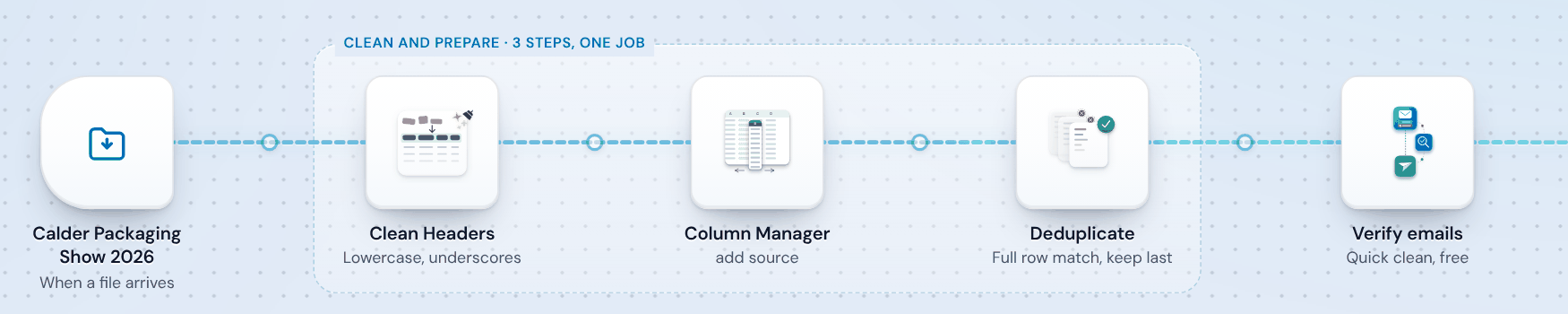
In Operelio, the show's folder and a trail on it do this for every file that arrives:
Set up the show's folder
Make a folder named for the show (from Starter). Each folder has its own email address: on its Settings tab, show the address and add your company's domain under Who can send, then forward the export to it. Its .csv, .xlsx and .xls attachments land as files, up to 10 from one email. You can also upload the file, add it from your Library, or send it through the API.

Make a trail from Event attendees
The template tidies the header row, writes the trail's name into a source column on every row, and drops rows that repeat in every column. It runs Quick clean, the free email checks that mark addresses that can't receive mail and flag disposable and role addresses, and holds the push until you approve it.
Add your Do Not Contact list
The template doesn't remove it, so add that step on the canvas. Switched on (from Starter), the trail runs on every file that lands in the folder, so a list that turns up a week late gets the same steps.
Mark every lead with the show
Next quarter someone will ask which show a deal came from. Your CRM can only answer if every record from the show carries the show's name, written the same way each time. Pick one pattern before the first import, such as the show and the year, and use it everywhere the show goes.
The field is yours to set up. HubSpot's Original Traffic Source can't hold it: HubSpot sets it, and its options can't be edited. In Salesforce it is a Lead Source value or a campaign, and in Pipedrive a custom person field, or Source channel if you import leads. The HubSpot, Salesforce and Pipedrive sections below say which field to use in each.
In Operelio, the trail writes its own name into the source column, so name the trail after the show. It maps to a lead source field on its own, or to any field you pick, custom fields included. On HubSpot and Salesforce, a dropdown with no option for the show makes the push count those rows as refused before you approve, so add the option first.
Rep notes and qualifier answers in each CRM
Booth notes and ratings are what a rep needs for the first message, and each CRM takes them its own way.
HubSpot: in HubSpot's own import, map the notes column to a text property you make with Create new property during the import. Operelio's push can instead attach the column as a note on each contact it creates.
Salesforce: map the notes to a text field on the lead, such as Description. Operelio's push attaches no notes to Salesforce records, so map the column to that field in its mapping too.
Pipedrive: in Operelio, map the column to Notes, and the push attaches it as a note on each person or organization it creates.
A record the push updates keeps the notes it has and gets no new one, so pass the notes for people you already had to their owner yourself.
Qualifier answers, such as budget, timeline or interest, each need a field made before the import: a custom property in HubSpot, a custom field in Salesforce or Pipedrive. If the field is a dropdown, the file's values must match its options, so a Rating of Hot needs a Hot option. On HubSpot and Salesforce, Operelio counts the rows your CRM would refuse before you approve, and a Find & Replace step on the canvas can turn H into Hot first.
Trade show leads into HubSpot
Import the file as contacts from HubSpot's import tool. Four choices in it decide whether you can find the show later. HubSpot's help, read October 2026, is the source for each.
Name the import after the show. Every new contact gets Record Source set to Import and Record Source Detail 1 set to the import's name. HubSpot points to Record Source over Original Traffic Source, which files imports under Offline sources together with integrations, the API and records made by hand.
Check Create a contact segment, and HubSpot makes a segment (list) of the contacts the import brought in. That segment is the show's list from then on. Map a column holding the show's name to a property of your own; Create new property makes one without leaving the import.
Decide marketing contact status. On Marketing Hub Starter and up, imported contacts are non-marketing by default. Set them as marketing only if you will email them from HubSpot, and only a single-file import can do it.
A row whose email is already a contact updates that contact, and only the properties you map are updated. If you ran the event yourself, create a marketing event and import who attended from Actions, Import event contacts, with Email, Attended, Registered and Cancelled headers. On Marketing Hub Professional and Enterprise, add the segment to the show's campaign as an asset.
With Operelio, a trail pushes the file to HubSpot contacts, matched on email, filling blanks only with the Event attendees template. A trail doesn't make a segment, so make one in HubSpot from your show property; the CRM Formatter's Create a list from this push option does, for one file pushed by hand. Our HubSpot import page goes through each import screen.
Trade show leads into Salesforce
To import leads into a campaign in Salesforce, make the campaign for the show first, then import the file from the campaign. Salesforce's help, read October 2026, gives the steps.
Set the campaign's member statuses for the show. For an event, Salesforce's help names Invited, Registered and Attended, and you choose the default status and which statuses count as responded. A member's status doesn't change when they reply: someone has to change it.
Save the file as a CSV first: the wizard takes CSV files only, and our Excel to CSV tool converts one. For the campaign import, the file needs Email, Company, Last Name, a Campaign Member: Campaign ID column and a Campaign Member: Status column, and First Name if you have it (Salesforce marks it optional). From the campaign, choose Manage Members, then Add Members - Import File. Select Leads and Add new and update existing records, set Match Lead by to Email, and select Assign leads to campaigns. A blank or unknown status takes the campaign's default.
Without a campaign, the wizard can set one Lead Source for every lead in the file on its first page, if your Lead Source list has a value for shows.
Two limits matter for a show list. The wizard doesn't merge duplicates inside the file, so take the second scans out first. And a lead import matches leads: a visitor who is already a contact isn't found. Where the standard lead duplicate rule checks contacts, as it does by default in orgs created since Summer '17, a row whose name and email match a contact is refused; without it, the row becomes a new lead beside that contact. Check the file's emails against your contacts before you import, the way the by-hand section below splits a list.
With Operelio, a trail pushes to leads or contacts, one record type per trail, matched on Email, and links a contact to its account by company name. It doesn't add campaign members, so add the pushed records to the show's campaign in Salesforce. Our Salesforce import page goes through each wizard screen, and the Salesforce import errors how-to covers what it turns down.
Trade show leads into Pipedrive
Start the import from the account menu: Tools and apps, Import data, Import from spreadsheet. A person needs a name, or a first and last name, to be imported, and Pipedrive suggests adding an email to reduce duplicates. When it finds duplicates, you can merge them instead of creating new records. Source: Pipedrive's help, read October 2026.
Pipedrive's Source origin and Source channel fields belong to leads and deals, not people. Source channel is a list your admin defines, so if you import the show as leads, ask for a value per show. If you import people, keep the show in a custom person field. Pipedrive says lead labels can't be imported, so label imported leads afterwards: select them in the Leads Inbox and bulk edit the label.
With Operelio, a trail pushes to Pipedrive people, never leads, matched on email, and links each to its organization by company name. Map the source column to your custom person field for the show, and a column mapped to Notes becomes a note on each person or organization the push creates. Our Pipedrive import page goes through the import screens.
Doing it by hand: when that's fine
Every step on this page works with Excel and your CRM's own importer, and for one show a year that is often the right call.
Combine the lists into one sheet and use Remove Duplicates on the email column. Export your CRM's contacts, then use XLOOKUP to look up each show email in that export: a match is someone you already have, and a blank is a new person. That splits the list into new and existing, which the next section needs, and the VLOOKUP in Excel how-to covers XLOOKUP too. Then import with the CRM's own importer, as in the three sections above.
By hand is fine with one show, one list and one person doing it. It gets slow with several shows a season, several lists per show, or lists that arrive days apart, because the same steps repeat each time. That repeat is the job a trail on the show's folder takes over.
Visitors who are already in your CRM
Some of the people your team scanned are already yours: customers, people on an open deal, contacts another rep owns. All three CRMs can find an existing record during an import and update it, so these people are easy to miss: they arrive as updates, not new records.
Don't let badge data replace what your team knows: fill only empty fields, or leave those columns unmapped. And before anyone emails the list, take out the visitors who matched, using the XLOOKUP split from the section above, and tell each account owner which of their customers came by.
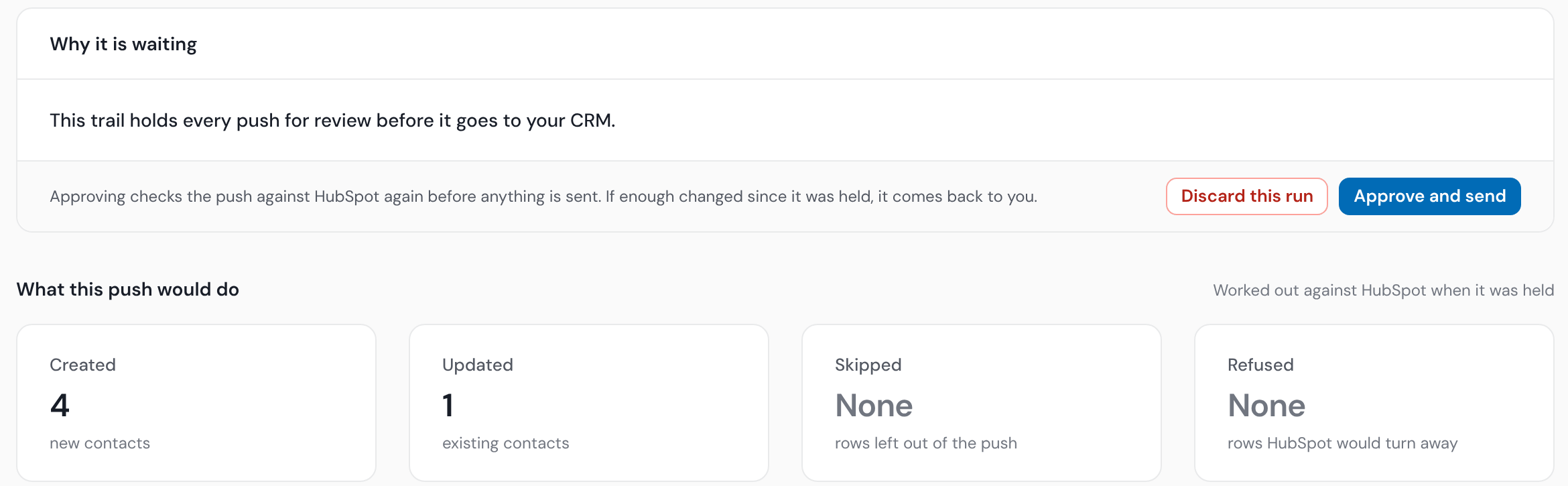
In Operelio, the Event attendees template fills blanks only, so a matched record keeps its owner and its values. Before you approve the push, the run's page shows What this push would do: how many records it would create and how many it would update, worked out against your CRM when the run was held.
Can you email trade show leads?
Often, depending on where they are and which address they gave you. A summary of the regulators' own pages, read October 2026, not legal advice.
UK: PECR's rule on marketing email doesn't apply to corporate subscribers, so it doesn't stop you emailing a work address at a company, as long as you say who you are and give an address to opt out. It does apply to sole traders and some partnerships, and to anyone who gave a personal address instead of a work one: emailing them marketing without consent breaches PECR. Once their details are in your database the UK GDPR applies. The ICO says legitimate interests is often the right basis, after its three-part test, and the right to object to direct marketing is absolute.
EU: the GDPR's Recital 47 says direct marketing may be a legitimate interest, and Article 21(3) says that once someone objects, their data can no longer be used for it.
US: CAN-SPAM makes no exception for business-to-business email, and an opt-out must be honored within 10 business days.
So keep the export's consent column, mark the personal addresses and sole traders when you clean the file, and check the list against your opt-out list before the import. Our suppression lists page covers the rules for that list.
Trade show follow up: who, when and what
Every lead needs one owner before anyone sends anything: one rep for the whole show, the leads shared out in turn, or each visitor to the rep who scanned them. Then put the work in the CRM as tasks or a sequence, so it lands in each rep's queue.
The first message names the show, picks up the conversation from the notes column, and offers one next step, such as a call or a quote. A visitor with no notes gets a shorter one.
How soon: we found no study of show lead response times that traces back to its data. The one most quoted is about web leads: in HBR in 2011, researchers looked at 1.25 million sales leads at 29 consumer and 13 business companies in the US, and firms that tried to contact a lead within an hour were nearly seven times as likely to qualify it as those that waited even an hour longer. One of its authors ran InsideSales.com. Aim for the same week, while they still remember the booth.
In Operelio, the push sets the owner: one person, shared out between people in turn, a column in the file, or nobody. A column works only if it holds each rep's email address, and Scanned by usually holds names, so add a column with the reps' emails.
One show's list, from export to CRM
Say your team comes back from the Calder Packaging Show, the show in the screenshots above, two days and two reps, with this export. Your CRM already has Rob Ellery, and Dana Hirst at dana.hirst@westmarchltd.com.
| First Name | Last Name | Company | Scanned by | Rating | Notes | |
|---|---|---|---|---|---|---|
| Tom | Ashby | tom.ashby@fernwayhq.co | Fernway | Jo Marsh | Warm | Uses two suppliers now |
| Lena | Brook | lena.brook@oldburysolar.co.uk | Oldbury Solar | Jo Marsh | Warm | Asked about lead times |
| Lena | Brook | lena.brook@oldburysolar.co.uk | Oldbury Solar | Ken Lyle | Warm | Came back with a colleague |
| Rob | Ellery | rob.ellery@westmarchltd.com | Westmarch Ltd | Ken Lyle | Cold | Asked about the new range |
| Dana | Hirst | dana.hirst@gmail.com | WESTMARCH | Ken Lyle | Warm | Wants a call next week |
| Chris | Odell | Fernway | Jo Marsh | Warm | No badge, details typed in | |
| Owen | Pask | owen.pask@gmail.com | Owen Pask | Ken Lyle | Cold | Self-employed |
| Nadia | Kerr | nadia.kerr@fernwayhq.co | Fernway | Jo Marsh | Hot | Wants pricing for Q1 |
Taking that list through each step
Eight rows, seven people. Here is what happens to each.
Lena is on two rows
Jo and Ken both scanned her, so a check for repeated rows keeps both. Keep one row with both notes and give her to one rep. Operelio's push sends her email once.
Chris has no email
No CRM can match him to anyone. Pipedrive would still import him, with nothing to match on next time, and Operelio's push leaves him out and keeps the row in its output file. Take his row out until Jo has his address.
Dana gave a personal address
Her Gmail address doesn't match the Westmarch one your CRM has, so the import would make a second Dana, and WESTMARCH is the Westmarch Ltd account you have. Take her row out of the file and update her existing record by hand. In the UK, her personal address also means marketing email needs her consent.
Owen is a sole trader
In the UK, the email rules treat him as an individual, so he stays out of marketing email unless he agreed to it.
Mark the show
Every row carries Calder Packaging Show 2026: the import's name and show property in HubSpot, the campaign and Lead Source in Salesforce, a custom person field in Pipedrive, or the trail's name in Operelio.
Notes and ratings
Each note goes on the new record, Hot and Warm need options in your Rating field, and Rob's note goes to his owner by hand, since an update adds no note.
Rob is already in your CRM
His row updates his record. Filling blanks only, what your team already has on him stays, and his account owner hears he came by before anyone emails him.
Import or push
With Chris's and Dana's rows out of the file, Tom, Lena, Nadia and Owen are created and Rob is updated: four and one, as on the held push above. In Salesforce, first check none is already a contact.
Owners
Scanned by holds names, so add a column with Jo's and Ken's email addresses and set the owner from it.
Follow up
Nadia is hot: a task for Jo that week. Jo's first message names the show and the Q1 pricing Nadia asked about, and offers a call to go through it.
Measure the show in your CRM
Measure from the show's field in your CRM, not from the number of badges scanned. A scan count says how busy the booth was; the field says what the show did for sales.
Two numbers per show say most of it. The first is new against updated records. A show where most of the list was already in your CRM met your customers more than new people, which is worth knowing before you book the same booth next year. Operelio's run page gives both counts for every push, and by hand the XLOOKUP split gives them before the import.
The second is the leads from the show that reached a meeting or a deal, counted from the same field a month and a quarter after the show. Compare shows with each other on those two numbers.
Related
- How similarity matching finds duplicate contacts
- Why your HubSpot import is failing
- Trails: automated lead flow into your CRM
- HubSpot import templates and a CSV template
- Salesforce Lead and Contact import templates
- Pipedrive import templates
- Merge CSV and Excel files into one spreadsheet
- Do Not Contact lists
Ready to get started?
Upload a file and run your first transformation. Free, no credit card required.