
CRM data cleanup and hygiene: a checklist and best practices
CRM data cleanup is the one-off job of fixing the records already in your CRM: duplicates, dead email addresses and fields written several ways. Data hygiene is the routine that keeps them fixed afterward, because CRM records go stale on their own.
By Operelio team · Updated October 22, 2026
On this page11
- 1.What is data hygiene?
- 2.Data hygiene vs data quality
- 3.Why CRM data decays
- 4.Signs your CRM needs a cleanup
- 5.CRM data hygiene checklist
- 6.What to check before you start
- 7.How to clean up CRM data, step by step
- 8.Who owns CRM data cleanup, and how often to do it
- 9.Data hygiene in HubSpot
- 10.Data hygiene in Salesforce
- 11.Frequently asked questions
What is data hygiene?
In a CRM, data hygiene covers the records themselves: one record per person and company, email addresses that still work, the fields your process depends on filled in, values written the same way down each column, an owner who still works at the company, and records that still describe someone you can reach.
It is not data security. Who can see records, permissions and backups matter, but they are a different job with a different owner.
Data hygiene vs data quality
Data quality describes the records: how accurate, complete, consistent and current they are when you look. Data hygiene is the work that raises those numbers and stops them slipping back, which is what the rest of this page covers.
To put numbers on it first, see how to measure CRM data quality.
Why CRM data decays
Data decay is the share of records that go out of date without anyone touching them. People change jobs, so their email stops working and their title and company are wrong. Companies rename, merge and close. Phone numbers change with the person.
People move fastest. 20.6% of US wage and salary workers had been with their employer a year or less in January 2026 (US Bureau of Labor Statistics). Leaving out people new to work, our research estimates that job changes alone put just under a fifth of B2B contacts out of date each year.
Decay adds to what new data brings in. Imports, web forms and manual entry keep adding duplicates and inconsistent values, so a CRM cleaned once drifts back within months.
Signs your CRM needs a cleanup
A full cleanup is worth the effort when one of these is true. If none of them are, a smaller fix is a better use of the afternoon.
| Sign | What it usually means |
|---|---|
| Your reports disagree with each other | The same value is spelled several ways, so every grouping splits |
| Sends are bouncing more than they used to | Addresses have gone stale and nobody has checked them in a while |
| Reps say the same person is in there twice | Duplicates arrived with an import and were never merged |
| Territory or owner routing keeps misfiring | The field it routes on is inconsistent or empty |
| You are about to migrate, merge, or connect a new tool | Whatever is wrong now gets copied into the new system |
CRM data hygiene checklist
Run these checks on an export of your CRM. The steps below take them in order, starting with which records to keep.
| Check | What to look for | Where to fix it |
|---|---|---|
| Stale records | No activity or update in twelve months, hard bounces, unsubscribes | Decide to keep, archive or delete them before anything else |
| Duplicates | The same email twice, then the same name plus company under different emails | Deduplicate the export to find the pairs, then merge each pair in your CRM: How to find, merge and prevent duplicate contacts in HubSpot |
| Missing required fields | Blanks in the fields something depends on, like country if you route by territory | Data Health Check finds them; fill them at the source |
| Formats | One country, state or date written several ways in one column | Data Health Check fixes |
| Invalid emails | Malformed addresses, disposable domains, mailboxes that no longer accept mail | Email Verifier & Finder |
| Do Not Contact list | Unsubscribed or suppressed people back on a new list | Screen each file against your email suppression list |
| Owners | Records owned by people who have left | Reassign in your CRM |
| Missing links and stages | Contacts with no company, companies with no contacts, records with no owner or lifecycle stage | Filter for them in your CRM and fix them there |
What to check before you start
These decide how the records go back, so they are worth knowing before you export.
| Thing to check | Where it stands |
|---|---|
| People are matched on email, companies on website or name | A person with no email address cannot be updated this way. Filter those out first and handle them as a separate pass. |
| How much goes through at once | A job takes up to 2,000 rows on Free, 50,000 on Starter, 75,000 on Pro, and 150,000 on Agency. |
| How much goes back at once | A push to Salesforce, or of contacts to HubSpot, takes the whole job, up to your plan's row limit. A Pipedrive push, or companies to HubSpot, takes up to 50,000 rows, so Split File will cut a bigger file into pieces you push one at a time. Pipedrive also limits API calls a day by plan and seats; a push of contacts that uses up the day's allowance pauses and finishes after Pipedrive resets it. |
| What happens to good data | Only fill blank fields leaves existing values alone. Overwrite with my data replaces them (on Salesforce a blank cell clears the field), which is what you want when the export is the corrected version. |
| Custom fields | Only fields on the destination record can be written to. A connected CRM's custom fields are listed too. To write to a field that doesn't exist yet, create it in the CRM first. |
How to clean up CRM data, step by step
A CRM is built to work one record at a time, which is the wrong shape for fixing forty thousand records at once. A spreadsheet is good at the opposite: doing the same thing to every row. So export, clean the file, and push it back over the originals. The steps are the same on HubSpot, Salesforce and Pipedrive, and the order matters, because each one makes the next cheaper.
The pictures are real runs in Operelio on one sample export of 5,875 contacts; the names and companies are made up.
Export everything you will touch, and keep it as your undo
Use your CRM's own export. Take the fields you plan to fix, plus the email address for people or the website for companies, because that is what the records are matched on when they go back. Keep that original export untouched somewhere safe. It is your undo. On a paid HubSpot hub there is a second one: a Super Admin can roll the push back within 14 days with HubSpot's restore tool, because Operelio sends it as a HubSpot import.
Decide what to keep, archive and delete
Before you fix anything, set aside the records that shouldn't be there, or you spend the afternoon cleaning them. Filter the export for records with no activity or update in twelve months, hard bounces and unsubscribes, and look at them as a group: where they came from, who owns them, whether any is on an open deal. Delete what nobody needs. Archive what you have to keep: in a file outside the CRM, or in HubSpot as non-marketing contacts, which stop counting toward your bill from the next update date. Then clean only what is left.
Deduplicate on email, then on name plus company
Duplicates go first because every later fix costs double while they are there: you correct the same person twice, and the two copies drift apart again. Match on email first, which catches the same person imported twice. Then match on first name, last name and company, which catches the same person under two addresses, often an old work email and a new one. Look at that second group before you remove anything, since two people at one company can share a name. Taking a row out of the file doesn't take the record out of your CRM. Use the pairs as your list and merge each one there, keeping the record that holds the deals and history; the checklist above links the HubSpot steps.
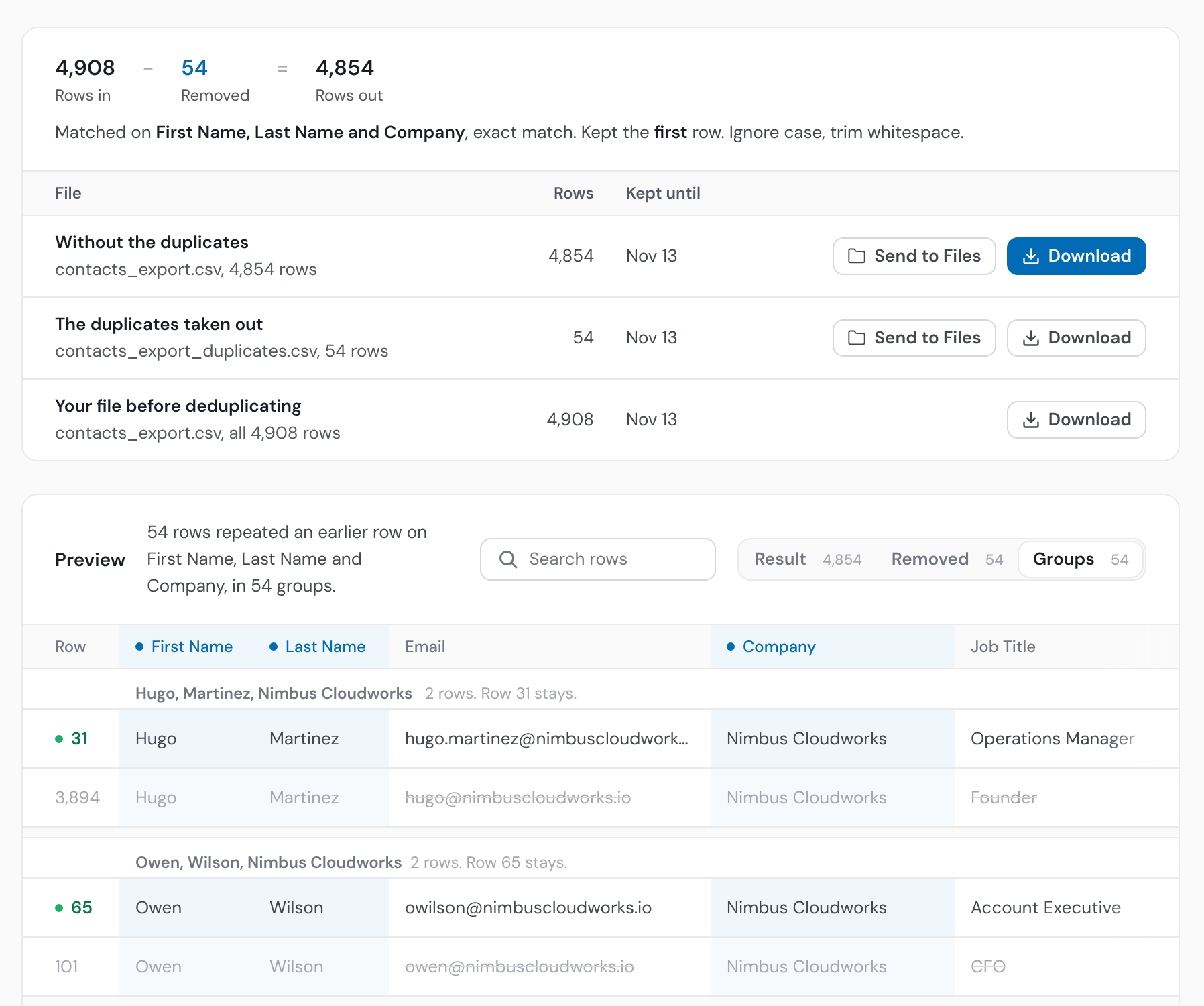
Fix the fields something depends on, then the spelling variants
Start with fields that drive something: the country your territories route on, the lifecycle stage your reports count, the phone number your dialer calls. A malformed value there breaks whatever uses it. Then collapse the spelling variants in the columns you group and report by, so US, USA and United States stop splitting every report three ways. That is usually the cheapest big win. Fill gaps last, and only in fields you use.
Verify the email addresses
Run what is left through an email verifier. It flags malformed addresses, disposable domains and mailboxes that no longer accept mail, and that last group is mostly people who have left. Send those records back to step 2: update the person if you know where they went, or archive them.
Screen against your Do Not Contact list
Check the file against everyone who has unsubscribed or asked not to be contacted, including people on lists kept outside the CRM, before anything goes back. A cleanup that brings a suppressed person back as a fresh contact undoes the reason you kept the list. The CRM Formatter removes people on your Do Not Contact list from the file unless you choose to include them.
Push it back over the originals, after a slice
Push the cleaned file to HubSpot, Salesforce or Pipedrive with update existing turned on. People are matched by email, companies by website or name. Choose Only fill blank fields to leave the values in your CRM alone, or Overwrite with my data when the file is the corrected version. Before anything is sent, the CRM Formatter's Review lists each clean-up rule with the number of values it changes, shows every changed value over what it was, and counts the rows its rules remove; people on your Do Not Contact list come out during the run, and the job page lists them in their own file, Do Not Contact rows. Push a small file of a few hundred records first (Split File cuts one off) and look at them in your CRM, then send the rest. Afterward, count what arrived against the Review's rows less the Do Not Contact rows, not the original export.
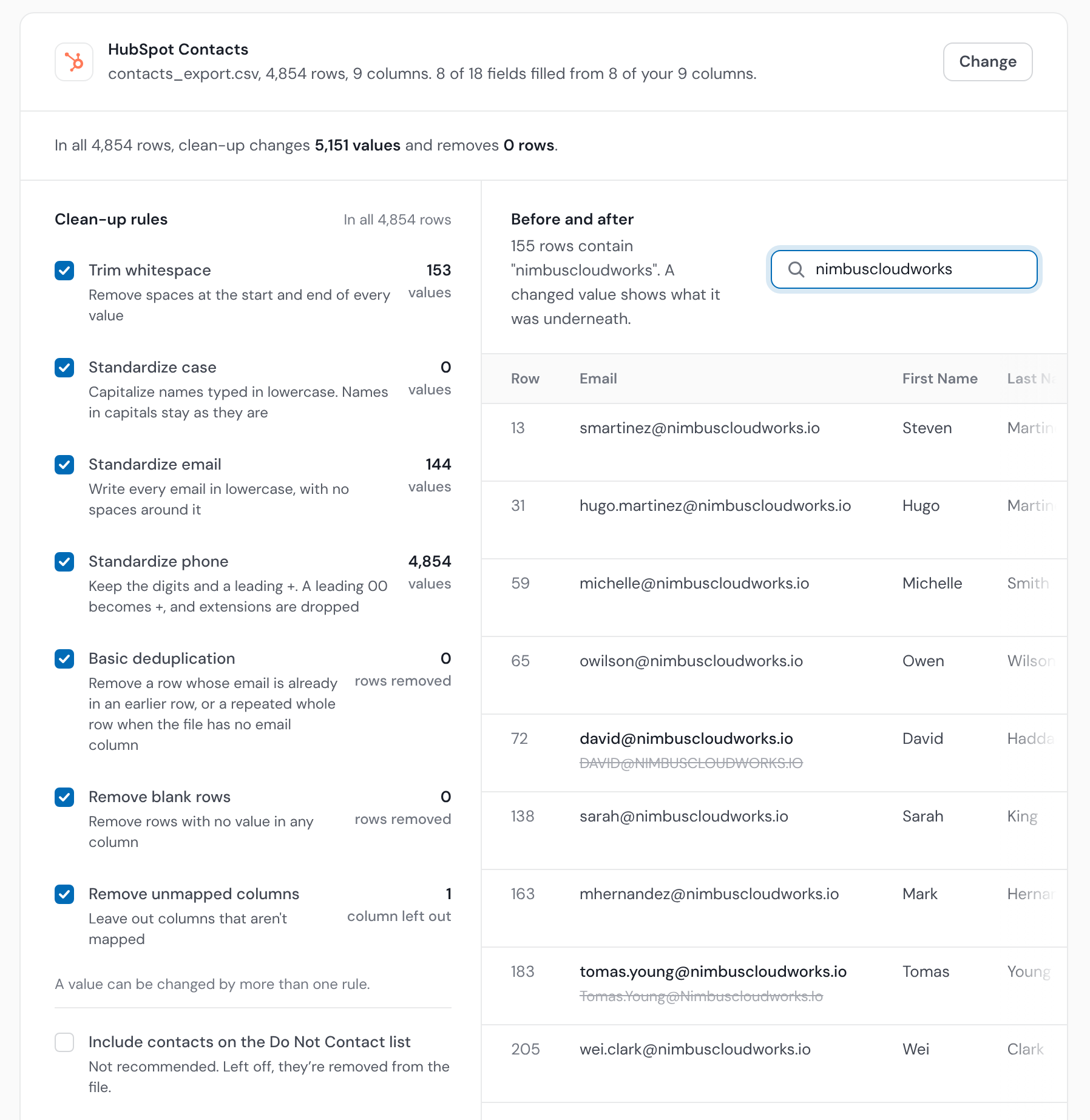
Put the next check on the calendar
A cleanup lasts months, because the sources that made the mess are still running. Book the next review before you close this one, and name who does it. The next section covers the owner and how often.
Who owns CRM data cleanup, and how often to do it
Give it one owner. That person doesn't fix every record, but they set the rules (which fields are required, how values are written, what counts as a duplicate), run the reviews, and turn back imports that break them. When everyone owns the data, the duplicates come back with the next list.
Clean every import before it lands, since much of the damage arrives with lists: trade show scans, prospecting exports, a spreadsheet from a rep. When to clean in the file and when in the CRM is in cleaning data before vs after a CRM import.
Duplicates come in with imports, forms and integrations, from a list with someone under a second address or an import that isn't matched on email. If the pairs from step 3 share a source, fix that source too, or they come back with the next file.
Save the mapping and the workflow from this cleanup, so the next file is one run, and screen every file against your Do Not Contact list, not only the first. For files that arrive every week, a trail with the Remove suppressed contacts step does this for you: it watches a folder, cleans each file that lands there and pushes it into HubSpot, Salesforce or Pipedrive.
Review what is already in the CRM once a quarter: the checklist above, on a fresh export. Between reviews, keep a saved view or report in your CRM for the checklist's counts, such as contacts with no company or no owner, so a jump shows the week it happens.
Let your own numbers say when quarterly isn't enough. Run Data Health Check on each review's export and note the score. If it has fallen since the last review, records are going bad faster than you fix them: check more often, and look at what came in since, because the cause is usually one source.
If nobody in-house can own it, a cleanup service or a cleaning tool can take the work; how they compare is in best CRM data cleaning tools.
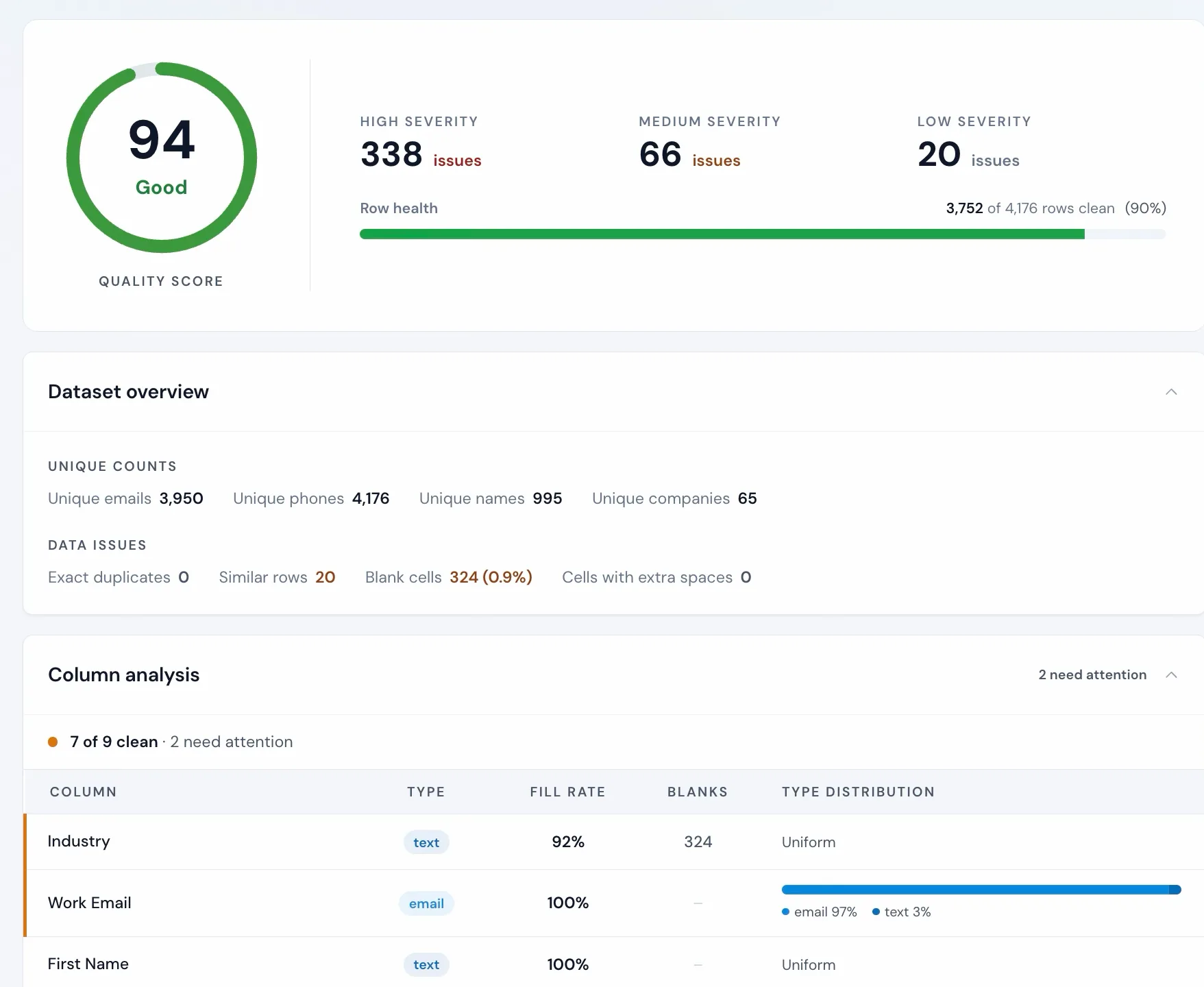
Data hygiene in HubSpot
HubSpot deduplicates as records come in: contacts by email address and companies by domain, on imports and form submissions. An import row whose email matches an existing contact updates that contact instead of creating a new one. An import with no email or Record ID column creates a new contact for every row, as HubSpot's Deduplicate records in HubSpot article says. Two things slip through: the same person under two email addresses, and companies created through the API, which are not deduplicated by domain.
For records already there, HubSpot's Data Quality page (Data Management, Data Quality) shows duplicates and formatting issues, on Starter and above of most hubs. Reviewing and merging duplicate pairs one at a time needs a Professional or Enterprise subscription, and merging them in bulk needs Data Hub Professional or Enterprise. A merge cannot be undone, so decide which record is primary before you click. How to find, merge and prevent duplicate contacts in HubSpot covers it step by step.
Some contacts cost money as well as accuracy. HubSpot's Understand marketing contacts article says only marketing contacts count toward the contact tier you pay for, on Marketing Hub accounts that have marketing contacts (every account created after September 2022); contacts set as non-marketing don't count, and you aren't billed for them. Contacts who hard bounced, unsubscribed or marked an email as spam are already dropped from future marketing emails, so keeping them as marketing contacts pays for people you can't email.
The quickest route is Account & Billing, Marketing Contacts, Clean up contacts, which lists unsubscribed and bounced contacts by default and sets the ones you pick as non-marketing. To delete them instead, or to find them yourself, use active segments. For bounces, the Email tools menu in the marketing email tool creates an active segment of hard-bounced contacts, and HubSpot's Delete contacts who no longer receive your marketing emails article walks through deleting them from it. For unengaged contacts, filter on engagement dates. HubSpot's own example is Last marketing email open date is unknown and Marketing emails delivered is greater than a number you pick; Last email clicked, Last reply and Last activity date work the same way.
Give the unengaged one re-engagement email, then set the rest as non-marketing, from the Usage & Limits page or the contacts list. The change takes effect on the next update date, and fewer marketing contacts don't move you to a lower tier until your subscription renews.
Then stop the next mess at entry. On Starter and above you can make properties, and the link to a company, required on the form your team uses to create records by hand, as Customize the create form for each object explains. Forms can make a field required too, and a dropdown select property makes people pick a value rather than type one, so a country is written one way.
Data hygiene in Salesforce
Salesforce's Duplicate Management, included in Essentials, Professional, Enterprise, Performance, Unlimited and Developer editions, works in two parts. Matching rules say what counts as a duplicate for accounts, contacts and leads. Duplicate rules say what happens when someone creates one: show an alert, or block the save. What they do to imports and pushes from other tools is in Salesforce duplicate rules.
Validation rules do the same job for formats and required fields: a record that breaks the rule cannot be saved. Both act when a record is created or edited, so they keep new mess out but leave the records already in your org as they are. Those are what the steps above are for.

Map a cleaned export back onto your CRM fields and push it, with a preview of what will change before it writes.
Related
- How to fix Salesforce import errors
- Combining Apollo, ZoomInfo, Cognism and Lusha exports
- How to find, merge and prevent duplicate contacts in HubSpot
- CRM data quality: how to measure and improve it
- Clean data before or after a CRM import
- CRM data cleansing for HubSpot, Salesforce and Pipedrive
- Trails: automated lead flow into your CRM
- Remove duplicate rows from a CSV or Excel file
- Data Health Check
- Do Not Contact lists
- The cost of CRM data work (research)
- CRM Formatter: map, clean, and push
- Free email checker and list verifier
- Operelio vs Insycle: clean before or after import
- Operelio vs Dedupely: dedupe the file or the CRM
- Best CRM data cleaning tools, compared
- The CRM import problem
- The hidden gap in migrating your CRM data
- Cleaning data: what it means, and who ends up doing it
Frequently asked questions
Why is data hygiene important?
Because a CRM goes out of date on its own. People change jobs and emails stop working, and every import adds more duplicates. Without a routine, bounces rise, reports split one value into several, and reps call people who left a year ago.
What is not part of data hygiene?
Security. Permissions, access and backups protect data; hygiene keeps the records themselves correct. Both matter, and they usually have different owners.
What is data decay?
Records going out of date without anyone editing them: people change jobs, companies rename or close, emails stop working. Job changes alone put just under a fifth of B2B contacts out of date each year, by our research's estimate.
Will this overwrite data I want to keep?
Only if you choose that. Only fill blank fields updates fields that are currently empty and leaves everything else alone. Overwrite with my data replaces existing values, which is the point when your export is the corrected version; on Salesforce a blank cell clears the field. The push card shows how many records will be created, updated or not sent before anything is written.
Can I do this with a CRM you do not push to?
Partly. Operelio formats files for eight CRMs but pushes directly to three: HubSpot, Salesforce, and Pipedrive. For the other five you download the cleaned file and import it with the CRM's own import tool, which is the same steps with a manual last one.
How is this different from a CRM cleanup service?
A service does the thinking as well as the work: diagnosing why the data went wrong, deciding the rules, and building the process afterward. The steps here are the mechanical part, which is most of the hours. If you know what needs fixing, doing it yourself is quick. If you do not, the diagnosis is worth paying for.
Ready to get started?
Upload a file and run your first transformation. Free, no credit card required.