
Updated November 1, 2026
All three split modes, free
Split one spreadsheet into many files
Break a large spreadsheet into smaller files by column values, row count, or column groups. Get a ZIP with one file per rep, per region, or per destination, or one Excel workbook with a tab per group.
No credit card required. Free for up to 2,000 rows.
What it does
Break one file into many
Column values
Pick a column like Region, Owner, or Status. Operelio groups the rows and creates one file per unique value. Each file gets only its matching rows, and every file keeps all your columns.
Row count
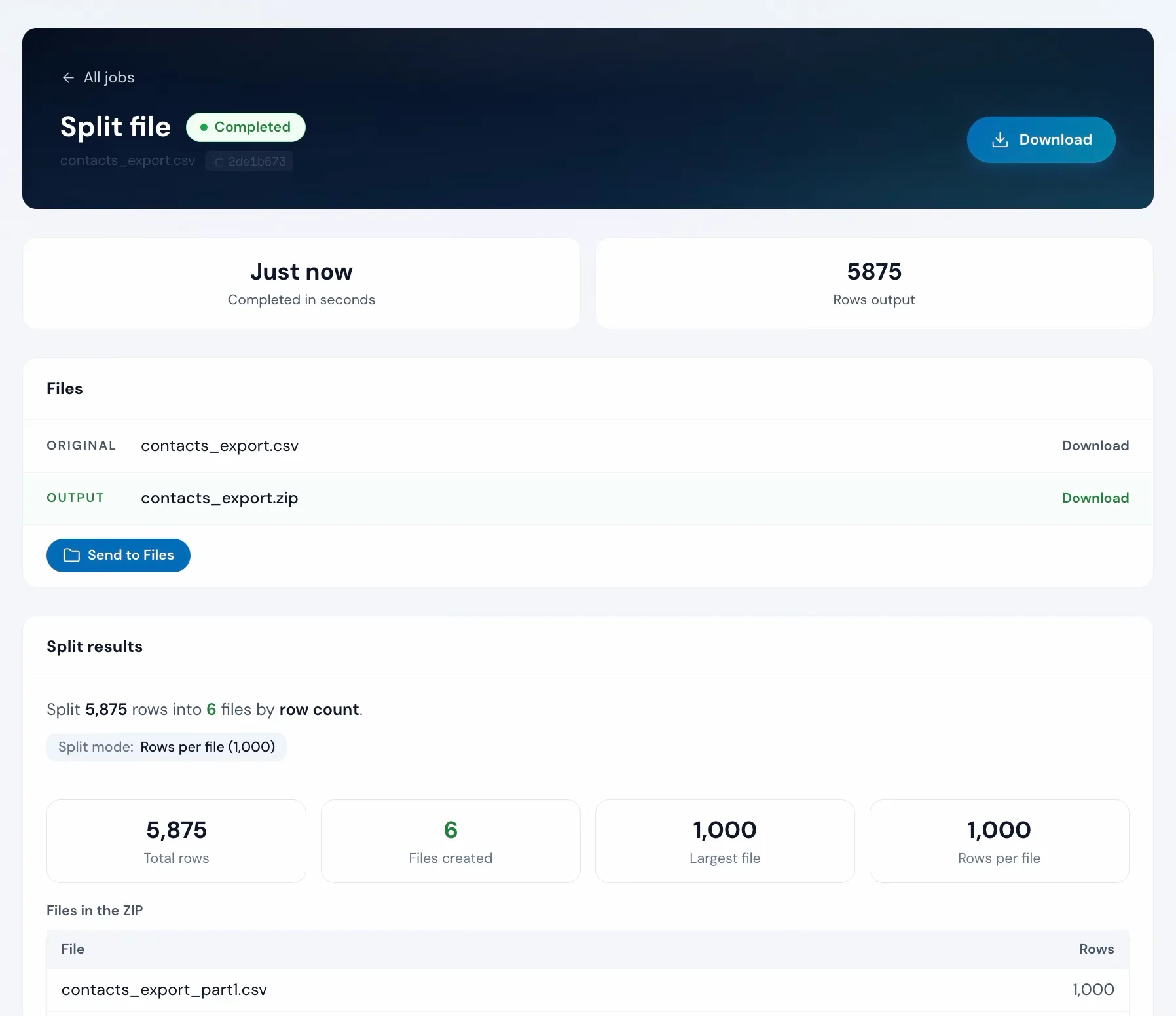
Set a number like 1,000 and Operelio divides the file into sequential chunks. Each chunk has exactly that many rows (the last file gets whatever remains).
Column groups
Pick groups of columns, like CRM fields in one file and email fields in another. Every file keeps all your rows, and you can put an ID column in every file so they stay joinable.
Automatic file naming
Files are named after the split value (e.g. contacts_EMEA.csv), numbered sequentially (contacts_part1.csv), or use your column-group names. Special characters like slashes or ampersands become underscores; spaces are kept.
Headers in every file
Every output file includes the full header row from the original. Each file is ready to open, import, or hand off without any extra steps.
CSV and Excel input
Upload .csv, .xlsx, or .xls files. Output files are CSV with the same column structure as the original, or one Excel workbook when you choose it under You get.
ZIP or one workbook
By default all output files are packaged into a single ZIP archive: one download, all your files. Or choose One Excel workbook under You get, in any mode, and get a tab for each file instead.
How to use it
Upload, pick a split mode, download the result
Upload your file
Drag and drop a CSV or Excel file. Operelio reads the columns and row count for you.
contacts_export.csv
5,875 rows
Choose how to split
Group rows by a column, set a row count for fixed-size chunks, or split groups of columns into their own files.
Column values
Column: Region
Row count
1,000 rows per file
Column groups
crm_fields, email_fields
Download the result
Click Split file and download a single ZIP with every output file inside, or one Excel workbook with a tab for each file if you chose it. Headers included either way.
The alternative
Doing it yourself in Excel
Manually copying rows into a new sheet, naming them, saving them out. For every group.
In Excel or Google Sheets
Easy to miss rows or forget the headers in one of the files.
With Split File
Every group, every file, named for you. Headers included in each one. No manual work.
One oversized list might not be the only problem in that file
Upload it and Bridgeant reviews the file before you commit to a tool. It reports what it finds, orders the problems by how much they actually matter, and points you at the tool for each one. That is on every plan including Free, and it works from a summary of your file rather than the contents.
On Starter and up it stops advising and starts doing. Describe the job in a sentence and Bridgeant plans the steps, shows you the plan, and runs them in the right order once you approve. You are not running four jobs by hand and trying to remember which came first.
Bridgeant, the agent inside OperelioPricing
On every plan.
All three split modes are on every plan. Free handles files up to 2,000 rows and 2 MB with up to 25 output files, Starter 50,000 rows, 25 MB and 500 files, Pro 75,000 rows, 35 MB and 1,000 files, Agency 150,000 rows, 100 MB and 2,000 files. Each run uses one job: 5 a month on Free, 300 on Starter, 1,000 on Pro, 3,000 on Agency. Starter from $29.25 a month, Pro from $74.25, Agency from $224.25, billed annually.
Common questions
Split File FAQ
What are the ways to split a file?
Three ways. "Column values" creates one file per unique value, like one per region, sales rep, or status; every file keeps all your columns. "Row count" makes sequential chunks, for example importing into a system with a 5,000-row cap. "Column groups" sends groups of columns to their own files, like CRM fields in one and email fields in another; every file keeps all your rows. All three include headers in every output file.
How are the output files named?
When grouping rows by a column's values, each file is named after the original filename plus the value (e.g. contacts_EMEA.csv). Row-count files are numbered sequentially (contacts_part1.csv, contacts_part2.csv). Column-group files use the group name you give them, or columns_1, columns_2 if you skip naming.
Can the output be one workbook with tabs instead of a ZIP?
Yes. In any mode, choose One Excel workbook under You get: a tab for each file instead of a ZIP. Each tab keeps only the columns that hold data for its rows, and when you split by Column values you can drop that column itself, since the tab name carries that information. It is the mirror of Merge's combine mode, so a combined and cleaned list can be split back into its original tabs. Available on every plan, including Free.
Is Split File free?
Yes. Split File is on every plan, including Free, and all three split modes come with it. Free handles up to 2,000 rows and 2 MB per file, and splits a file up to 25 ways per job. Starter ($39/month) handles up to 50,000 rows and 25 MB per file. Pro ($99/month) handles up to 75,000 rows and 35 MB. Agency ($299/month) handles up to 150,000 rows and 100 MB.
What happens to rows with a blank value in the split column?
Rows with a blank value in the split column are grouped into a file named with the suffix _empty (contacts_empty.csv when your input is contacts.csv). A value that is only spaces counts as its own distinct value and gets its own file. No data is dropped, and the results page lists a warning telling you how many rows landed there.
What file formats does it support?
Upload .csv, .xlsx, or .xls files. By default, output files are CSV, packaged in a single ZIP archive. In any mode you can instead choose One Excel workbook under You get, with a tab for each file.
Is there a limit on how many output files it can create?
Yes. Free handles up to 25 output files per job, Starter up to 500, Pro up to 1,000, Agency up to 2,000. Before you run, the preview counts the files; over your plan's limit, Split file stays off and says why. Switch to row-count mode, or split twice on different columns.
Works well with
Want the full walkthrough? Read the Split File guide →
Related how-to: Split a lead list by territory
Stop copy-pasting into separate files.
Three clicks to a ZIP that's named for you. No spreadsheet copy-paste.