
CRM migration: a step-by-step checklist
A CRM migration moves your contacts, companies and deals into a new CRM with the links between them intact. Export each record type with its IDs, clean and map the files, load companies, then contacts, then deals, and check the counts before you switch the old CRM off.
By Operelio team · Updated October 27, 2026
On this page21
- 1.What CRM data migration is
- 2.CRM migration checklist
- 3.What gets migrated, and what needs work
- 4.What else moves in a CRM migration besides the data
- 5.Who does what in a CRM migration
- 6.How long does a CRM migration take?
- 7.Four ways to migrate CRM data
- 8.When to hire a CRM migration service
- 9.Moving to HubSpot: Smart Transfer or the importer
- 10.Plan the migration: what goes and what stays
- 11.Step 1: Export your CRM data with record IDs
- 12.Step 2: Check data quality before you migrate
- 13.Step 3: Clean the data before it moves
- 14.Step 4: Map the fields to the new CRM
- 15.Step 5: Run a test batch
- 16.Step 6: Import contacts, companies and deals in the right order
- 17.If the import goes wrong: how to roll back
- 18.Step 7: Validate the imported data
- 19.Step 8: Cut over and catch up
- 20.After the migration: the first two weeks
- 21.Frequently asked questions
What CRM data migration is
CRM data migration is moving records out of one CRM and into another: contacts, companies and deals, the fields on them, and the links between them, so a contact still belongs to its company and a deal still belongs to both.
It is one part of a CRM migration. The other is rebuilding what the data sits inside, such as pipelines, automations, reports and permissions, which don't travel in an export.
This guide covers the data move from the export to the first two weeks in the new CRM, what gets rebuilt around it, who does what, and when a migration service is worth paying for. The risks are in Risks of migrating your CRM. Cleaning and enriching the data while it is out of both systems is in The hidden gap in migrating your CRM data.
CRM migration checklist
Work through this list as you go, and run down it again before cutover. Each line has its step further down the page.
| Check | Why it matters |
|---|---|
| An owner named, and a tester picked from each team | Someone has to decide what moves and sign off the test batch, and the people who use the records spot wrong values fastest |
| Original exports saved somewhere safe, and a way to undo a load agreed | The section on rolling back, further down, says how |
| Cold, bounced and test records left in the archive | Records nobody will use slow the migration and clutter the new CRM |
| History and notes plan agreed | Field data moves through Operelio; activity history does not. Decide before cutover how, or whether, history moves |
| Users, custom fields and pipelines set up in the new CRM | Owner columns need someone to land on, and a mapped column needs a field to land on |
| Every workflow and automation in the old CRM listed | None of them comes across in an export. The list is what you rebuild from |
| Old record IDs kept in every file | They are how contacts, companies and deals link up again in the new CRM |
| Data Health Check score recorded | It gives you a before and after score to compare once the data is clean |
| Duplicates removed: contacts on email, companies on website or name | Every duplicate you migrate becomes a duplicate to clean up inside the new CRM later |
| Every required field of the target mapped | The CRM Formatter won't continue until every required field is mapped. It doesn't flag a required value left blank in a row, so filter each required column for blanks before you import |
| Opt-out and do-not-contact status mapped, and the files screened against your email suppression list | Without both, you contact people who asked you not to |
| Small test batch run end to end | It catches mapping errors while they are still quick to fix |
| Record counts checked after the load | A gap between what you sent and what arrived is cheapest to fix the same day |
| Cutover date set and the catch-up planned | Without both, records created during the switch end up in only one of the two CRMs |
| Forms and integrations repointed | Anything still pointed at the old CRM keeps creating records there after cutover |
What gets migrated, and what needs work
A CRM export is rows and columns, so anything that is a row can move in a file. Anything that isn't needs the new CRM's own migration tooling, a migration service or rebuilding by hand.
| Data | Moves cleanly? | How it gets across |
|---|---|---|
| Companies | Yes | Export, clean, then import or push. Load them before contacts |
| Contacts | Yes | Export, clean, then import or push |
| Opt-out and do-not-contact status | Yes, once mapped | Map it to the new CRM's subscription or consent field, and check the counts match after the load |
| Deals | Needs work: keep the IDs | The new CRM's importer (Data Loader on Salesforce), with company and contact IDs so each deal links to its records |
| Owners | Needs work: create the users first | Create the users in the new CRM first, then map the column to the owner field |
| Notes | Partly, as a notes column | As a column. A push attaches it as a note on the HubSpot contacts and Pipedrive people and organizations it creates. A Salesforce push attaches no notes |
| Activity history and logged emails | Needs work | Some CRMs export activities as their own files, and some importers take them back: HubSpot imports notes, calls, emails, meetings and tasks. Otherwise, the new CRM's migration tooling or a migration service |
| Attachments | No, not in a file | The new CRM's migration tooling or a migration service |
| Automations, reports and pipelines | No, rebuilt | Rebuilt in the new CRM, or created by its own transfer tool where that covers your old CRM. The next section lists what to rebuild and when |
Operelio works on the rows: contacts, companies and the fields on them, and it can open new deals. Deal history, activity history, logged emails, attachments and automations need their own plan, so agree it before cutover.
What else moves in a CRM migration besides the data
Custom fields, pipelines, users, automations, reports, forms and integrations don't travel in an export. Each one is rebuilt in the new CRM, or created by the new CRM's own transfer tool where it covers your old one, and the rebuild needs a list and an owner as much as the data does.
Check that tool before you plan to rebuild by hand. HubSpot's Smart Transfer, for example, creates properties, pipelines and users in HubSpot from your old CRM's settings before it moves the records, for the apps it supports. It also adds a few workflows of its own, to fill dates and fields the two CRMs store differently. HubSpot's list of them for each app has only these, none of your old CRM's automations, so plan to rebuild those.
Operelio moves field data only: contacts, companies and the values on them. None of the rows below is something it does.
| What | What happens to it | When |
|---|---|---|
| Custom fields and dropdown options | Created in the new CRM, with the dropdown values you settled in the plan | Before you map the files in step 4, so each column you keep has a field to land on. HubSpot's importer can also create one as you map |
| Users, roles and teams | Users invited, then roles, teams and record visibility set up the new CRM's way | Before the test batch, so owner columns have someone to land on and testers see what their team will see |
| Pipelines and deal stages | Rebuilt, or created by the transfer tool. Each old stage is matched to a new one | Before deals load, since every deal needs a stage to land in |
| Workflows and automations | Listed in the old CRM (what starts each one, what it checks, what it does), then rebuilt and tested in the new one | Built before the test batch. Switched on at cutover as the old ones are switched off, so nothing runs twice or not at all |
| Email templates and sequences | Templates copied across. Who is partway through a sequence doesn't come across in an export, so decide who to enroll again | Before cutover |
| Reports and dashboards | Rebuilt, then checked against the numbers the team knows from the old CRM | In the first two weeks after cutover |
| Web forms and integrations | Repointed to the new CRM, or rebuilt where a tool has no connection to it | On cutover day, with a test record sent through each one |
Who does what in a CRM migration
A migration needs four jobs filled. On a small team two people can hold all of them. What matters is that each job has a name against it before anyone exports a file.
| Who | What they do |
|---|---|
| The owner | Decides what moves and what stays, sets the cutover date, and says go or stop after the test batch |
| An admin who knows each CRM | Builds the fields, pipelines, users and permissions in the new CRM, runs the exports and loads, and repoints forms and integrations. One person can cover both CRMs if they know both |
| A tester from each team | Checks the test batch on records they know, such as their own accounts, and signs it off before the full load |
| Whoever trains the team | Shows each team its daily work in the new CRM before cutover, then answers questions for the first two weeks |
How long does a CRM migration take?
Loading the data takes hours. The weeks go on the work around it, and most of that work is the steps on this page: deciding what moves, cleaning, mapping, the test batch, rebuilding fields, pipelines and automations in the new CRM, then the catch-up at cutover and two weeks of small fixes after it.
Scope sets the length more than the number of records. Contacts and companies on a small team, with someone who knows both CRMs, take weeks. Deals, activity history, custom objects and integrations each add their own work, and that is when it runs to months.
The CRM vendors' own guides give similar ranges. Salesforce's says simple migrations may take a few weeks and larger ones several months. HubSpot's puts a small migration (under 25,000 records, standard objects, few integrations) at 4 to 6 weeks and a mid-sized one at 2 to 4 months. Both sell CRMs, so treat their ranges as rough (both read Oct 14, 2026).
Four ways to migrate CRM data
Which route fits depends on how much data there is, how much history you need and who is doing the work.
| Route | Best for | What it moves | Cost |
|---|---|---|---|
| Export and import yourself | Contacts, companies and a manageable number of deals, with someone who knows both CRMs | Anything that is a row in an export | Included with both CRMs. The cost is staff time |
| A migration tool or service, such as Import2 | Moving history as well as records, between CRMs the service supports | Records, the links between them and history where the CRM pair allows it | Paid. Import2 runs a free sample migration before you pay |
| The API | Large or custom CRMs, or a sync that has to keep running | Whatever both APIs expose | Developer time, within the API limits on each side |
| A consultant or agency | Large or regulated migrations with processes to rebuild as well | Whatever they scope | Day rates or a fixed project fee |
Every route moves records as they are, duplicates and dead addresses included. On the export and import route you clean the files between the two CRMs, which is the part Operelio does. On the other routes, clean the old CRM before the move starts.
When to hire a CRM migration service
Hire one when activity history, logged emails or attachments have to move, or when nobody on the team has the hours and knows both CRMs. If you're moving contacts, companies and a manageable number of deals, and someone knows both systems, the steps on this page are enough.
A service also earns its fee when you have custom objects or many record types linked to each other, or when the data is regulated and someone has to answer for how it was handled. If the new CRM's own transfer tool covers your old one, try that first: HubSpot's Smart Transfer is available on every HubSpot plan, though mapping custom fields with it needs a Data Hub subscription.
There are two kinds. A migration tool such as Import2 connects to both CRMs and copies the records, and their history where the pair of CRMs allows it, after you map the fields. A done-for-you service, from the same vendors or from a CRM partner or agency, plans, maps, runs and checks the move for you. Import2's pricing page lists its tool starting from $499, or free for a small migration a CRM vendor sponsors, and its consultant-run migration starting from $5,000 (read Oct 14, 2026).
Before you sign, ask these four questions.
| Ask | Why |
|---|---|
| Can we run a free sample on our own data? | You see your own records in the new CRM before you pay. Import2 runs one, and its sample can be reversed |
| Exactly which records and history move between our two CRMs? | It depends on the pair. Get the list in writing for yours: notes, emails, attachments, custom objects |
| How do records created during the switch get across? | Without a catch-up run (step 8), anything added after the main copy ends up in only one CRM |
| Who cleans the data, and when? | Unless cleaning is in the quote, a service moves records as they are. Clean the old CRM before the move, or clean the files between the two CRMs on the export and import route |
Moving to HubSpot: Smart Transfer or the importer
HubSpot has two ways in. Smart Transfer (Data Management, Data Integration, Transfer data) connects to the old app and moves records, properties and pipelines across. It covers Pipedrive, Zoho CRM, Dynamics 365, ActiveCampaign, Copper, Mailchimp, Keap, Salesforce, Account Engagement (Pardot), Marketo, Zendesk, Freshdesk and monday.com. Only a Super Admin can run it, mapping custom fields needs a Data Hub subscription, and a transfer can be reverted. It is meant for a one-time move: if you'll keep using Salesforce afterwards, HubSpot says to use its Salesforce integration instead, because running both creates duplicate records.
Smart Transfer moves records as they are, duplicates included, so clean the old CRM before it starts. For any other source, or to clean between the two, use the file route on this page with HubSpot's importer. Its advanced imports take several objects at once and create the associations between them, and it imports calls, meetings, notes and tasks as well as records. HubSpot matches contacts on email and companies on domain, so dedupe both before the load.
Plan the migration: what goes and what stays
Moving everything is the default, and it usually means paying to migrate records nobody will use. Settle these before anyone exports a file.
| Decision | Why it matters |
|---|---|
| What stays behind | Leads that went cold years ago, bounced contacts and test records can stay in an archive export instead of the new CRM |
| Which fields come across | List the fields your team actually uses. The rest can live in the archive |
| How dropdown values map | Lead status, lifecycle stage, deal stage, industry and country lists rarely match between CRMs. Decide the mapping value by value. On a push, the preview report flags values a restricted dropdown in the target won't accept, before anything is written |
| Who owns what | Create every user in the new CRM first, so owner columns have someone to land on |
| Who can see what | Roles, teams and record visibility work differently in each CRM. Set them up before the team logs in, or people see too much or too little on day one |
| What else writes to the old CRM | Web forms, email sync, billing and enrichment tools that create or update records. List each one now, because each needs repointing to the new CRM on cutover day |
| The cutover date | The day the old CRM goes read-only. Records created or changed after the main export go across in a final catch-up export |
Step 1: Export your CRM data with record IDs
Export each record type as its own CSV: companies, contacts and deals. Every major CRM has a bulk export in its settings or admin area.
Keep each record's ID from the old CRM in the file, along with the IDs that link it to other records: the company ID on a contact, the contact and company IDs on a deal. Store each old ID in a custom field in the new CRM (a unique-value property in HubSpot, an External ID field in Salesforce). Importers use it to link records, and it leads you back to the original later.
Keep the original exports untouched. Every Operelio tool writes a new file and leaves the upload alone, but your own copy is what you roll back to.
Step 2: Check data quality before you migrate
Upload each export and run Data Health Check. You get a quality score from 0 to 100, every issue found (invalid emails, duplicate rows, mixed date formats, placeholder values, encoding problems and dozens more), and every row counted under what it needs: Must fix, Should fix, Tidy‑up or Ready. A score of 80 or above means the file is ready to import, 60 to 79 is worth reviewing, and below 60 the data needs fixing first.
The report tells you what to fix before the move. Re-run Data Health Check on the cleaned file afterwards and you have a before and after score to compare.
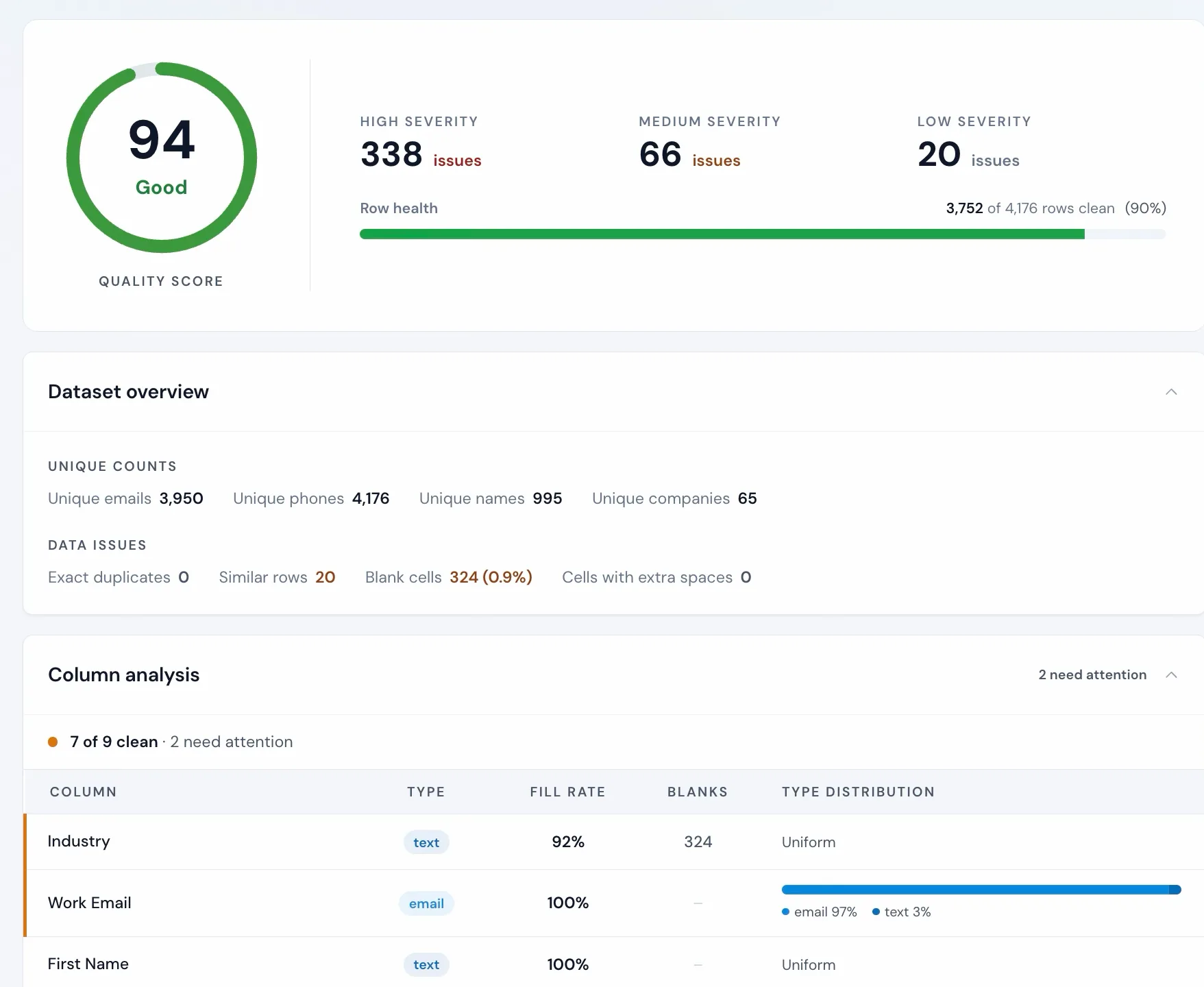
You can check auto-fix categories right on the report and download a cleaned file.
Step 3: Clean the data before it moves
Start with duplicates. Decide which copy of a record wins before you remove the others. Deduplicate keeps the first or last occurrence, so sort the export by its last-modified column and keep the last occurrence, which is the most recent version. Deduplicate contacts on email and companies on website or name. Smart matching treats Westmarch Trading and Westmarch Trading Ltd as one company, and similarity matching catches typos. Keep the file of removed rows: if a deal points at a removed duplicate's ID, repoint it to the record you kept before you load deals.
Removing a duplicate row in the file drops that row whole. Neither Deduplicate nor the CRM Formatter, which keeps the first row with each email, combines values from the copies, so if the row you drop holds a phone number or a title the kept row lacks, copy it across first.
Merging inside a CRM works differently. In HubSpot, the record you pick as primary keeps most of its property values, the other record fills the properties the primary has empty, and the associations of both carry over. A HubSpot merge can't be undone, so pick the primary with care.
Next, work down the rest of the report. Clean Headers tidies inconsistent column names, and Find & Replace handles fixes that repeat across the file, such as a legacy placeholder value that should be blank.
Finally, check the data is still current. Email verification finds the addresses that will bounce, and Company Active Check finds companies whose website no longer works, so neither goes into the new CRM. Full email verification and Company Active Check are on Starter and up.
Each tool writes a new file, so you can always step back a version if a fix went further than you wanted. The hidden gap in migrating your CRM data covers this stage in more depth, including enrichment.
For a single list rather than a whole CRM, see cleaning data before or after a CRM import.
Step 4: Map the fields to the new CRM
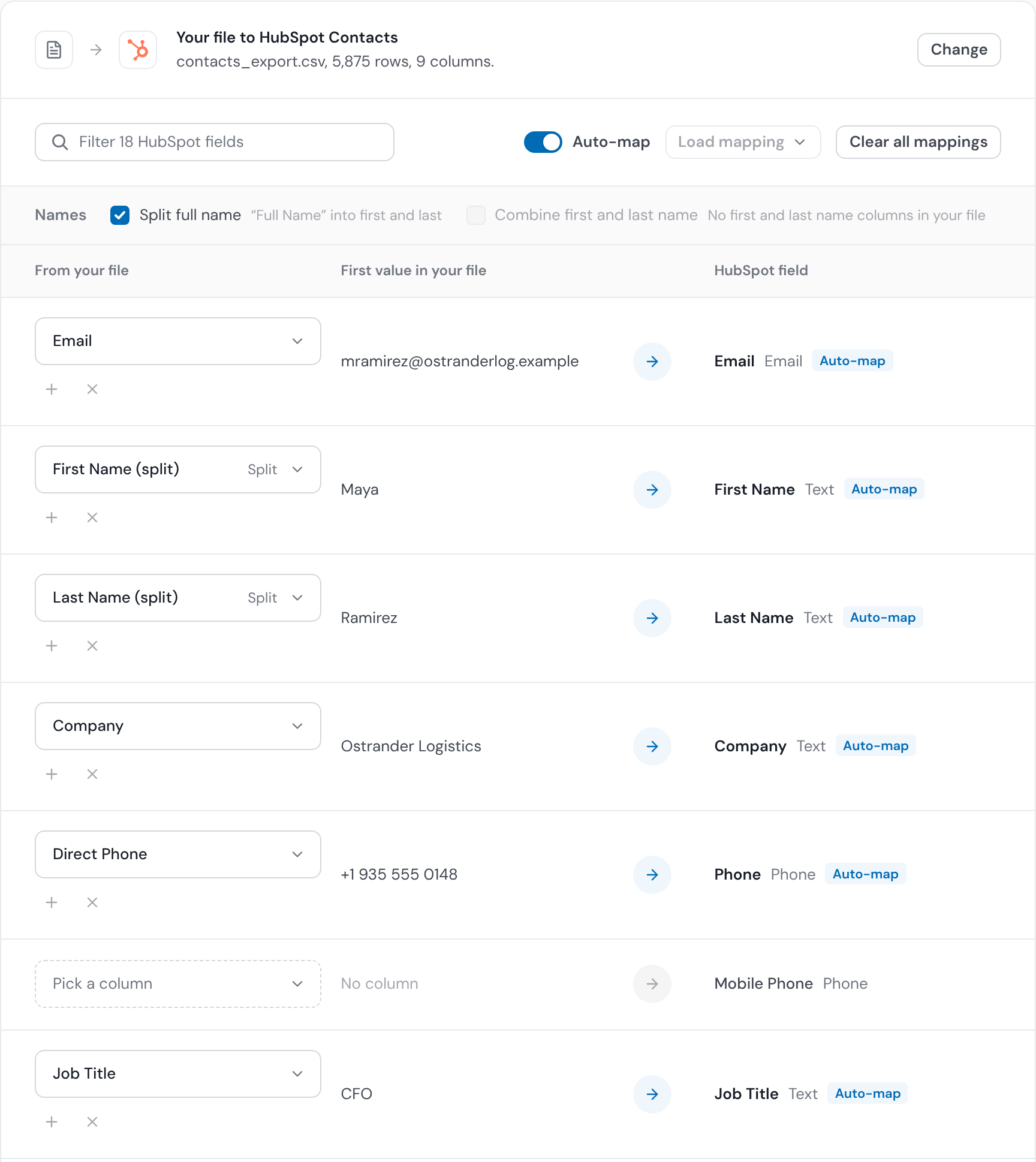
Open the CRM Formatter, upload your cleaned file and pick the target CRM's format. Every plan includes eight built-in formats (HubSpot, Salesforce, Pipedrive, Zoho CRM, monday CRM, Freshsales, Close, Copper) and a Generic format. For anything else, custom templates are on Starter and up. There are also ready-made CRM-to-CRM migration templates (Zoho to HubSpot, Salesforce to Pipedrive and more) that pre-fill the mapping when your move matches one.
Operelio auto-maps columns by name: "First Name", "first_name" and "fname" all land on the first name field. Adjust the rest by hand, picking the column for each native field in your new CRM. If a column has no matching field, leave it unpicked so it isn't forced into the wrong one; it shows under Not used from your file.
Map the old ID column to the custom field from step 1. Unmapped columns are left out of the downloaded file by default, so an unmapped ID column would be lost.
If you migrate in weekly batches, save the mapping after the first run and load it for each later file. Saved mappings are available on Starter (25), Pro (150) and Agency (300).
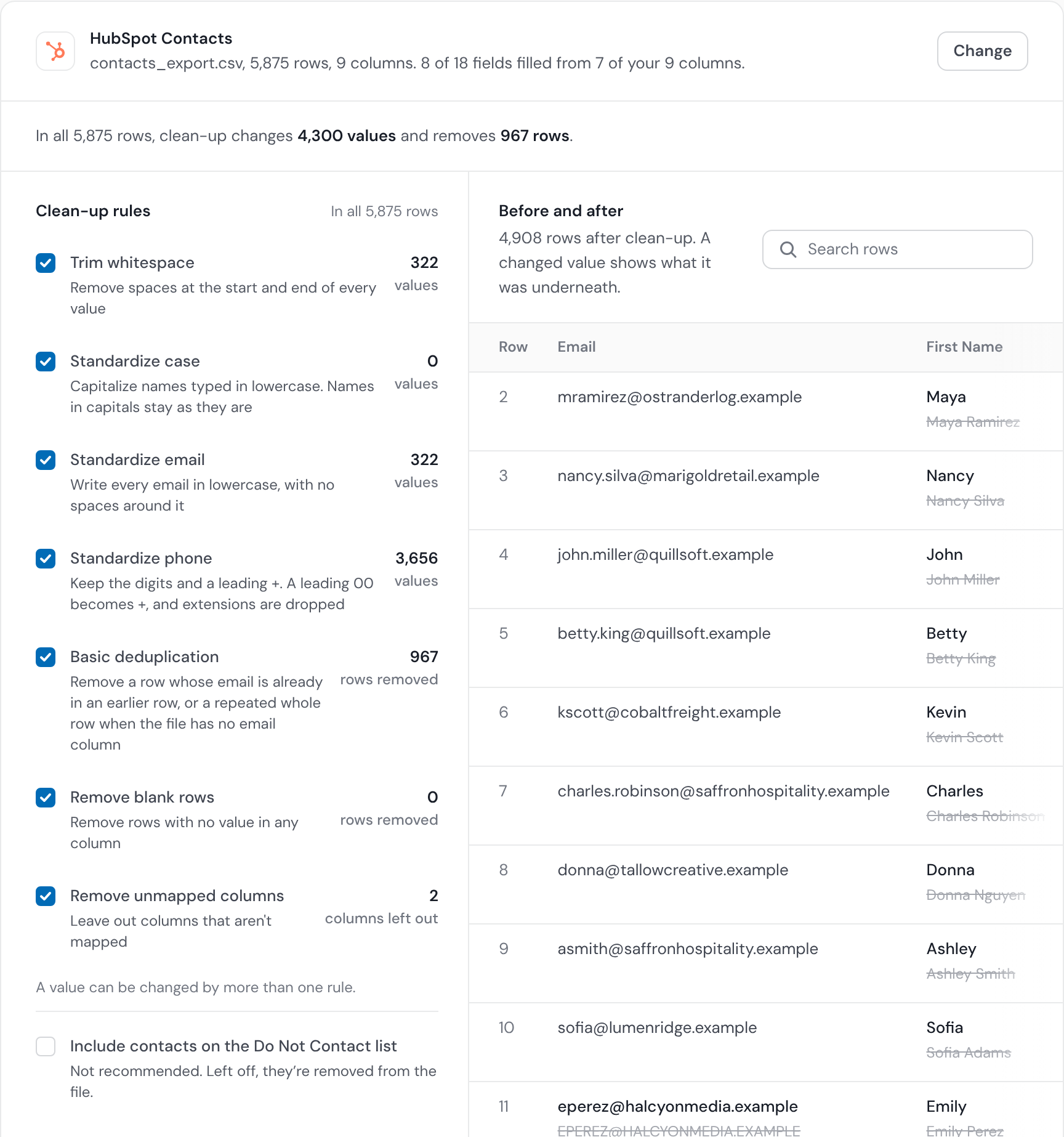
Before you run it, Review shows every row before and after clean-up. It doesn't list rows with an invalid email, a blank required field or a phone with no digits, so filter for those in the file before you import. A push counts the rows your CRM won't take before anything is sent.
If your workspace has a Do Not Contact list (Starter and up), the CRM Formatter screens each file against it and leaves out anyone on it.
The table below lists the mismatches between two CRMs that fail an import, or load wrong values without an error.
| Problem | What goes wrong | What to do |
|---|---|---|
| Text field into a dropdown | Every value has to match one of the dropdown's options exactly, so free text typed over the years gets refused | Map the values to the new options in the file first, or map the column to a text field |
| Multi-select values | The old CRM may export them separated by commas. HubSpot and Salesforce both expect semicolons | Replace the separator in the file before loading |
| Dates | The export uses the old CRM's format or the exporting user's locale, and a date such as 03/04 can load as the wrong month without an error | Data Health Check flags mixed date formats. Put every date in one format the target accepts |
| Full name in one column | The new CRM wants first and last name as separate fields | The CRM Formatter splits full names by default |
| Country and state | Salesforce orgs with State and Country picklists turned on only accept their own values | Turn on country normalization in the CRM Formatter and fix state values with Find & Replace. On a Salesforce push, the preview report flags any state or country the org won't accept |
| Numbers with symbols | A value with a currency symbol or a thousands separator in it is refused by a number or currency field | Remove currency symbols and thousands separators from number columns |
| Long text | Text longer than the target field allows is refused, or cut short if the importer is set to truncate | Map long notes to a long text field, or trim them |
Step 5: Run a test batch
Pick 50 to 100 rows that cover the awkward cases: a contact with no company, a company with several contacts, an owner who has left, a record with every field filled. Load them, open them in the new CRM and check each field landed where you meant, the links are there and the dropdowns show the right values.
Fix the mapping and run the batch again until it comes through clean. A wrong mapping caught in the test batch takes minutes to fix. After the full load, you have to correct every record it touched. If you load through the CRM's own importer, delete the test records before the full import, or they arrive twice.
Step 6: Import contacts, companies and deals in the right order
Load parent records before the records that hang off them: users, then companies, then contacts, then deals, then tickets and custom objects, then activities and attachments if they are moving. A contact loaded before its company has no company to link to.
For any target CRM, download the import-ready CSV and load it with the new CRM's own importer. This path works for all eight built-in formats, the Generic format and custom templates.
When the target is HubSpot, Salesforce or Pipedrive, you can skip the download and push directly (Starter, Pro and Agency). You connect via OAuth, so your CRM password is never stored.
Push creates records that don't exist yet and updates the ones that do. By default it only fills fields that are blank in the CRM, as the answer to "Will pushing overwrite data already in the new CRM?" below explains.
Before the push, the push card shows three counts that add up to your row count: what will be created, updated or not sent, with the reason for each row not sent, including rows the CRM won't accept. After the push, the report counts Created, Updated, Refused and Not sent. On a migration you can also set the owner from a column in the file, or assign the whole push to one rep, so each record lands with the right owner.
On Salesforce and Pipedrive, a company column on a contacts push finds or creates the company and links the contact to it. A HubSpot push creates contacts and companies but doesn't link them, so if those links matter, load the contacts through HubSpot's own importer with the ID columns.
Deals go in through the new CRM's own importer or a migration service, using the IDs you kept in step 1 so each deal links to its company and contacts. On Salesforce that means Data Loader, because the Data Import Wizard doesn't import opportunities.
| CRM | Record types for direct push |
|---|---|
| HubSpot | Contacts, Companies |
| Salesforce | Contacts, Leads, Accounts |
| Pipedrive | People, Organizations |
If the import goes wrong: how to roll back
Decide how you would undo a load before you run one. The test batch in step 5 is the first line: a wrong mapping shows up on 50 to 100 rows, not on the whole file.
Tag every load. Add a Migration batch column holding the load date to every file, and map it to a custom field. Decide before the load what would make you stop: counts that don't match, missing links, wrong owners. If a batch fails that test, filter the new CRM on its batch value, delete those records, fix the file and load it again.
Use the CRM's own undo where it has one. HubSpot's imports dashboard lists the records each import created or updated, and you can select and delete them there. Pipedrive lets a global admin revert an import from the import history within 48 hours. A HubSpot merge can't be undone, so leave merging duplicates in the new CRM until the counts are signed off.
Deleting undoes only the records a load created. If the new CRM already held records and the load updated them, deleting them loses the originals, so export the new CRM before you load into it. Your untouched exports from step 1 are the copy of the old CRM to start again from.
Step 7: Validate the imported data
Count what arrived against what you sent, for each record type. A push reports how many rows were created, updated, refused by the CRM and not sent. The new CRM's own importer gives you an error file. Compare against the formatted file, not the raw export: the CRM Formatter drops blank rows and repeated emails by default. Every row missing between what you sent and what arrived needs explaining before the team starts work.
Then open a sample of records and compare them with the old CRM field by field, including the owner and the links to companies and deals. When you sign off the migration, record the cleaned file's Data Health Check score next to the step 2 score.
Step 8: Cut over and catch up
If the team can stop entering data for the move, set the old CRM to read-only when you export and there is almost nothing to catch up. If they can't, freeze it on the cutover date instead, then export everything created or updated since the main export and run it through the same steps. With a saved mapping, that catch-up file maps itself.
If you push the catch-up, choose Overwrite with my data. Its values are newer than the ones you loaded, and the default, Only fill blank fields, would leave the old ones in place. On Salesforce an overwrite with a blank cell clears that field, so check the file has no blanks where the CRM holds a value.
On cutover day, repoint the web forms and integrations you listed in the plan, then submit a test form and check the record lands in the new CRM. Keep the old CRM read-only until the team is working in the new one without going back to check.
After the migration: the first two weeks
Expect questions and small fixes for the first two weeks. Give one person the job of answering them, and keep a shared list of every problem reported: a missing field, a wrong owner, a view that doesn't show what it used to.
Check the things that break without anyone noticing. New leads should be arriving from forms and integrations. Rebuilt reports should show the numbers the team knows from the old CRM. Anyone who opted out since cutover should be marked in the new CRM.
Once the list stops growing, take a final full export of the old CRM and store it with the archive of records you chose not to migrate. Then close the old account.

The CRM Formatter maps, validates and cleans your export for the new CRM in one pass.
Related
- How to fix Salesforce import errors
- Why your HubSpot import is failing
- Clean data before or after a CRM import
- Data Health Check
- Deduplicate
- CRM Formatter overview
- Column mapping
- Saved mappings
- Country normalization
- Pushing to your CRM
- CRM import limits
- CRM import templates
- Best CRM data cleaning tools, compared
- Risks of migrating your CRM
- The hidden gap in migrating your CRM data
Frequently asked questions
How much does CRM data migration cost?
Exporting and importing it yourself costs your team's time and nothing else. Migration services usually price by how many records move and what moves with them, and most quote or run a sample first. Consultants charge day rates or a fixed fee. Cleaning the data first lowers the bill on any route priced by records, because fewer records move.
What is the difference between CRM migration and CRM integration?
A migration is a one-off move: the data leaves the old CRM, lands in the new one, and the old one is closed. An integration keeps two systems in step on an ongoing basis. A long migration sometimes needs one while both CRMs run side by side, but most don't.
How do I update thousands of old CRM contacts with fresh information?
Export them, use Match & Pull Columns to bring the fresh data into the export, matched on email, and push the result back to HubSpot, Salesforce or Pipedrive with Overwrite with my data chosen. The default, Only fill blank fields, would leave the stale values in place. On Salesforce an overwrite with a blank cell clears that field, so fill or remove blanks first. The push matches existing records on email and updates them rather than creating new ones, and the preview report before it shows how many records will change.
How do I avoid duplicate data in a CRM migration?
Remove duplicates from the export before you load it. Deduplicate contacts on email and companies on website or name, with Smart matching to catch the same company written two ways, such as with and without Ltd. On a push, existing records are matched and updated rather than created again, so overlapping batches don't add new duplicates either.
Can I migrate from Excel or a custom-built CRM?
Yes. Once the data is in a file the path is the same, whether it comes from a spreadsheet or a CRM built in-house: save it as CSV or Excel, clean it, and map it to the new CRM's fields with the CRM Formatter. If the sheet has no record IDs, add one per row before you start. The Generic format works on every plan, and a custom template, on Starter and up, covers a target CRM that isn't one of the eight built in.
Can Operelio move my notes, emails and activity history?
No. Operelio works on the spreadsheet layer, so it moves field data: contacts, companies and their attributes. A notes column in your export does carry across: the push attaches it as a note on the HubSpot contacts and Pipedrive people and organizations it creates. When the push updates an existing record, it doesn't add the note. Activity history, logged emails, attachments and automations never appear in a contact export and need their own plan, usually the new CRM's migration tooling or support team.
Will pushing overwrite data already in the new CRM?
Not by default. Push matches people by email and companies by website or name, and only fills fields that are blank on the CRM side; fields that already hold a value are left untouched. Before the push, the push card shows what will be created, updated or not sent, with the reason for each row not sent, before anything is written.
My new CRM isn't HubSpot, Salesforce or Pipedrive. Can I still migrate?
Yes. Pick its built-in format (Zoho CRM, monday CRM, Freshsales, Close or Copper), the Generic format or a custom template, then download the import-ready CSV and load it with your CRM's own importer. Direct push is the only part limited to HubSpot, Salesforce and Pipedrive.
What plan do I need to migrate?
The CRM Formatter works on every plan, including Free (up to 2,000 rows per file, 5 jobs per month). Most migrations need Starter or higher for bigger files (50,000 rows on Starter), direct push and saved mappings.
How do I handle a migration that runs over several weeks?
Export in batches and save your column mapping after the first run; each later batch loads it and maps itself. One push carries up to your plan's row limit (150,000 rows on Agency; 50,000 to Pipedrive or for HubSpot companies), so a database larger than that has to be split into files that size or smaller, one push each. Pipedrive also limits API calls a day by plan and seats; a push of contacts that uses up the day's allowance pauses and finishes after Pipedrive resets it. Overlapping batches are safe on HubSpot, Salesforce and Pipedrive: records that match (people by email, companies by website or name) are updated rather than re-created, and people with no email are skipped so they can't become duplicates. When a later batch holds newer values than one you already loaded, push it with Overwrite with my data (on Salesforce a blank cell then clears that field, so fill or remove blanks first), unless the team is already editing those records in the new CRM.
Ready to get started?
Upload a file and run your first transformation. Free, no credit card required.