
How to find, merge and prevent duplicate contacts in HubSpot
HubSpot matches contacts by email address, so the same person under two emails, or a row imported with no email, becomes two contacts. On Professional and Enterprise plans, find them with Manage duplicates in the Contacts page's menu and merge each pair. To stop new ones, clean the file before you import it.
By Operelio team · Updated October 8, 2026
On this page9
- 1.Why HubSpot creates duplicate contacts
- 2.How to find duplicate contacts in HubSpot
- 3.What each plan can do
- 4.How to merge duplicate contacts in HubSpot
- 5.What a merged contact keeps
- 6.How to prevent duplicates before an import
- 7.When to use an app instead
- 8.Clean the file before it reaches HubSpot
- 9.Frequently asked questions
Why HubSpot creates duplicate contacts
HubSpot deduplicates contacts on one property: Email. When a contact comes in from an import or a form, HubSpot looks for an existing contact with the same email address. If it finds one, it updates that contact. If it doesn't, it creates a new one.
Name, company and phone play no part in that check, which leaves these ways in:
| How it happens | What HubSpot does |
|---|---|
| One person, two email addresses | A work address on one list and a personal Gmail on another are two contacts, even with the same name and company. |
| An import row with no email | With no Email or Record ID to match on, the row becomes a new contact, including people already in HubSpot. Import the same file twice and every row without an email is in HubSpot twice. |
| A contact added by hand under another address | HubSpot only blocks a new contact when the email is already taken, so a second address gets through. |
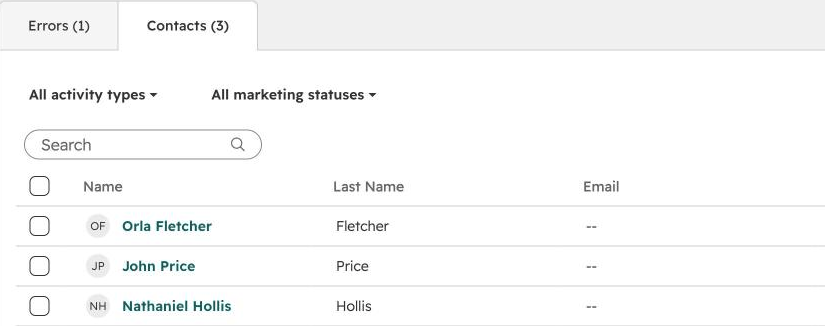
Once two contacts share an email, an import row with that email fails with an error and isn't imported until the pair is merged.
How to find duplicate contacts in HubSpot
HubSpot's duplicates manager lists pairs of contacts that look like the same person. It needs a Professional or Enterprise subscription to Marketing Hub, Sales Hub, Service Hub, Data Hub or Smart CRM.
Open your contacts
In HubSpot, go to CRM, then Contacts.
Open Manage duplicates
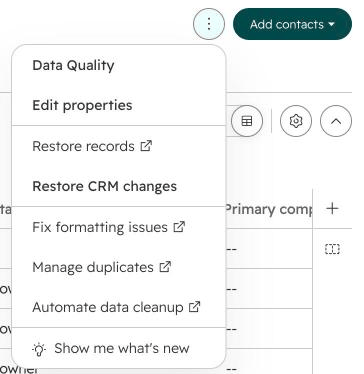
Click the three-dot menu next to Add contacts, then Manage duplicates. It opens in a new tab, under Data Management > Data Quality.
Work through the pairs
Each row is a pair of possible duplicates, with a similarity score. Search by name, email or phone to find one contact's pairs, or filter by owner, lifecycle stage, create date, last activity date, discovered date or similarity. Click Review to open the two contacts in the merge window.
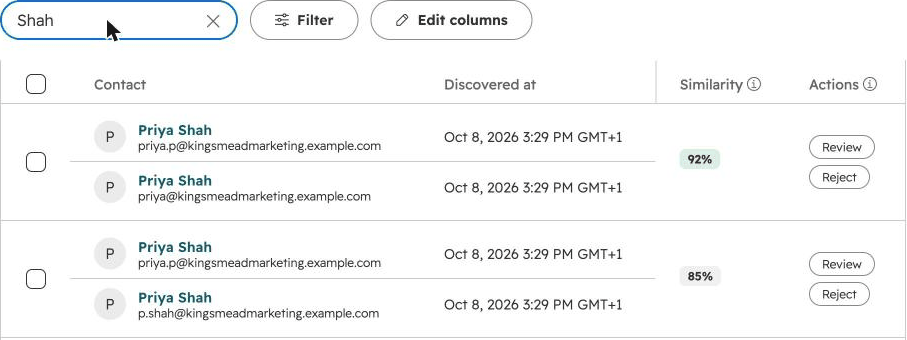
HubSpot compares first name, last name, email, IP country, phone number, zip code and company name. It checks for new pairs as contacts are created, so a pair from an import shows up within minutes, and checks every contact once a day.
What each plan can do
On the free and Starter plans there is no duplicates manager. Sort or filter the contacts list by last name and company to spot pairs, then merge them one at a time from the record.
Data Hub Professional and Enterprise can also add up to two custom rules per object that decide what counts as a duplicate, using properties you choose.
| Subscription | Duplicate pairs shown | Merging |
|---|---|---|
| Free or Starter | No duplicates manager | One pair at a time, from the record |
| Professional or Enterprise | Up to 10,000 | One pair at a time |
| Data Hub Professional | Up to 30,000 | In bulk |
| Data Hub Enterprise | Up to 100,000 | In bulk |
How to merge duplicate contacts in HubSpot
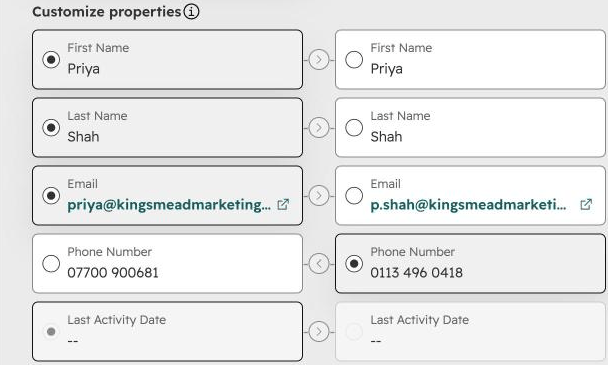
In the duplicates manager, click Review on a pair, select the contact to keep, click the values you want from each, and click Merge and review next. The window lists only a few properties, such as name, email and phone; click Set properties to review to add more. On any plan, you can also merge two contacts from a record:
Open the contact to keep
Click the name of the contact that should remain. HubSpot calls this the primary record.
Choose Merge
At the top of the left panel, click Actions, then Merge, and search for the duplicate in Select a record. This is the secondary record.
Pick the values
The primary's values are selected by default. Click a value on the other contact to keep it instead, then click Merge.
What a merged contact keeps
The merged contact has the activities and associated records of both. Most properties come from the primary, with a few exceptions.
| Property | After the merge |
|---|---|
| The primary's address stays primary. The other is added as an additional email. | |
| Lifecycle stage | The stage furthest down the funnel, so a Lead merged with a Customer is a Customer, whichever one you keep. |
| Create date | The older of the two. |
| Record ID | A new one. The old IDs are kept in the Merged Contact IDs property. |
| Other properties | The primary's value, or the secondary's where the primary's is blank. |
| Workflows | Both contacts leave the workflows they were in, unless your account is in HubSpot's beta that keeps the primary enrolled. |
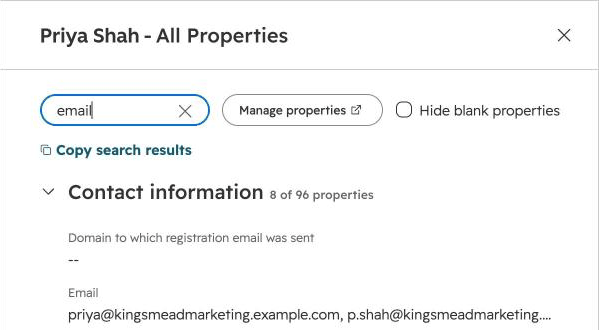
A merge can't be undone, as the merge window says, and the record has no Unmerge. The most you can do is delete the additional email from the merged contact and create a new contact with it, which starts with none of the history. Check each pair before you merge, and take the most care with bulk merges.
How to prevent duplicates before an import
Most duplicate contacts arrive through imports, and the file is the cheapest place to stop them, before they have owners, activity and workflows attached.
Map the email column
Import with Email mapped, so rows for people already in HubSpot update them instead of creating new contacts.
Remove repeated emails
Where the same email appears on two rows, even in different capitals, HubSpot imports the first row and rejects the second with a Duplicate alternate ID error, so the second row's data is lost. Keep the row with the better data and delete the other, so you decide what lands in HubSpot.
Check name and company together
Sort by last name, then company, and look for the same person under two addresses. HubSpot will make two contacts of them, so keep one row.
Catch the near misses
Jon Smith and John Smith, or Westmarch Ltd and Westmarch, Ltd., don't match exactly and may not sort next to each other. Similarity matching compares how close two values are, not whether they are equal.
Use Record ID for contacts you know exist
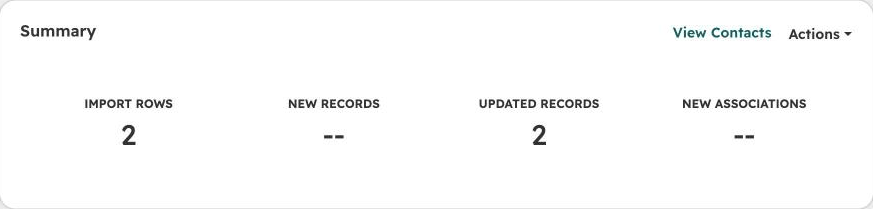
Export the contacts with their Record ID, add it to the rows that match, and map that column to Record ID. Rows without a Record ID create new contacts, so HubSpot suggests two files: one of existing contacts with their IDs, and one of new contacts. For a contact with no email, Record ID is the only way an import updates them instead of adding a copy.
When to use an app instead
If thousands of duplicates are already in HubSpot and your plan has no bulk merging, a dedupe app such as Insycle or Dedupely can merge them inside HubSpot with matching rules you set.
These apps fix what is already in the CRM. They don't clean a list before it is imported, so the duplicates keep coming in unless the files are cleaned too. Our Insycle and Dedupely pages compare their pricing with the alternatives.
Clean the file before it reaches HubSpot
Operelio's Deduplicate tool removes duplicates from the file before the import. Match on email, or on first name, last name and company together. Smart matching catches Westmarch Ltd versus Westmarch, Ltd., similarity matching catches Jon versus John, and when you match on email, blank emails don't count as a match unless you switch that off. You choose whether the first or last row in each group survives.
Then the CRM Formatter maps your columns to HubSpot properties and, on Starter and up, pushes the contacts straight to HubSpot with a preview of what will import first.
Remove duplicate contacts from your file before HubSpot turns them into records.
Related
- Why your HubSpot import is failing
- How to format a CSV for HubSpot import
- CRM data hygiene: how to clean up your CRM and keep it clean
- CRM data quality: how to measure and improve it
- How similarity matching finds duplicate contacts
- How to remove duplicates in Excel
- How to remove duplicates in Google Sheets
- Deduplicate tool
- CRM Formatter: map, clean, and push
- Insycle pricing and alternatives
- Dedupely pricing and alternatives
Frequently asked questions
Can I undo a merge in HubSpot?
No. Merged contacts can't be separated. You can delete the additional email from the merged contact and create a new contact with it, but the new contact starts without the history.
Does HubSpot remove duplicates on import?
Only by email. A row whose email matches an existing contact updates that contact, and a second row with the same email in the same file is rejected. Anything else, including the same person under another address or a row with no email, creates a new contact, so remove those rows from the file first.
Ready to get started?
Upload a file and run your first transformation. Free, no credit card required.