
How to remove spaces in Excel
To remove extra spaces in Excel, use =TRIM(A2). It deletes leading and trailing spaces and turns double spaces between words into one. To remove every space, use Find and Replace: a space in Find what, nothing in Replace with.
By Operelio team · Updated October 9, 2026
On this page9
- 1.Three ways to do it
- 2.How to remove extra, leading and trailing spaces with TRIM
- 3.How to remove all spaces with Find and Replace
- 4.How to remove spaces with SUBSTITUTE
- 5.Why TRIM doesn't remove some spaces
- 6.How to remove spaces in Google Sheets
- 7.Why spaces matter before an import
- 8.Remove spaces across a whole file
- 9.Frequently asked questions
Three ways to do it
Which one depends on whether the spaces between words should stay.
| Method | What it removes | Changes your data |
|---|---|---|
| TRIM function | Spaces at the start and end, and repeated spaces between words. One space between words stays. | No, it writes a cleaned copy in a new column |
| Find and Replace | Every space in the cells you select, including the ones between words | Yes, in place |
| SUBSTITUTE function | Every space, or any one character you name, such as a non-breaking space | No, it writes a cleaned copy in a new column |
How to remove extra, leading and trailing spaces with TRIM
TRIM is the one to use on names, company names and emails, where a stray space at the end is the problem and the spaces between words are meant to be there. It removes the spaces before the text and after it, and leaves one space between words. The example cleans names in column A.
Add a helper column
Right-click the column letter next to your data and choose Insert, so you have an empty column B.
Type the formula
In B2, type =TRIM(A2) and press Enter. " Jane Cole " becomes "Jane Cole".
Copy it down
Click B2 and double-click the small square at its bottom right. Excel fills the formula down as far as column A goes.
Replace the originals with the results
Select the results in column B and copy them. Right-click A2 and choose Paste Special > Values, then delete column B. Pasting values matters: if you delete column B while it still holds formulas, the cleaned text goes with it.
To check whether a cell has spaces you can't see, compare =LEN(A2) with =LEN(TRIM(A2)). If the first number is bigger, TRIM has something to remove.
How to remove all spaces with Find and Replace
Find and Replace removes every space, including the ones between words, so use it on values that should have none: phone numbers, IDs, ZIP codes, or emails that were typed with a space in them. It changes the cells in place.
Phone numbers need care. A cell left with only digits turns into a number, so 0131 496 0509 becomes 1314960509 and the leading 0 is gone. For phone numbers, use SUBSTITUTE, below, which keeps the result as text.
Select the cells
Select the column or range to clean. With one cell selected, Excel searches the whole sheet, so select the range to keep it to the column you mean.
Open Find and Replace
Press Ctrl+H. It is Ctrl+H on a Mac too, or Edit > Find > Replace: Cmd+H hides Excel.
Find a space, replace with nothing
Click in Find what and press the space bar once. Leave Replace with empty.
Click Replace All
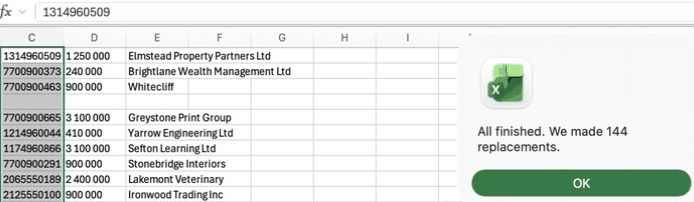
Excel says how many replacements it made, one for each space, not each cell. If the number looks wrong, press Ctrl+Z (Cmd+Z on a Mac) to undo.
How to remove spaces with SUBSTITUTE
SUBSTITUTE replaces one piece of text with another inside a cell. With an empty replacement it removes it: =SUBSTITUTE(A2, " ", "") returns A2 with every space taken out, and leaves A2 itself as it is.
This is the formula for spaces between numbers. A phone number typed as 415 555 0123 becomes 4155550123. Keep the result as text: converting a phone number to a number drops a leading 0 and a + sign. For a figure like 1 250 000 that should be a number, wrap it in VALUE: =VALUE(SUBSTITUTE(A2, " ", "")) returns 1250000.
To remove only the first space, or any other single one, SUBSTITUTE takes a fourth argument, the occurrence: =SUBSTITUTE(A2, " ", "", 1) removes the first space and keeps the rest.
Why TRIM doesn't remove some spaces
TRIM only removes the ordinary space character. Text copied from a web page, a PDF or some exports often carries non-breaking spaces instead. They look the same on screen, but they are a different character, number 160, and TRIM leaves them alone. Find and Replace with a typed space misses them too.
Turn them into ordinary spaces first, then trim: =TRIM(SUBSTITUTE(A2, UNICHAR(160), " ")). Use UNICHAR, not CHAR: in Excel for Mac, CHAR(160) is a different character, so the formula changes nothing there. UNICHAR(160) is the non-breaking space on Windows and Mac. To remove them in place with Find and Replace on Windows, click in Find what, hold Alt and type 0160 on the number keypad, type one ordinary space in Replace with, then Replace All. Replacing them with nothing joins the words on either side, so Westmarch Ltd becomes WestmarchLtd. Then use TRIM, as above, to clear the spaces left at the start and end.
Line breaks inside a cell are a different character again, CHAR(10). CLEAN removes them along with other characters that don't print, but it leaves nothing in their place, so Brightlane and Inc on two lines become BrightlaneInc. Swap line breaks for a space first: =TRIM(CLEAN(SUBSTITUTE(SUBSTITUTE(A2, UNICHAR(160), " "), CHAR(10), " "))) covers all three. CLEAN doesn't remove non-breaking spaces on its own, which is why the first SUBSTITUTE stays in the formula.
How to remove spaces in Google Sheets
TRIM and SUBSTITUTE work the same way in Google Sheets: =TRIM(A2) for extra spaces, =SUBSTITUTE(A2, " ", "") for all of them.
If the data came in through File > Import with Convert text to numbers, dates, and formulas left on, the default, Sheets has already removed the spaces at the start and end of each cell. Double spaces between words and non-breaking spaces stay.
Sheets also has a menu command that trims in place, with no helper column. Select the cells and go to Data > Data cleanup > Trim whitespace. It removes leading, trailing and repeated spaces. It leaves non-breaking spaces, so for text copied from the web, use =TRIM(SUBSTITUTE(A2, UNICHAR(160), " ")) as in Excel. On a UK account the menu reads Data clean-up.
To remove every space in place, use Edit > Find and replace (Ctrl+H, or Cmd+Shift+H on a Mac): a space in Find, nothing in Replace with, then Replace all. As in Excel, a phone number left with only digits turns into a number and loses its leading 0.

Why spaces matter before an import
A space you can't see makes two values different. jane@westmarch.com and the same address with a space at the end are two values to Excel, so Remove Duplicates keeps both rows, and a VLOOKUP on that email returns #N/A. Clean the spaces first, then remove duplicates or run the lookup.
The same goes for a CRM import. Some importers trim spaces and some don't, so clean them in the file and the result doesn't depend on which one you use.
Remove spaces across a whole file
Operelio's Find & Replace works on a CSV or Excel file without opening it. Add a rule, turn on Advanced patterns, and use ^\s+|\s+$ as the find with Replace left empty: it removes spaces at the start and end of every cell, non-breaking spaces included. \s+ removes every space. Set Runs on to the columns you mean, check the preview, and run it. Your original file is never changed.
If the file is going into HubSpot, Salesforce or Pipedrive, the CRM Formatter also trims emails and strips spaces from phone numbers on the way in.

Remove spaces from every cell in a file, with as many rules as you need.
Related
- How to use VLOOKUP in Excel
- How to remove duplicates in Excel
- How to remove duplicates in Google Sheets
- How to clean a customer list without Excel formulas
- How to use Text to Columns in Excel
- How to format phone numbers in Excel
- How to compare two Excel files for differences
- Why your HubSpot import is failing
- Find & Replace guide
- Find & Replace tool
- CRM Formatter
Frequently asked questions
How do I remove blank spaces in Excel?
For spaces inside cells, use TRIM to remove the extra ones or Find and Replace to remove them all. For blank cells, select the range, go to Home > Find & Select > Go To Special, choose Blanks and click OK, then Home > Delete > Delete Sheet Rows. That deletes every row with a blank cell in the selection, so select only the column that should never be empty.
How do I remove spaces between numbers in Excel?
Use =SUBSTITUTE(A2, " ", ""), or Find and Replace with a space in Find what and nothing in Replace with. For a figure that should become a number, wrap the formula in VALUE. Keep phone numbers as text so a leading 0 or + stays.
Ready to get started?
Upload a file and run your first transformation. Free, no credit card required.