
Updated November 1, 2026
Every output mode, free
Compare two spreadsheets. See exactly what changed.
Upload two versions, pick a key column, and download a file with every row classified as new, removed, changed, or unchanged. Excel output with cell-level highlighting is included on every plan.
No credit card required.
What it does
Full comparison between two file versions
Added rows
Rows that exist in the new file but not the old one. New entries: new leads, new records, new contacts.
Removed rows
Rows that existed in the old file but are missing from the new one. Deleted records, churned contacts, removed entries.
Changed rows
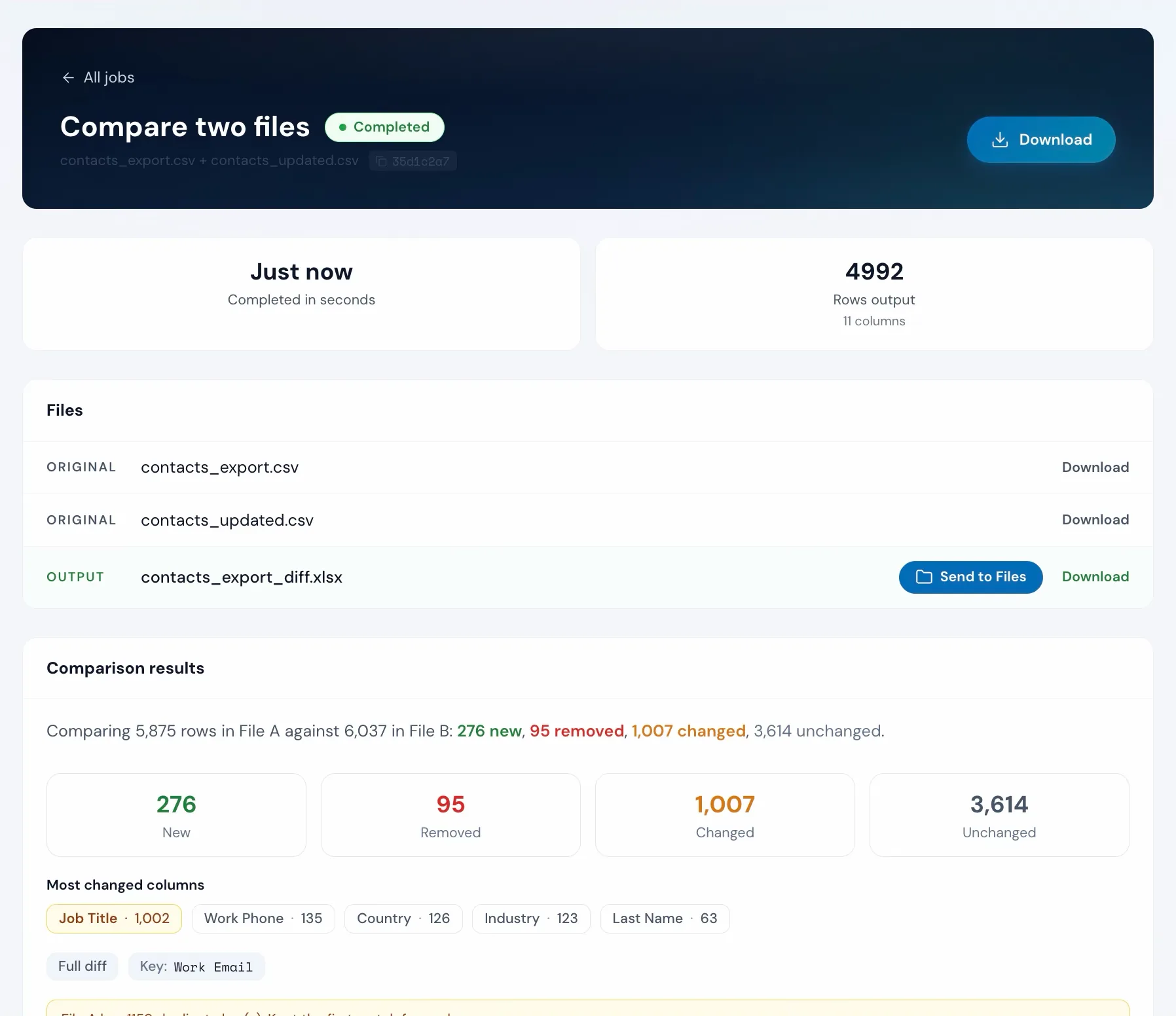
Rows where the key matches but one or more values changed. A Change type column labels every row, a Changed columns column lists each edit, old value to new, and the Excel output shades the changed cells.
Pick any column as the key
Choose the column that uniquely identifies each row (e.g. Email, ID, SKU). Operelio matches rows between files using this key.
Multiple output modes
Five output modes, all on every plan: the full diff, new rows only, changed rows only, removed rows only, and a counts-only summary as CSV output.
Color-coded Excel export
The Excel output uses green for new rows, red for removed rows, yellow for changed rows, and darker yellow on the specific cells that changed. Spot differences without reading every row.
How to use it
Upload two versions, see every change
Upload two files
Upload the old version and the new version. CSV and Excel work together. Operelio reads the columns from both.
Pick the key column
Pick the column that identifies each row, like Work Email. Rows pair up on it, not by position.
Match rows on
What goes in the file
Review and download
Check the row counts, then download the results as a file with a Change type column showing new, removed, changed, or unchanged.
Doing it yourself
Compare Excel files by hand or with Operelio
By hand, you line the two files up row by row, so one added or removed row throws every row below it out of line. Compare Files matches rows on a column you pick, such as an ID or email, so added, removed and changed rows each come out marked.
In Excel or Google Sheets
- Open both files side by side and scroll through each row
- Use VLOOKUP or MATCH formulas to find rows in the other file
- Write IF formulas to flag changes in individual cells
- Manually scan for rows that exist in one file but not the other
- Copy results to a new sheet and add conditional formatting
Complex formulas. Easy to miss individual cell changes. Gets harder with every extra column.
With Compare Files
Every added, removed, and changed row classified for you. Cell-level detail in the Excel output.
Version drift might not be the only problem in that file
Upload it and Bridgeant reviews the file before you commit to a tool. It reports what it finds, orders the problems by how much they actually matter, and points you at the tool for each one. That is on every plan including Free, and it works from a summary of your file rather than the contents.
On Starter and up it stops advising and starts doing. Describe the job in a sentence and Bridgeant plans the steps, shows you the plan, and runs them in the right order once you approve. You are not running four jobs by hand and trying to remember which came first.
Bridgeant, the agent inside OperelioPricing
Every comparison feature is free. Plans differ on volume.
Every output mode, matching on one or more key columns, and the color-coded Excel export, on every plan. Row limits: 2,000 on Free, 50,000 on Starter, 75,000 on Pro, 150,000 on Agency. Each run uses one job: 5 a month on Free, 300 on Starter, 1,000 on Pro, 3,000 on Agency. Starter from $29.25 a month, Pro from $74.25, Agency from $224.25, billed annually.
Common questions
Compare Files FAQ
What counts as a “change” between two files?
A change is when a row's key matches between files but one or more cell values are different. The Excel output highlights the specific cells that changed, and the Change type column flags each changed row.
What is the key column?
The field that uniquely identifies each row, like Email, ID, or SKU. Operelio uses it to match rows between the two versions. Without a key, there's no way to know which rows correspond to each other.
Is the comparison case-sensitive?
Not by default. Key matching and cell comparison are case-insensitive, and whitespace is trimmed. “John Smith” and “john smith” are treated as the same value.
Can I compare on more than one key column?
Yes, on every plan. You can match on two or more columns together (like first name AND last name) to match rows when no single column is unique.
Can I compare two tabs of the same workbook?
Yes. Upload the workbook as the original, then pick the same workbook from Recent files as the updated one and choose its other tab. With two separate files, each file has a tab picker, so you control which tab each side reads (the first tab by default).
What does the color-coded Excel export look like?
Green for new rows, red for removed rows, yellow for changed rows with darker yellow on the specific cells that changed. You can spot differences in a large file without reading every row. Available on every plan.
What if a key appears more than once in the same file?
Operelio matches against the first occurrence and notes duplicates in the warnings. For best results, use a key column that's unique within each file.
Works well with
Match & Pull Columns
Pull columns from one file into another by matching on a shared key.
Deduplicate
Remove exact and similar duplicate rows from either file.
Merge Files
Combine the two files into one spreadsheet.
Use case: CRM migration tool for HubSpot, Salesforce and Pipedrive
Want the full walkthrough? Read the Compare Files guide →
Related how-to: Compare two Excel files for differences
Stop comparing files by hand.
Upload two versions, pick the key column, and see every change. On every plan.