
Salesforce duplicate rules: what they do to imports and APIs
A matching rule decides what counts as a duplicate in Salesforce, and a duplicate rule decides what happens when one turns up: alert the person, block the save, or report it. That choice only holds for people working in Salesforce. For rows that arrive through an import tool or the API, Salesforce shows no alert and doesn't save the record, so even the standard rules, which are set to Allow, refuse matching rows. Check what your rules match on before a big load, and clean the file first.
By Operelio team · Updated October 14, 2026
On this page15
- 1.What duplicate rules and matching rules do
- 2.The standard rules, and why a new lead can match a contact
- 3.Which new leads the standard rule flags: a worked example
- 4.Alert, block and report: what each does
- 5.How to set up a duplicate rule in Salesforce
- 6.How to create a custom matching rule in Salesforce
- 7.Custom matching rule recipes for leads, contacts and accounts
- 8.What duplicate rules do to imports and API writes
- 9.What we saw on a live push
- 10.How to load a list without tripping duplicate rules
- 11.How to report on duplicates in Salesforce
- 12.Duplicate rule and matching rule limits
- 13.How to merge duplicates already in Salesforce
- 14.How Operelio handles Salesforce duplicate rules
- 15.Frequently asked questions
What duplicate rules and matching rules do
Salesforce splits duplicate management into two parts that only work together. A matching rule compares a record with the records already in Salesforce and says which ones are duplicates. A duplicate rule names the object it watches, picks one or more matching rules, and sets what happens when a person creates or edits a record that matches. Salesforce's help describes the two as a pair: the matching rule finds, the duplicate rule handles.
Both come built in for accounts, contacts and leads, and the standard ones are active by default. You can edit them or add your own in Setup. Duplicate rules are in Essentials, Professional, Enterprise, Performance, Unlimited and Developer editions.
| Matching rule | Duplicate rule | |
|---|---|---|
| What it does | Compares fields and decides which records match | Decides what happens when a record matches |
| What you set | Fields, and an exact or similarity method for each | Object, matching rules, Allow or Block, alert, report, conditions |
| Built in | Standard Account, Contact and Lead matching rules | Standard Account, Contact and Lead duplicate rules |
| On its own | Does nothing until a duplicate rule or duplicate job uses it | Can't be activated until its matching rules are active |
The standard rules, and why a new lead can match a contact
The standard lead duplicate rule doesn't only look at leads. In an org created in Summer '17 or later, it matches leads that duplicate other leads and contacts that duplicate leads, and the standard contact rule does the same the other way around. Older orgs can switch the same behavior on in Setup. So a new lead for someone who is already a contact counts as a duplicate, even though there is no other lead.
Out of the box, both rules are set to Allow on create, which means a person is alerted but can save the record, and to Allow on edit.
What counts as a match is set by the standard contact and lead matching rules. They never match on email alone: every line of the equation needs the person's name as well, plus one more thing. Salesforce's equation for leads is any one of these:
| First and last name, plus | Notes |
|---|---|
| The most common match. | |
| Phone | Even under a different email address. |
| Title and company | Company on a lead is compared with Account Name on a contact. |
| Street and title, or street and city, ZIP or phone | Addresses are scored in parts and work best with North American data. |
Names are compared with similarity methods, not exact equality: first names need a score of 85, last names 90, and the rule also tries them swapped, so Felix Michael matches Michael Felix. Email has to match exactly.
Which new leads the standard rule flags: a worked example
Say a contact is already in Salesforce (the names here are made up): Maria Lopez, Head of Operations at Northwind Traders, maria.lopez@northwind.example, (415) 555-0182. Here is what happens to four new lead rows, first under a lookup by email on leads (what a lead import set to match by email does), then under the standard lead rule.
| New lead row | Email lookup on leads | Standard lead rule |
|---|---|---|
| Maria Lopez, maria.lopez@northwind.example | No lead has this email, so it's new | Duplicate of the contact: first name, last name and email |
| Maria Lopez, maria.l@gmail.example, (415) 555-0182 | New | Duplicate: first name, last name and phone |
| Maria Lopez, maria.l@gmail.example, Northwind Traders, no phone or title | New | Not a duplicate: name and company alone aren't in the equation, so the lead is saved |
| Sam Okafor, maria.lopez@northwind.example | New | Not a duplicate: the email matches but the name doesn't, so the lead is saved |
The first row is the one that catches people out. Matching on email finds no lead and decides the person is new, while Salesforce finds the contact and refuses the lead. To catch it, check the file's emails against contacts as well as leads before a lead import.
Alert, block and report: what each does
Each duplicate rule has an action on create and an action on edit. Allow lets the record be saved, Block stops the save, and you can turn on an alert, a report or both. When you create a rule, Salesforce's defaults are to alert on create and report on create and edit.
The alert is what a person sees in Salesforce: a message (the standard rules say "Use one of these records?") and, in Lightning Experience, up to 15 possible duplicates to open instead. Report puts the saved record and its duplicates, up to 100 for each matching rule, into a duplicate record set, including records on the other object for a cross-object rule. That is the list the duplicate reports are built from.
The right-hand column is where an import or API write differs:
| Setting | Someone creating a record in Salesforce | A row from an import or the API |
|---|---|---|
| Allow, with alert | Sees the alert and can save anyway | No alert, and the record isn't saved |
| Block | Can view the duplicates but can't save | The record isn't saved |
| Report | The saved record goes into a duplicate record set | Lists only records that were saved. A refused row isn't in any set |
How to set up a duplicate rule in Salesforce
You need the Customize Application permission to create, edit, activate or deactivate a rule. These are the steps in Salesforce's help, read October 2026; they apply to editing a standard rule as well as making a new one.
Open Duplicate Rules
In Setup, type Duplicate Rules in the Quick Find box. Click a rule's name and then Edit to change it, or click New Rule and pick the object to make one.
Name it and set record-level security
Enforce sharing rules compares the record only with records the person can see. Bypass sharing rules compares it with every record, and still won't show the person records they have no access to.
Choose the actions
Pick Allow or Block for create and for edit, select Alert, Report or both where Salesforce offers them, and edit the alert text if you want.
Pick the matching rules
Choose the object to compare with, then a matching rule for it. For a cross-object rule, such as leads against contacts, check the field mapping, for example a custom Work Email field mapped to Email.
Add conditions if it should only run sometimes
For example, only when a user with a certain profile or role creates the record, or only for one country.
Save, activate and order the rules
Every matching rule in it must be active first. If an object has several active duplicate rules, click Reorder on any rule's page: once one rule finds a match for a record, the rules after it skip that record, so Salesforce advises putting Block rules before Allow rules.
How to create a custom matching rule in Salesforce
A matching rule is where you change what counts as a duplicate. You need the Customize Application permission. These are the steps in Salesforce's help, read 14 October 2026. Salesforce suggests making the duplicate rule first and clicking Create New Matching Rule from inside it, so Salesforce attaches it to that duplicate rule automatically.
Each field in the rule gets a matching method. Exact works on almost any field, custom fields included, and only lowercases the value and trims spaces before comparing. The similarity methods exist for a few standard fields only. In the Matching Method list, each similarity method's label ends with its field's name, after a colon, such as the one ending ": First Name". This page calls that the First Name similarity method. A field counts as a match when its score reaches the method's threshold, listed in the table under the steps.
Open Matching Rules
In Setup, type Matching Rules in the Quick Find box. To change a rule, deactivate it first, then click Edit. To make one, click New Rule.
Pick the object
Choose the object whose records the rule compares, such as Lead, Contact or Account, then give the rule a name and a description.
Enter the matching criteria
For each field, pick the field, its matching method, and whether to select Match Blank Fields. Up to 10 fields. To change an AND in the equation to an OR, add filter logic.
Save and activate
Activation can take a while, and Salesforce emails you when the rule is ready. Then pick it in a duplicate rule's Matching Rules section and activate that rule too.
| Matching method | Counts as a match at | How it compares |
|---|---|---|
| Exact | Identical | Lowercased and trimmed, nothing else. On a custom rule, Email loses no dots or underscores, so j.smith and jsmith are different. |
| First Name similarity | 85 | Initials, spelling and known nicknames, so Bob can match Robert. |
| Last Name similarity | 90 | Typing slips and names that sound alike. |
| Company Name similarity | 70 | Drops words such as Inc and Corp and expands names such as IBM. Only the first two words go into the match key. |
| Phone similarity | 80 | In parts: country code 10%, area code 50%, the next three digits 30%, the last four only 10%. Works best with North American numbers. |
| City similarity | 85 | Small spelling differences. |
| Street similarity | 80 | In parts: street name 50%, number 20%, suffix 15%, suite 15%. |
| ZIP similarity | 80 | The first five digits are 90% of the score. |
| Title similarity | 50 | Acronyms and similar wording. |
Match Blank Fields means two empty values count as a match. Leave it off for Email and Phone, or every record without one matches every other record without one.
Custom matching rule recipes for leads, contacts and accounts
These four rules catch duplicates the standard rules let through. Each row is a matching rule and the duplicate rule that uses it; make the duplicate rule, then its matching rule from inside it, as above. Keep the standard rules active beside them: an object can have five active duplicate rules, and each duplicate rule can use up to three matching rules, one for each object it compares with. The methods and limits are from Salesforce's matching rule pages, read 14 October 2026.
The action in the right-hand column is for people working in Salesforce. For rows from an import or the API, a match is refused under Allow with an alert as well as under Block, as the import section below explains, so a new rule also changes what your next load can create.
Same email: the standard rules need the person's name as well, so a lead with a contact's email under another name is saved. This rule catches it. Map Lead Email to Email when you pick the contact rule. A shared inbox such as info@ is a real exception, so check for those before choosing Block.
Similar name at the same company: all three fields use similarity methods, which suits names spelled two ways at one company. Similarity also finds some people who aren't the same, so alert rather than block, and use it only for names in Latin characters.
Phone and last name: Salesforce's own example scores 1-415-555-1234 against 1-415-555-5678 at 90, a match, because the last four digits carry only 10% of the score. Phone alone would match everyone at one office, so the rule adds the last name. For international data, Salesforce recommends Exact, which needs the numbers stored in one format.
Same account name: Exact only lowercases and trims, so Acme Inc and Acme Inc. are different to it. Clean account names before relying on it, or use the Company Name similarity method and alert instead. Block stops anyone saving a second account with that name, so use it only if your org treats one name as one account; otherwise alert.
| Catches | Matching rule | Duplicate rule |
|---|---|---|
| Same email, whatever the name | On Contact: Email, Exact, Match Blank Fields off. A second rule on Lead with the same line. | On Lead, comparing with Contacts (the contact rule) and with Leads (the lead rule). Block, reordered to run before the standard lead rule, or Allow with alert and report. |
| Similar name at the same company | On Lead: Company, First Name and Last Name, each with its similarity method, joined with AND | On Lead, comparing with Leads. Allow with alert and report. |
| Same phone and last name | On Lead or Contact: Phone and Last Name, each with its similarity method, joined with AND, Match Blank Fields off | On the same object, comparing with it. Allow with alert and report. |
| Same account name | On Account: Account Name, Exact | On Account, comparing with Accounts. Block, reordered to run before any Allow rule on accounts. |
What duplicate rules do to imports and API writes
Salesforce lists the cases where a duplicate rule's setting is overridden. In its words: "no alert is shown and users can't save records" when "Records are added using the data import tools" or "Records are added or edited using Salesforce APIs." There is nobody to show an alert to, so the save that Allow would have permitted doesn't happen either. Data Loader is covered both ways: it is a bulk import tool, and by default it loads through Salesforce's SOAP API.
Salesforce's own support article on campaign imports shows it. Its rule is set to "Allow | Alert and Report", yet the import email reads "Leads created: 0" with two lines of "You're creating a duplicate record. We recommend you use an existing record instead." The import finishes, and the matching rows are refused, not imported.
Three points from Salesforce's notes on duplicate rules, and one from its Data Import Wizard help, matter for a load:
| What happens | What it means for a load |
|---|---|
| Rows saved together aren't compared with each other, only with records already in Salesforce | Two rows for the same person in one file can both be created, even under Block. Take repeats out of the file yourself. |
| On an edit, a rule runs only when an edited field is in its matching rule | An update that changes only, say, Lead Status doesn't run the rule. One that changes a phone number or title can. |
| A rule can't spot a match on a field the user can't see | If the user an import runs as has no access to a field the matching rule uses, that rule finds no duplicates for them. |
| The Data Import Wizard's Match Lead by Email looks only at leads | It updates a lead with the same email instead of creating one, but it doesn't stop the standard rule refusing a lead whose email belongs to a contact. |
What we saw on a live push
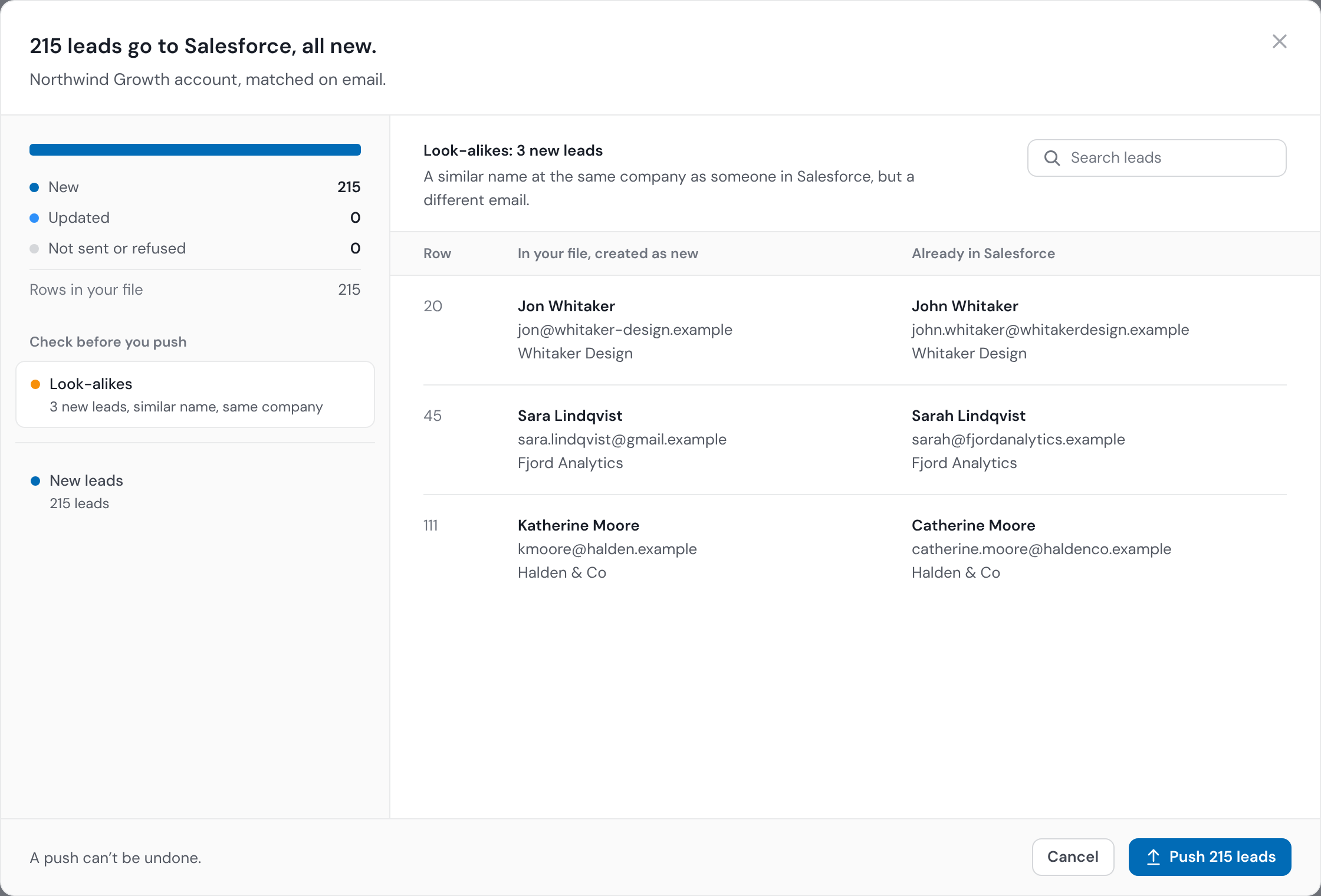
Operelio pushes into Salesforce through its API, so this is the case we see. On one live push of leads on 7 August 2026, our preview counted 20 new leads to create, and 9 were created. Salesforce's duplicate rule refused the other 11, and each of them matched a contact already in the org, not a lead. That is the cross-object match the standard lead rule makes.
Our lookup had matched on email against leads, as a lead import does, and found nothing for those 11 people, so it sent them as new. Salesforce compared them with contacts too and refused them. The 9 that weren't refused were created as normal, because each row in a push succeeds or fails on its own.
Since then our preview also searches contacts and leads by company before a push and flags new rows with a similar name to someone already at the same company, so a row like that can be dealt with before it is sent.
How to load a list without tripping duplicate rules
Most of this happens before the import starts. The first four steps suit every load. The last two take the rule out of the way for one load, which only makes sense once the file itself is clean.
Take repeats out of the file
Salesforce doesn't compare rows in the same load with each other, so two rows for one person can both get in. Keep one row per email address, and check name and company together for the same person under two addresses.
Match on email or ID, so existing people update
Set the import to match leads by email, or include each record's Salesforce ID, so rows for people already there update their record instead of trying to create a second one.
Check the file against contacts as well as leads
Export your contacts' emails and look up each row of a lead file against them. Rows that are already contacts usually belong on the contact, not as a new lead, so take them out of the lead file and decide what to do with them.
Merge the duplicates already in Salesforce
If two records already exist for one person, a match can land on either of them. Merge them first, so updates land on one record.
Or add a condition for the import user
A duplicate rule can run only for certain profiles or roles. If imports and integrations run as their own user, a condition can leave that user's loads out of the rule, while everyone working in Salesforce still gets it. The file then has to be clean, because nothing else checks it.
Or deactivate the rule for the load
In Setup, open the rule, deactivate it, run the import, and activate it again right after. While it's off, people creating records in Salesforce get no alerts either, so pick a quiet time.
When a load has gone through with refused rows, the import's result email, or the error file from Data Loader, lists them. Read the reason on each row before you load them again: the existing record they matched is usually the one to update.
How to report on duplicates in Salesforce
Duplicate reports read from duplicate record sets, so they show the records a rule reported, records someone added to a set by hand, and the results of duplicate jobs. Nothing refused by an import is in them. You need the Manage Custom Report Types permission.
Open Report Types
In Setup, type Report Types in the Quick Find box and create a report type.
Pick the primary object
Choose Lead, Contact or Account to report on duplicates of that object, or Duplicate Record Set to see how well your rules are working across objects.
Relate Duplicate Record Items
Click Next, relate Duplicate Record Items to the primary object, and save the report type.
Give people access
Give users access to the Duplicate Record Set and Duplicate Record Items objects, so they can build reports on the new type.
Duplicate rule and matching rule limits
These limits are from Salesforce's notes on duplicate rules and on matching rules, read October 2026.
| Limit | Number |
|---|---|
| Active duplicate rules per object | 5 |
| Matching rules in one duplicate rule | 3, with one active matching rule per object |
| Active matching rules per object | 5 |
| Active matching rules in the org | 25 |
| Matching rules in the org, active and inactive | 100 |
| Duplicates listed in a duplicate record set, per matching rule | 100 |
| Fields in one matching rule | 10 |
| Rows in a matching rule's equation once Salesforce expands its ORs (its standardized format) | 10 |
Matching rules that use similarity methods support only Latin characters, so Salesforce recommends exact matching for international data.
How to merge duplicates already in Salesforce
Rules stop new duplicates. The ones already there are merged by hand, from a record, in Lightning Experience. Merging leads needs Delete on leads, and merging contacts needs Delete on contacts.
The merged record keeps the Created By and Created Date of the oldest record, related items such as campaigns and activities move to it, and the other leads go to the Recycle Bin.
To find duplicates across the whole org instead of one record at a time, Salesforce has duplicate jobs, but only in Performance and Unlimited editions. On other editions, a report on duplicate record sets or a dedupe app is the way to find them in bulk.
Open a record with duplicates
A message on the record says when duplicates exist. Click View Duplicates.
Choose up to three records
Select the records to merge, up to three at a time, and click Next.
Pick the principal record and the values
Choose the record to keep as the principal, then the field values to keep from each, and click Next.
Confirm and merge
Check your choices on the last screen, then merge.
How Operelio handles Salesforce duplicate rules
Operelio pushes a cleaned file into Salesforce leads or contacts through the API, so your duplicate rules apply to every row it sends, and today a rule set to Allow with an alert refuses a matching row just as a Block rule does. What the push does around that:
| Step | What happens |
|---|---|
| Repeats in the file | By default, rows with the same email are merged into the first one before anything is sent, with the later rows filling only its blank fields, since Salesforce won't compare them with each other. |
| Existing people | Each row is matched by Email against the object you push to. A match updates that record instead of creating one. A row with no email is skipped, never created. |
| Look-alikes | Before the push, the preview searches leads and contacts at the same companies and lists new rows with a similar name at the same company as someone already there, but a different email, so you can deal with them before Salesforce refuses them. |
| Refused rows | A row the org's rule refuses fails on its own, the rest land, and the result names each refused row as blocked by a duplicate rule in Salesforce. |
Direct push to Salesforce is on Starter, Pro and Agency. Cleaning the file and the Deduplicate tool work on every plan, and the cleaned file can go in with the Data Import Wizard instead.
Take repeated people out of your file before Salesforce's duplicate rules see it.
Related
Frequently asked questions
Do Salesforce duplicate rules apply to Data Loader?
Yes. Salesforce says that for records added with its data import tools or through its APIs, no alert is shown and the record can't be saved. A Data Loader row that matches an active duplicate rule is refused, and the error file says why.
Why did my import fail when the duplicate rule is set to Allow?
Allow only lets a person save after seeing the alert. An import has nobody to see it, so Salesforce doesn't save the record. Salesforce's own support article shows an Allow rule with alert and report giving "Leads created: 0" on an import.
What's the difference between alert and report in a duplicate rule?
Alert shows the person creating a record a message and the possible duplicates. Report adds the saved record and its duplicates to a duplicate record set, which duplicate reports are built from. You can turn on either or both.
Can a Salesforce matching rule match on email alone?
Yes, with a custom matching rule: Email with the Exact method and Match Blank Fields off, used in a duplicate rule. The standard contact and lead rules always need the name as well, so on their own they save a record that has a contact's email under another name.
How many duplicate rules can I have in Salesforce?
Up to five active duplicate rules per object, each with up to three matching rules. An object can have up to five active matching rules, and an org up to 25.
Ready to get started?
Upload a file and run your first transformation. Free, no credit card required.