
Round robin lead assignment in Salesforce, HubSpot and Pipedrive
Round robin lead assignment hands each new lead to the next rep in a fixed order, so everyone on the team gets the same share. HubSpot does it with the Rotate record to owner workflow action on Sales Hub or Service Hub Professional and up. Pipedrive does it with automatic assignment to a team, on Professional and up. Salesforce has no round robin setting: you build it from an Autonumber field, a formula field and a lead assignment rule.
By Operelio team · Updated October 21, 2026
On this page11
- 1.What is round robin lead assignment?
- 2.When round robin works, and when it doesn't
- 3.Salesforce lead assignment rules
- 4.Round robin lead assignment in Salesforce
- 5.Why Salesforce lead assignment rules aren't working
- 6.Salesforce lead assignment rules best practices
- 7.Round robin in HubSpot
- 8.Round robin in Pipedrive
- 9.HubSpot vs Salesforce vs Pipedrive: round robin compared
- 10.Round robin with rules, before the lead reaches the CRM
- 11.Frequently asked questions
What is round robin lead assignment?
Salesforce's own definition is the clearest: "Round robin assignment means that each new lead is assigned to a different user until everyone has been assigned the same amount and the cycle repeats." It works like dealing cards. With three reps, Ana, Ben and Chloe, lead 1 goes to Ana, lead 2 to Ben, lead 3 to Chloe, and lead 4 back to Ana.
People also call it round robin lead distribution or round robin lead routing. Strictly, routing is the wider job of deciding where a lead goes (which team, which territory, which owner), and round robin is one way of picking the person once you know the team. Most setups use both: rules first, then a rotation inside each team.
It sits alongside three other ways of handing out leads:
| Method | How it picks the rep | Good for |
|---|---|---|
| Round robin | The next rep in a fixed order | Equal reps and leads of similar value |
| Weighted round robin | The same order, but some reps get more turns (two leads to Ana for every one to Ben) | A senior rep who should carry more, or a new rep ramping up |
| Load balanced | The rep with the fewest open records right now | Teams where some leads take far longer to work than others |
| Rules-based | A rule on the lead's own data: country, company size, source, score | Territories, account ownership and specialist reps |
When round robin works, and when it doesn't
Round robin is fair and simple when every rep sells the same thing to the same kind of buyer, and the leads coming in are roughly alike. Nobody can claim the good leads went to someone else, and nobody needs to decide who gets what.
It breaks when the leads or the reps aren't alike. Four common cases, and the fix for each:
The lead belongs to an existing account
A new person at a company you already sell to should go to that account's owner, not the next rep in line. Check the lead against the CRM first, and route existing accounts before the rotation.
Lead quality varies a lot
If one lead in ten is a large company asking for a demo, a strict rotation hands it to whoever is next. Score leads first, send the top scores to the reps you want on them, and rotate the rest.
A rep is away
A rotation that doesn't know about holidays keeps dealing leads to someone who won't see them for a week. Use availability where your CRM has it, or take the rep out of the rotation while they're away.
Reps cover territories
If reps own regions or industries, rotate within each territory, not across the whole team. Put the territory rule first and a separate rotation under each.
Salesforce lead assignment rules
Salesforce assigns leads with lead assignment rules, under Setup > Lead Assignment Rules. A rule is a list of entries. Each entry has criteria (such as Lead Source equals Web, or Country equals Canada) and a user or queue to assign to. Salesforce's help describes how it reads them: "Salesforce evaluates each entry in order and tries to match the criteria for the entry. When a match is found, Salesforce assigns the item and stops evaluating the rule entries for that item. If no match is found, the item is reassigned to either the default Web-to-Lead owner, the administrator doing a lead import, or the default case owner."
"For each rule type, only one rule can be in effect at any time." So all your lead logic lives in one active rule, as entries in order. An entry can have up to 25 filter criteria of up to 255 characters each, and a rule up to 3,000 entries. Assignment rules run after validation rules and before auto-response rules, workflow and escalation, so a lead that fails validation is never assigned.
Salesforce says rules can assign leads "regardless of whether leads are created manually, are generated from Web-to-Lead forms, or are imported using the Data Import Wizard." Leads from the API, Data Loader and Flow are different, as the section on rules that don't fire explains.
Salesforce's own tip for the last entry: "Create an error-proof rule by always creating the last rule entry with no criteria." Point that entry at a queue someone watches, so a lead that matches nothing still lands with a person.
Facts here are from Salesforce's help, read October 20, 2026. Salesforce Help's setup pages show no update date.
Round robin lead assignment in Salesforce
Salesforce has no round robin switch. Its own help page says "You can set up round robin lead assignment with a few custom fields and a lead assignment rule." The idea: every lead gets a running number, a formula turns that number into 1, 2 or 3 in a repeating cycle, and the assignment rule sends 1 to the first rep, 2 to the second and 3 to the third.
Salesforce's own steps, for three reps (we haven't run them in an org of our own):
Add an Autonumber field to Lead
Call it Lead Number. Salesforce numbers each new lead in order: 1, 2, 3 and so on.
Add a formula field that turns the number into a turn
Call it Round Robin ID, of type Number, with the formula below. MOD divides by the number of reps and keeps the remainder, so each rep gets every third lead: lead 1 gives 2, lead 2 gives 3 and lead 3 gives 1.
Add one assignment rule entry per rep
In your active lead assignment rule, add an entry where Round Robin ID equals 1 that assigns to the first rep, one where it equals 2 for the second, and one for 3. Keep them above your catch-all entry.
Change the formula when the team changes
Salesforce's maintenance step: "Every time you add a user to the round robin rotation, change the sort order and the round robin equals number to the user's number." A fourth rep means changing 3 to 4 in the formula and adding an entry for 4.
MOD(VALUE({!Lead_Number__c}),3)+1Why Salesforce lead assignment rules aren't working
Most "my assignment rule isn't firing" problems come from how the lead was created, not from the rule's criteria. Salesforce runs the rule when it's asked to, and several ways in don't ask by default.
The quotes below are from Salesforce's knowledge base, read October 20, 2026: its articles on the API headers, on Data Loader and, from September 2026, on Flow. Check these in order:
The lead came in through the API without the header
Salesforce: "the API call must include both of the following headers to trigger assignment rules and send notification emails: AssignmentRuleHeader ... EmailHeader". It also says "When using REST API, the email notification is not supported." A form tool or integration that creates leads through the API needs that header set, or every lead keeps the integration user as owner.
It was imported with Data Loader and no rule ID
Assignment rules are "usually triggered through the user interface". For Data Loader, copy the rule's ID (it starts with 01Q) into Settings > Assignment rule before the import.
It was created by hand in Lightning without the checkbox
The "Assign using active assignment rule" checkbox on the new lead form is "Salesforce Classic only" in Salesforce's create-a-lead guidelines. In Lightning, the checkbox comes from the page layout's layout properties, and the Lead object needs "Show on edit page" turned on when "Default" is on. With Dynamic Forms, it's set on the Lightning record page.
A Flow ran Apply Lead Assignment Rules on the Run Immediately path
On a lead created without the checkbox, a Run Immediately action "will silently do nothing". Move the action to a Run Asynchronously path.
The rule you edited isn't the active one
Only one rule can be active. If you built a new rule to test, the old one is still the one running.
Salesforce lead assignment rules best practices
A few habits keep one active rule readable as it grows:
End with a catch-all entry
No criteria, assigned to a queue someone owns. Nothing falls through to the default owner unnoticed.
Put specific entries above general ones
The first match wins, so an entry for a named account or a territory has to sit above the round robin entries.
Write down what each entry is for
Entries have no description field, so keep a short list next to the rule: order, criteria, owner and why. It saves the next admin an afternoon.
Test with a real lead from each source
Create one lead by hand, one through your web form, one through your integration and one by import, and check each owner. A rule that works on the form often fails on the API.
Review it when the team changes
A rep who leaves keeps their entries until someone removes them, and the round robin formula needs its number changing.
Round robin in HubSpot
HubSpot rotates owners with the Rotate record to owner workflow action, "available with" Sales Hub Professional and Enterprise and Service Hub Professional and Enterprise. You add the action to a workflow, choose the owner property, and choose to rotate between specific users or a team. HubSpot then assigns "records to users equally within a selected team or between specified users."
Leads (the Leads object, in beta for this action) and tickets get extra options: Load Balanced ("the user with the least amount of open, assigned tickets"), Round Robin ("assign records in a rotating, sequential order") and Random. They also get "Assign to available users only": "users that are set to Away will not be assigned records", and if everyone is away the record is left with no owner. To rotate leads, "you'll need to turn off the Sync lead owner with contact or company owner setting."
If HubSpot's owner property syncs to Salesforce, HubSpot warns that "the action may not work as expected", because Salesforce may write the old owner back. In that setup, assign in one system only.
Five things about how the rotation behaves, from HubSpot's help, updated October 9 and October 19, 2026:
Only paid seats are in the rotation
"Users must be active with an assigned Sales or Service Hub Professional or Enterprise seat." On a team, "Only main team members" with such a seat are eligible.
The first assignment is random
When every owner's count is zero, "the first contact to reach this action will be randomly assigned to one of them". After that, each record goes to someone with the lowest count.
Counts are per action
"Distribution of ownership for each rotate action is based on the assignment count for that particular action, not based on how many objects each user owns overall in your account." Two rotate actions in two workflows keep two separate counts.
Changing the owners resets it
Add or remove an owner after the workflow is on, and "the assignment counts for that action will reset and the random assignments will start again."
No eligible user means no owner
"If there is no eligible user to rotate to, or if no team is selected for team-based assignment, no owner will be assigned." Put a check after the action for records that are still unowned.
Round robin in Pipedrive
Pipedrive's automatic assignment is "only available on Professional and higher plans". A rule fires when a lead or deal is added, or a deal moves pipeline or stage, checks its conditions, and assigns to one of four assignee types. Picking Team "uses a round-robin to distribute newly created data between its members". You can add up to 50 rules per entity type, and the first rule in the priority list that matches wins.
When a rule fails, the lead or deal shows in the Not assigned tab with a reason, such as "User not found" or "No user in the team". The assignment history keeps seven days of logs.
What Pipedrive's FAQ says about how the rotation behaves (updated September 4, 2026):
Each rule keeps its own rotation
"The distribution is on a per-rule basis." Someone on two teams, or named in two rules, gets more leads.
No caps and no weights
"It's not possible to set a minimum or maximum of open leads or deals", and it isn't possible to distribute "based on weight".
No availability setting
For a rep on vacation, an admin has to "disable any rules set for that specific user and remove them from any teams that may have rules".
It works however the lead arrives
"No matter where the lead or deal is created (e.g., import, API, manually, lead converted to a deal, etc.), it will always be assigned as long as it matches a rule."
HubSpot vs Salesforce vs Pipedrive: round robin compared
Side by side, from each vendor's help pages (Salesforce read October 20, HubSpot and Pipedrive October 21, 2026):
| Salesforce | HubSpot | Pipedrive | |
|---|---|---|---|
| Round robin built in | No: an Autonumber field, a formula and assignment rule entries | Yes: Rotate record to owner workflow action | Yes: automatic assignment to a team |
| Plan | Wherever you have lead assignment rules (the steps are in Salesforce's Essentials help) | Sales Hub or Service Hub Professional or Enterprise | Professional and higher |
| Skips reps who are away | No; edit the formula and entries | Leads and tickets only, with Assign to available users only | No; remove them from rules and teams |
| Weighted | Not in Salesforce's steps | No | No |
| Imports and API | API needs AssignmentRuleHeader; Data Loader needs the rule ID | When the workflow enrolls the record | Yes, however the lead is created |
| Watch for | One active rule; the Flow Run Immediately trap | Counts reset when owners change; Salesforce sync | Rotation per rule; seven days of history |
Round robin with rules, before the lead reaches the CRM
Every setup above runs inside the CRM, after the record exists. Operelio does it on the way in, so the owner is set when the lead is pushed. It works on a single lead sent to a folder's webhook (from Zapier, Make or your own code), straight from Typeform, or by email, and on a list, where it deals the rotation across the whole file. Typeform can send each response straight to a folder, and each response becomes one lead, so a test response from Typeform makes a real lead too.
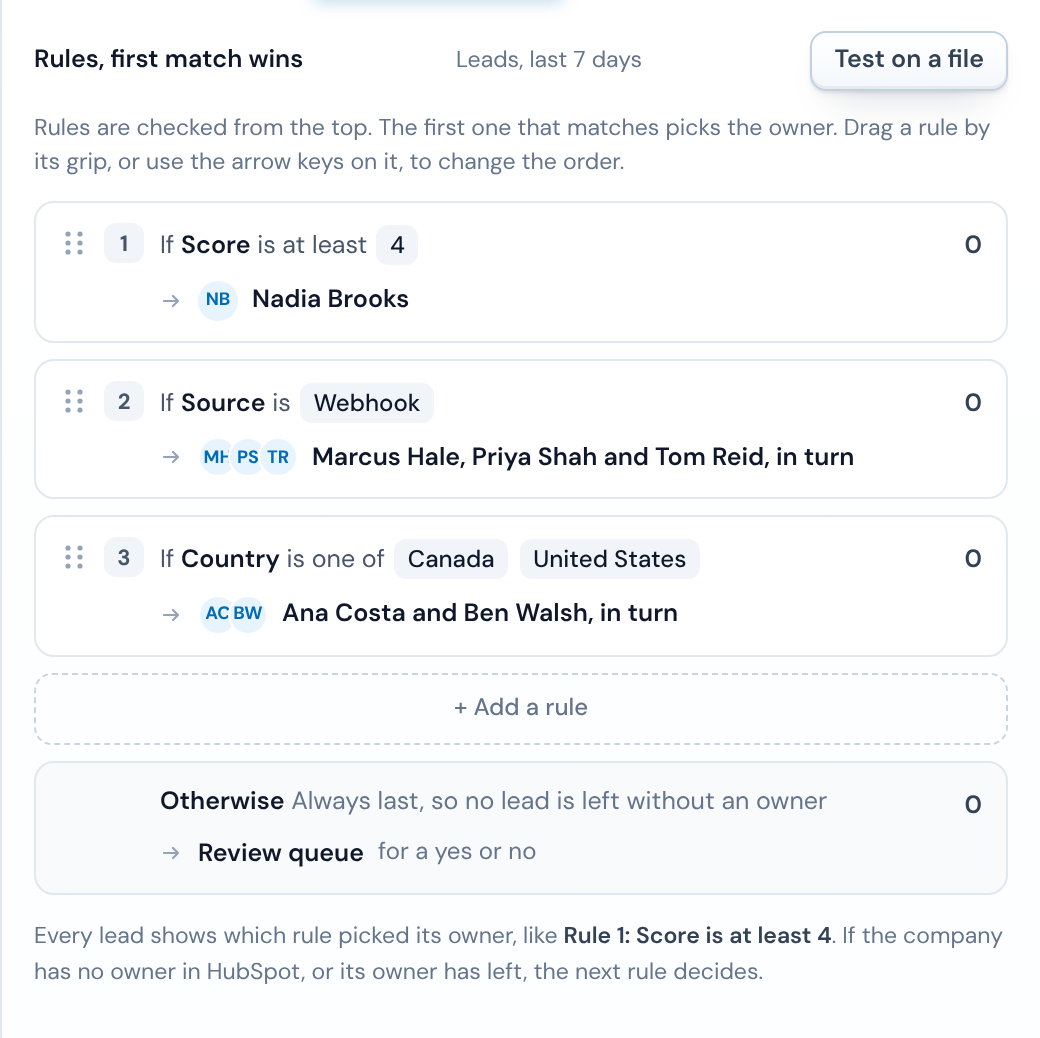
On a trail, routing rules decide who owns each lead. They run in order, the first one a lead matches decides, and a required Otherwise catches the rest, up to 50 rules. A rule can test a column (is, is one of, contains, at least, at most), the lead's score, where it came from, or its location. A rule can send the lead to one person, to a team in turn, to the owner named in one of its columns, to the review queue, with no owner, or drop it. You can drag a rule by its grip, or move it with the arrow keys, to change the order.
A team in turn is a round robin. The turn carries on from where it stopped last time, not from the start of each file. A list's rows are dealt in file order. A rep who is no longer active in the CRM is passed over and the lead goes to the next one. If nobody on the team is active, the lead is held and the trail's people are told, rather than pushed with no owner.
On HubSpot and Salesforce, a list's rows and single leads are checked against the CRM before routing, which adds two choices. A rule can test the CRM check (already in the CRM, new person at an existing company, or new), and a rule can send the lead to the Company owner, the owner of its company in the CRM. A row the check couldn't reach, or a company with no owner or whose owner has left, goes on to the next rule. Pipedrive has no CRM check, so those two rules don't place its rows, and Pipedrive takes lists from a trail, not single leads yet.
To see what the rules would do before you rely on them, Test on a file runs them over one of your files and sends nothing. Each rule shows how many of the tested rows it took, and a table lists rows with their owner and why that owner.
What it doesn't do: the editor has no weights, so every rep on a team gets the same share, and it doesn't know when a rep is away in the CRM, only when they're no longer active.
Frequently asked questions
What is the difference between lead routing and lead assignment?
Lead routing is the whole decision about where a lead goes: which team, territory or queue, and whether it goes to sales at all. Lead assignment is the last step, setting the owner on the record. Round robin is one way to make that last step when several reps could take the lead.
Can round robin skip reps who are on holiday?
In HubSpot, yes for leads and tickets: turn on Assign to available users only and reps set to Away are passed over. In Pipedrive, no: an admin removes the rep from the rule and the team while they're away. In Salesforce's formula method, no: you change the formula and the rule entries, then change them back.
Does round robin work for imported leads?
In Pipedrive, yes, whatever way the lead is created. In Salesforce, the Data Import Wizard can apply assignment rules, Data Loader needs the rule's ID in its settings, and the API needs the AssignmentRuleHeader. In HubSpot, imported records are rotated when a workflow with the rotate action enrolls them.
How do I check round robin is fair?
Count new leads per rep by week from the CRM's own reports, alongside how many each rep converted. Equal counts with very different results usually mean the leads aren't alike, which is the cue to add a score or territory rule ahead of the rotation.
Ready to get started?
Upload a file and run your first transformation. Free, no credit card required.