
Import contacts into HubSpot or Salesforce with a preview first
Know what an import will do before it does it: what it creates, what it updates, and what it leaves alone.
| Name | Company | Job title | Phone | |
|---|---|---|---|---|
| First Name, Last Name | Email | Account Name | Title | Phone |
The lists that end up in your CRM
Trade show scans
A badge scanner's export, with its own column names.
A partner's list
Another team's spreadsheet, in another team's format.
Webinar and event sign-ups
The platform's download, every week.
An old export
Contacts from a tool you're leaving, brought back in.
Bought or enriched lists
A vendor's file, with columns you've never seen.
What a safe import gives your team
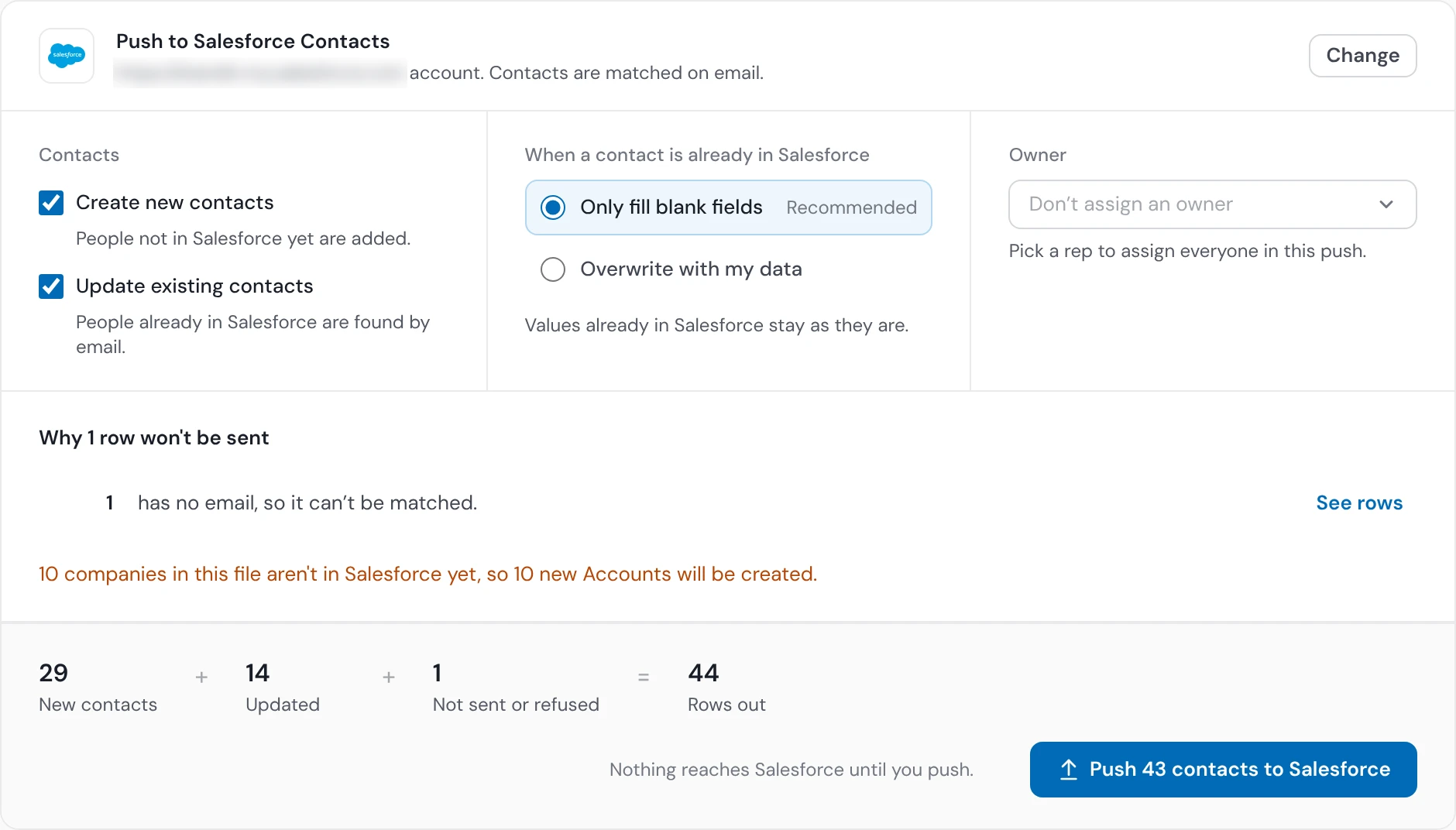
Every create and update previewed before the push
A CRM can't give back the values an import replaced. One wrong column overwrites thousands of good values.
HowBefore the push, the preview shows what it would create, update and skip, what your CRM would refuse, and, when you choose Overwrite, how many updates would replace a value your CRM already has.

Existing records updated, not doubled
An import that makes a second record for every known contact splits their history.
HowRows are matched to people the CRM already has, on email, so they update instead of create. Duplicates inside the file itself: see duplicate contacts.

Your CRM's values kept unless you choose to overwrite
An old list can wipe a rep's fresh notes with stale data.
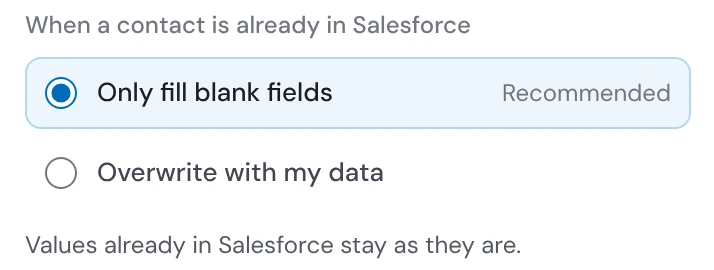
HowThe default is “Only fill blank fields”. Overwrite is a choice you make on a push, or once for a trail.
Your own column names, mapped to your CRM's fields
An importer that wants your columns named its way means an hour of renaming first.
HowCRM Formatter maps your columns to the CRM's real fields, such as “E-mail Address” to Email and “Company / Org” to Account Name, and Save mapping keeps it for your next file (Starter and up).

Every row accounted for
“3 rows had errors”, with no list, means the import is never finished.
HowThe result counts what was created, updated and not sent, says why each row didn't go in, and See rows lists them.


Weekly lists import themselves
The same supplier or event file every Monday is the same hour every Monday.
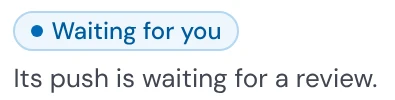
HowA trail watches a folder. Each file dropped or emailed in is mapped, checked and pushed the same way, with nine safety checks always on, and its push waits for your yes unless you've set it to push clean runs on its own.
Every row, and what happened to it
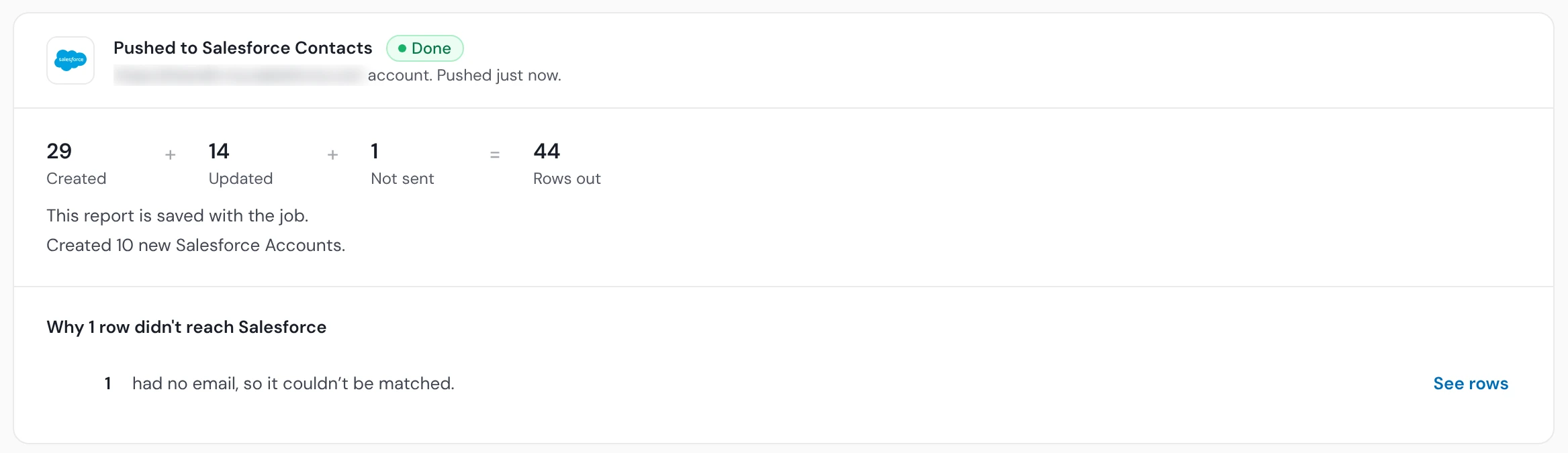
The booth scans, pushed: what was created, what was updated, and the one row that didn't go, with its reason.
Nothing in your CRM changes without you
No push without your click
The preview sends nothing. Your CRM changes only when you click Push.
Your values kept, by default
Only fill blank fields is the default for contacts already in the CRM.
No email, not sent
A row with no email isn't sent, and the push says so before it runs.
Lowercase names capitalized
Names typed in lowercase are capitalized, and names typed in capitals and job titles are kept as they are.
 CRM Formatter →Maps and tidies the file for your CRM
 Data Health Check →Scores the file before you push
 Trails →Runs the same steps on each file a folder receives, with your yes before the push
HubSpot, Salesforce and Pipedrive imports

HubSpot
Contacts are found by email, including the extra addresses a merge leaves on a contact. Companies go in as their own list, found by website, then name.

Salesforce
Contacts, Leads and Accounts. A company column finds or creates the Account and links the contact to it. Salesforce's duplicate rules can stop rows on import; see what they do.

Pipedrive
People are found by email. A company column finds or creates the organization and links the person to it.
CRM import questions
What is a CRM import?
A CRM import loads a spreadsheet of contacts or companies into a CRM such as HubSpot or Salesforce, creating new records and updating the ones it matches. Operelio maps the file to your CRM's fields and shows what the import will do before anything is sent.
Can I preview an import before it runs?
Yes: before the push, Operelio's preview shows what it would create, update and skip, what your CRM would refuse, and, when you choose Overwrite, how many updates would replace a value your CRM already has.
Will an import overwrite what's already in my CRM?
An Operelio import overwrites existing values only if you choose Overwrite; by default it fills blank fields and leaves your values as they are.
What does an import match existing contacts on?
Operelio matches existing contacts on email in HubSpot, Salesforce and Pipedrive, and companies on website, then name.
Are contacts linked to their companies on import?
In Salesforce and Pipedrive, yes: when the file has a company column, Operelio finds or creates the Account or organization and links the contact to it. In HubSpot, companies go in as their own list, found by website, then name.
What happens to rows that can't go in?
After the push, the result shows how many rows didn't go in and why, and See rows lists them, so you can fix those rows and push them again. HubSpot sometimes refuses a row without naming it, and those show only in the count.
Can I undo a CRM import?
Operelio can't give back the values an import replaced in your CRM, so the preview shows what a push would create and update, and how many existing values it would replace, before anything is sent.
Can a weekly list import itself?
Yes: a trail can watch a folder and import each file dropped or emailed in the same way, and anything the safety checks flag waits for you.
Is importing contacts with Operelio free?
Checking and mapping a file is on every plan, including Free, on files up to 2,000 rows. Each run uses one job from your plan's jobs a month. Connecting HubSpot, Salesforce or Pipedrive, with the preview and the push, starts on Starter.
Map and check your next list on the Free plan
Check and map your file on any plan, including Free. Connecting your CRM, with the preview and the push, starts on Starter, at $39 a month.