
Transpose / Unpivot
Flip rows and columns, unpivot wide data into long format, or group repeated rows into one row per group. The shape of the data changes, the values do not.
Doing it in Excel instead: How to transpose data in Excel and Google Sheets
By Operelio team · Updated October 9, 2026
On this page8
What it does
Transpose / Unpivot reshapes a spreadsheet in one of three ways. Transpose flips the entire table so every row becomes a column and every column becomes a row. Unpivot converts wide-format data into long format by turning a group of columns into a single column of values, with an extra column holding the original column name. Group across does the opposite of unpivot: it turns a long list with several rows per group into one row per group, with the repeating fields numbered across.
Which mode you pick depends on what the next tool or system expects. Excel pivot tables, BI tools, databases, and most charting libraries want long format. A report laid out for human reading usually wants wide format.
Which mode should I pick?
All three modes change the shape of your data without changing the values. The difference is what that new shape looks like.
| Use Transpose when | Use Unpivot when |
|---|---|
| You want to flip the whole table (rows become columns and vice versa) | You have one column per time period, region, or category (Q1, Q2, Q3, Q4) and need them stacked into rows |
| You want to re-orient a short, wide report for print or presentation | You're preparing data for a pivot table, chart, or database import |
| You have a single metric per cell and just want to rotate the layout | You want one row per observation (long-format analytics) |
Transpose mode
Transpose rotates the entire grid 90 degrees. If your file has 5 columns and 100 rows, the output has 100 columns and 5 rows.
The first row of your file is read as the header row, as with every tool. One option controls the output: "Use the first column as the new headers", on to start with, turns the first column of the original data into the header row of the output, and the line under it names the values that will become headers. If you turn it off, the headers are Col_1, Col_2, Col_3, and so on.
Concrete example:
| Before (3 rows × 4 columns) | After (4 rows × 3 columns) |
|---|---|
| Metric · Jan · Feb · Mar | Metric · Revenue · Costs |
| Revenue · 12,400 · 15,800 · 14,200 | Jan · 12,400 · 8,100 |
| Costs · 8,100 · 9,200 · 8,700 | Feb · 15,800 · 9,200 |
| Mar · 14,200 · 8,700 |
Unpivot mode
Unpivot takes wide-format data and converts it to long format. Under "Keep as they are" you pick the columns that stay fixed and repeat on every new row; under "Turn into rows" you pick the columns that become rows. A column can be in one list at most, and columns in neither list are left out of the output (the help line counts them). Each column you turn into rows becomes a new row per original row, so the total output row count is (original rows × columns turned into rows).
You also name the two new output columns in "Name for the label column" and "Name for the values column". The label column holds the original column header (for example "Q1"); the values column holds the corresponding cell value (for example 120). Pick names that fit your domain. "Quarter" and "Revenue" are typical. Neither name can match a column you keep, and the two can't match each other; the page says which one clashes and keeps the run off until you change it.
Concrete example:
| Before (3 rows × 5 columns) | After (12 rows × 3 columns) |
|---|---|
| Product · Q1 · Q2 · Q3 · Q4 | Product · Quarter · Revenue |
| Widget · 120 · 150 · 180 · 210 | Widget · Q1 · 120 |
| Gadget · 90 · 110 · 95 · 130 | Widget · Q2 · 150 |
| Sprocket · 200 · 210 · 225 · 240 | … · … · … |
The output has 3 rows × 4 columns turned into rows = 12 rows. If your data has 10 products across 12 months, that's 120 output rows. Unpivoting always multiplies rows by the number of columns you turn into rows.
Group across mode
Group across is unpivot's inverse. Under "Group by" you pick one column that defines a group (Company, Order number, Student), and under "Numbered across, in this order" the columns that repeat for every row in that group (Contact name, Phone). The output has one row per group, with each row's picked fields laid across as a numbered set, in the order you picked them: Contact name 1, Phone 1, Contact name 2, Phone 2, and so on. With "Bring the other columns along" on, the columns you don't pick come from each group's first row; turn it off to leave them out.
The most common use is CRM imports that want contacts listed across, one row per company. There's a dedicated walkthrough for that job: see the "Get contacts listed across for your CRM" guide in this library.
| Before (4 rows × 3 columns) | After (2 rows × 5 columns) |
|---|---|
| Company · Name · Phone | Company · Name 1 · Phone 1 · Name 2 · Phone 2 |
| Meridian · David Garcia · +44 20 7946 0101 | Meridian · David Garcia · +44 20 7946 0101 · Wei Chen · +44 20 7946 0102 |
| Meridian · Wei Chen · +44 20 7946 0102 | Lumen Labs · Karen Wilson · +44 20 7946 0103 · (blank) · (blank) |
| Lumen Labs · Karen Wilson · +44 20 7946 0103 |
Sets cap at 50 per row. If a group has more rows than that, the first 50 are kept. The page tells you how many rows will be left out before you run it, and rows with a blank group value are grouped together into one more row.
How to use it
The flow is the same for all three modes; you pick the mode after upload, not before.
Upload your file
Drag and drop a CSV (.csv) or Excel (.xlsx or .xls) file, or pick one from your recent files.
Pick what to do
Under "What to do", pick Transpose, Unpivot or Group across. All three run on every plan, including Free, and each keeps its own settings if you switch away and back.
Configure
Transpose has one checkbox: Use the first column as the new headers. Unpivot has two lists, Keep as they are and Turn into rows, and names for the new label and values columns. Group across has Group by, the columns numbered across, and a checkbox for bringing the other columns along.
Preview
The preview shows the file the run will write, page by page, with search and Go to row, and the run bar shows the rows and columns before and after. Very wide outputs (more than 1,000 columns), very tall unpivot outputs (more than 100,000 rows), groups over the 50-set cap and blank group values each get a note under the settings. Until the settings are complete, the preview shows your file as it is.
Run and download
Click Transpose data, Unpivot data or Group data across. The new file keeps your file's name and format. When the job finishes, the results page gives you a download link plus a summary of what changed.
What the results show
The results page summarizes the run so you can confirm it matches what you expected:
| Field | Meaning |
|---|---|
| Page title | Transpose, Unpivot, or Group across, for the mode you ran. |
| Rows and columns (Transpose) | The file's rows and columns before and after the flip, and a line saying which column became the new headers. |
| Rows in, value columns, rows out (Unpivot) | Each input row becomes one row per value column. A line names the value columns, the two new columns, and the columns kept on every row. |
| Rows in, groups, sets per row (Group across) | How many groups the rows made and how many numbered sets the widest group needed. A line names the grouping column and the fields numbered across. |
| Notes (Group across) | Groups that hit the cap, rows with a blank group value, and short rows padded with blank cells. |
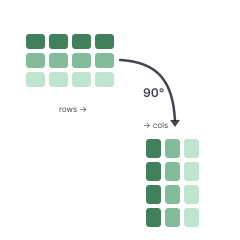
Flip rows and columns, or unpivot wide data into long format.
Frequently asked questions
What is the difference between transpose and unpivot?
Transpose flips your entire table so rows become columns and columns become rows. Unpivot takes specific columns and collapses them into rows. For example, if you have Jan, Feb, Mar columns, unpivot turns them into a Month column and a Value column. Both run on every plan.
Will it change any of my data?
Your original file is never modified. Operelio creates a new file with the transposed or unpivoted data. All cell values are preserved exactly as they were.
What does "Use the first column as the new headers" do?
When this option is on (it starts on), the values in column A of your original file become the column headers in the transposed output. Useful when your first column contains labels like month names, metric names, or categories. Off, the headers are Col_1, Col_2 and so on.
Can I transpose or unpivot Excel files, or only CSV?
Both. Upload .csv, .xlsx, or .xls files. A CSV comes back as CSV, and an Excel file as .xlsx.
How big a file can I process?
Up to 2,000 rows on Free, 50,000 rows on Starter, 75,000 rows on Pro, and 150,000 rows on Agency. File size limits are 2 MB on Free, 25 MB on Starter, 35 MB on Pro, and 100 MB on Agency.
When would I use unpivot?
When your data has one column per time period (Q1, Q2, Q3, Q4) or category and you need it in long format for a chart, pivot table, or database import. Most BI tools and visualization libraries expect long format.
What plan do I need?
All three modes, Transpose, Unpivot, and Group across, run on every plan, including Free.
Ready to get started?
Upload a file and run your first transformation. Free, no credit card required.