
Split File
Take one file and produce a ZIP of smaller files: one per category (region, rep, status), fixed-size chunks of N rows, or one per column group.
By Operelio team · Updated October 23, 2026
On this page10
What it does
To split a CSV or Excel file into several files, upload it to Split File and choose how: one file per value in a column (each region, rep or status), files of a set number of rows, or groups of columns. You get a ZIP of CSV files with the header row in each, or one Excel workbook with a tab per file, up to 25 files per job on Free, 500 on Starter, 1,000 on Pro and 2,000 on Agency.
One big file in, a ZIP of smaller files out, three ways. Group rows by a column's values and Operelio creates one file per unique value (per region, per rep, per status). Chunk by row count for fixed-size files. Or split columns into separate files, sending groups of columns (like CRM fields and email fields) to their own files. Each output file gets its own copy of the header row, ready to hand off or import.
When to use it
Use this when you need to distribute parts of a file to different people or systems. Common examples: splitting a contact list by region so each sales rep gets their own file, breaking a large file into chunks under a downstream system's row limit (like a CRM that caps imports at 5,000 rows), or sending different column sets to different destinations, like CRM fields to your CRM and email fields to your email platform.
Split by column values
Under Split by, choose Column values and pick a column like "region" or "sales_rep". Operelio groups all rows by their value in that column and writes each group to its own file; every file keeps all your columns. Before you run it, the preview lists every file the ZIP will hold, sorted by value, with its row count, and shows the rows of the file you pick. File names are based on the column value: if your input is "contacts.csv" and you group by "region", you get files like "contacts_EMEA.csv", "contacts_APAC.csv".
Letters, numbers, spaces, hyphens, and underscores in the column value are kept as-is in the filename. Other characters (slashes, periods, quotes, ampersands) become underscores. Filenames are also trimmed to 100 characters, and leading and trailing spaces are removed.
Values that differ only in capital letters, like "West" and "west", go into one file named after the spelling most rows use, and the results page says which spellings went in. If two different values would produce the same filename (for example "A/B" and "A_B" both reduce to "A_B"), Operelio appends "_2", "_3" and so on to keep them unique, and the results page lists a warning naming both files. Names that differ only in capital letters count as the same here, since Mac and Windows treat them as one file. Rows with a blank value in the split column go into a file named with the suffix "_empty"; a value that is only spaces counts as its own distinct value and gets its own "_empty"-family file.
Each output file includes the same header row.
Split by row count
Choose Row count and set Rows per file. It starts at 1,000. Operelio splits the file into sequential chunks: data_part1.csv, data_part2.csv, and so on. Each file gets the same header row and keeps all your columns. The last file may have fewer rows than the chunk size.
Rows per file must be 1 or more; Split file stays off until it is.
Split by column groups
Choose Column groups and build a group of columns for each file. Each group becomes one file containing the picked columns (in the order you pick them) and every row. Name each group, or Operelio numbers them columns_1, columns_2. Useful when different destinations want different fields from the same list.
The "In every file" option puts the columns you pick there (usually an ID column) at the front of every output file, so the files stay joinable after the split.
A column can appear in more than one group. Columns that are in no group (and not included in every file) are left out of the output entirely; the preview and the results page both warn you which ones, so nothing vanishes silently.
How to use it
Upload your file
Drop in a CSV (.csv) or Excel (.xlsx, .xls) file. Plan limits apply: Free 2,000 rows and 2 MB, Starter 50,000 rows and 25 MB, Pro 75,000 rows and 35 MB, Agency 150,000 rows and 100 MB.
Choose how to split
Under Split by, pick Column values, Row count or Column groups. Under You get, pick a ZIP of CSV files or one Excel workbook with a tab for each.
Configure
For Column values, pick the column. For Row count, set Rows per file (1,000 to start). For Column groups, use Add column to fill each file, and add any columns you want in every file. The Split file button stays off until the split is set up, or when it would make more files than your plan allows.
Split the file
Click Split file. Download the ZIP, or the Excel workbook if you chose one.
What the results show
When the job finishes, its page shows:
The answer, and Download all
One line says how many rows went into how many files (or tabs), and how: one per value of a column, so many rows each, or by column groups. Download all beside it downloads the .zip, or the workbook.
Where the rows went
A bar with a part for each file, named under it with its rows. With many files, the largest are named and the rest are counted together as one more part. A split by column groups has no bar, since every file holds every row.
The settings
A line says how the file was split: into files of so many rows, by each value in a column (with the largest file and its rows), or by groups of columns. Anything to know, like blank values grouped into an empty file or a tab with no rows, is a note under it.
Your files
All the files in one .zip (or the Excel workbook), and your file before the split, each with its rows and the date it's kept until. On Starter and up, Send to Files on a .zip lists its files, all checked: uncheck any you don't want, and each one you send is saved in Files on its own.
Preview
The files (or tabs), each with its value or column group, its rows and its own Download (a tab downloads as a workbook of its own). Click a file's name to see its rows, and pick another from the list above them. A very large split lists its first 100 files; the .zip has them all.
Limits to know
Free: 2,000 rows and 2 MB per file, up to 25 output files per job. Starter: 50,000 rows and 25 MB per file, up to 500 output files per job. Pro: 75,000 rows and 35 MB per file, up to 1,000 output files per job. Agency: 150,000 rows and 100 MB per file, up to 2,000 output files per job.
Row grouping uses one column per job. To group by a combination (region + year), use Column Manager to merge those columns first, then group by the merged column.
By default, output files are CSV regardless of whether the input is .csv, .xlsx, or .xls, packaged as a ZIP archive. In any mode you can instead choose One Excel workbook under You get: one workbook with a tab for each file, each tab keeping only the columns that hold data for its rows. Excel caps a tab name at 31 characters, and two tabs can't share a name, so a longer name is cut and a repeated one gets " (2)". The job's page names each tab that was renamed.
If your file exceeds your plan's row limit, Operelio processes the first N rows, and the job's page notes the total row count, the limit applied, and the rows processed.
What happens to your data
Your file is uploaded to our servers, processed, and the output is held for download according to your plan's retention period: 24 hours on Free, 30 days on Starter, 30 days on Pro, 90 days on Agency. Files are permanently deleted from storage after the retention window, unless you starred them in your library (Starter and above). On those plans you can also delete a file yourself at any time from Files.
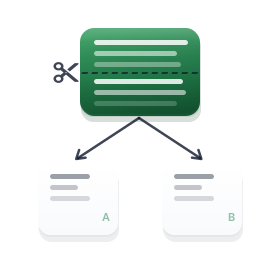
Turn one file into a ZIP of smaller ones, by category, by row count or by column group.
Frequently asked questions
What plan do I need?
Split File runs on every plan, including Free. The wall is how many files one job can produce: 25 on Free, 500 on Starter, 1,000 on Pro, 2,000 on Agency.
Is there a limit on how many files it can create?
Yes. Free produces up to 25 output files per job, Starter up to 500, Pro up to 1,000, Agency up to 2,000. Before you run, the preview counts the files; over your plan's limit, Split file stays off and says why. Switch to row-count mode, or split twice on different columns.
Can I group rows by multiple columns?
Not directly. Row grouping uses one column per job. If you need to group by a combination (like region + year), use Column Manager to merge those columns first, then group by the merged column.
What is the difference between Column values and Column groups?
Column values separates the rows: each file gets a subset of rows and all the columns. Column groups separates the columns: each file gets a subset of columns and all the rows. Pick the first to distribute records to different owners, the second to send different fields to different systems.
Ready to get started?
Upload a file and run your first transformation. Free, no credit card required.