
Column Manager
Rename, reorder, remove, split, merge, duplicate and add columns in one pass. Every operation runs on every plan, including Free, as long as one column remains.
Doing it in Excel instead: How to rearrange columns in Excel
By Operelio team · Updated October 13, 2026
On this page9
What it does
Column Manager gives you full control over your file's columns in a single job. Rename headers to match your CRM schema, drag columns into the order you need, and uncheck the ones you want to drop. You can also split one column into many, merge several into one, duplicate a column to keep the original, or add a new column filled with a fixed value, by your own rules, or a value worked out from another column.
Every change shows at once in the list and in the preview, which pages through the whole file as it will come out. Row data is never altered; only the column layout changes.
Rename, reorder, and remove
Every Column Manager operation runs on every plan, including Free. After uploading, you see every column in a list. Click a name to rename it, drag the handle to reorder, or uncheck the box to drop the column from the output. At least one column must remain.
None of these operations touch the values in your rows; they only change the shape of the output file.
Split, merge, duplicate, and add
Operations run before the rename, reorder, and remove step, so you can split a column and then rename the resulting parts in the same job.
| Operation | What it does | Example |
|---|---|---|
| Split | Splits a column into multiple columns by a delimiter. | Split "full_name" by space into "first_name" and "last_name". |
| Merge | Combines two or more columns into one with a separator. | Merge "city" + "state" + "zip" into "full_address" with ", " separator. |
| Duplicate | Creates a copy of a column under a new name. | Duplicate "email" as "email_backup". |
| Add | Adds a new column filled with a fixed value, by your own rules, or a value worked out from another column. | Add "Seniority" worked out from "job_title", or "Segment" set to "Enterprise" where employees are over 1,000, otherwise "SMB". |
How to use it
Upload your file
Drag and drop any .csv, .xlsx, or .xls file. Operelio reads every column and shows them in a list.
Add operations (optional)
Point at a row and click the scissors to split that column or the copy icon to duplicate it. Use Merge columns to combine columns, or Add column to add a new one. Each opens a small editor that says what it will make, with the first row's value.
Rename and reorder
Click any column name to rename it. Drag the handle on the left to reorder. Uncheck the box to drop a column from the output.
Check the preview, then apply
The preview shows every row as it will be in the new file. Click Apply changes. The results page opens with a summary, and your file is ready to download.
How column split works
Pick what to split on: comma, space, semicolon, dash, underscore, pipe, slash, tab, or any custom text you type. With Parts to create on Auto, Operelio scans every row for the largest number of parts and creates that many new columns. If you know the count up front (for example, a full name into exactly two parts), choose Number and set it.
The new columns are named for you. Splitting "address" creates "address_1", "address_2", "address_3", and so on. You can rename any of them in the same job.
The new columns take the source column's place. Check "Keep the original column alongside the new ones" if you want the original to stay, with the new columns right after it.
| Before: full_name | After (split by space): first · last |
|---|---|
| Jane Smith | Jane · Smith |
| Alex Ruiz | Alex · Ruiz |
| Priya Patel | Priya · Patel |
How column merge works
Pick two or more columns in the order to join them, and what to join them with (space, comma and space, comma, dash, underscore, or nothing). Operelio joins the values into one new column, named by you, where the last of the picked columns was.
The picked columns leave the output. Check "Keep the source columns alongside the merged one" if you want them to stay.
| Before: city · state · zip | After (merge with ", "): full_address |
|---|---|
| Austin · TX · 78701 | Austin, TX, 78701 |
| Miami · FL · 33101 | Miami, FL, 33101 |
What the results show
The results page summarizes what changed so you can confirm the output matches what you expected:
| Field | Meaning |
|---|---|
| Columns in | How many columns the input file had. |
| Removed | How many were unchecked and dropped. |
| Columns out | How many columns the output file has after every change. |
| Renamed | How many got a new name. |
| The line under them | A sentence naming each rename and removal, each split, merge, copy or added column, and whether the columns were reordered. |
| Notes under it | Anything to check, such as a column your settings named that wasn't in the file, or a new name that was already taken and got a number. |
Run it automatically with a trail
Once the settings are right for the files you get every week, a trail can run them for you. A trail watches a folder and puts the columns in the shape you set here on every file that lands there, then pushes the result into HubSpot, Salesforce or Pipedrive, with nine always-on safety checks, two more you set, and approval built in. Set it up once and the cleanup, the verification, the lead routing and the CRM import are automated from then on.
Trails run on Starter and above.
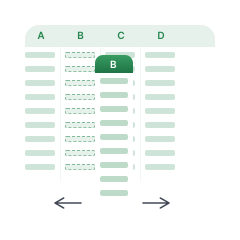
Rename, reorder, remove, split and merge columns in one pass.
Related
Frequently asked questions
Does this change my row data or just the column layout?
Only the column layout changes. Rename changes the header, reorder changes the position, and remove drops the column entirely, but every remaining cell value is preserved exactly as it was. Split copies values into new columns, merge concatenates them, and duplicate copies them into a second column. No values are altered in place.
Can I split a full name column into first and last name?
Yes. Point at the column, click the scissors, and split on Space. Operelio creates one new column per part. You can rename them to "First Name" and "Last Name" in the same job.
Can I merge two columns into one?
Yes, on every plan. Click Merge columns, pick the columns, and choose what to join them with (space, comma and space, comma, dash, underscore, or nothing). Name the new column. The source columns leave the output unless you check "Keep the source columns alongside the merged one".
Can I duplicate a column to keep a backup?
Yes, on every plan. Point at the column, click the copy icon, and give the copy a new name (for example "email_backup" for "email"). The copy goes right after the original.
Can I run multiple changes in one job?
Yes. Operations run first (split, merge, duplicate), then the rename/reorder/remove step runs on the full set of columns: original and generated. Everything is a single job with one download at the end.
What file formats does it support?
Upload .csv, .xlsx, or .xls. The result comes back in the format you uploaded: a CSV stays a CSV, and an Excel file comes back as .xlsx.
What plan do I need?
Every operation, including split, merge, duplicate, and add, runs on every plan including Free. Row limits apply: up to 2,000 on Free, 50,000 on Starter, 75,000 on Pro, and 150,000 on Agency.
Ready to get started?
Upload a file and run your first transformation. Free, no credit card required.