
Filter & Extract
Pull only the rows you need from a CSV or Excel file. 24 conditions, All or Any logic with brackets, and an optional second file with the rows you filtered out.
By Operelio team · Updated October 13, 2026
On this page9
What it does
Filters your file down to rows that match one or more rules. The output contains only the matching rows. You can also get a second file with the rows that did not match.
Conditions
A condition is the comparison the rule runs against the column you picked. Each rule has one column, one condition, and one value (or two values for between). Pick the condition that matches the question you're asking. For example, "is this row's country the UK?" uses equals, while "does this email end in .com?" uses ends with.
| Condition | Example | What it checks |
|---|---|---|
| equals | city equals "London" | Cell matches the value exactly. |
| does not equal | status does not equal "closed" | Cell does not match. |
| contains | email contains "@gmail" | Value appears anywhere in the cell. |
| does not contain | notes does not contain "test" | Value is absent. |
| starts with | phone starts with "+44" | Cell begins with the value. |
| ends with | domain ends with ".com" | Cell ends with the value. |
| is blank | company is blank | Cell is empty or missing. |
| is not blank | email is not blank | Cell has a value. |
| greater than | revenue greater than "50000" | Numeric comparison. If both sides are non-numeric (e.g. text codes), falls back to A-to-Z order. Strip currency symbols first for accurate numeric compare. |
| less than | age less than "18" | Numeric comparison. Same A-to-Z fallback as greater than when values aren't numeric. |
| between | score between "70" and "100" | Inclusive range. Matches values from the low number up to and including the high number. Enter two values (low and high). Works with numbers; for ISO dates (YYYY-MM-DD) it works with text too. |
| is one of | country is one of "US, UK, DE" | Cell matches any value in a comma-separated list. To match values that contain commas, use several equals rules with Any rule. |
| is not one of | source is not one of "test, demo" | Cell does not match any value in the list. Same comma caveat as is one of. |
| matches pattern | sku matches pattern "^[A-Z]{2}-\d{4}$" | Advanced patterns, written in standard pattern syntax. Maximum 500 characters per pattern. A pattern that can't be read is marked in red, and the run waits until you fix it. |
People and company conditions
Ten conditions read a column the way a person would, so you pick from a list instead of typing every spelling. They are the same rules Bridgeant writes when you ask it for "marketing managers at companies over 50 people".
| Condition | Example | What it checks |
|---|---|---|
| job function is / is not | job title job function is "Marketing" | The title belongs to a function: IT, Sales, Marketing, Finance or HR, by the words and acronyms each one uses. |
| industry is / is not | industry industry is "Healthcare" | The value belongs to an industry: technology, financial services, healthcare, retail or manufacturing. |
| seniority is within / outside | job title seniority is within "Management" to "Executive" | Where the title sits on the ladder: junior, mid-level, management, senior leadership, executive. Pick From level and To level. Both ends count. |
| company size is at least / under / not at least / not under | employees company size is at least "50" | The headcount against a whole number. A size band like "11-50" that crosses the number matches neither "at least 50" nor "under 50", so it matches "not at least 50" and "not under 50". A size that cannot be read never matches "at least" or "under", and always matches the "not" picks. |
All rules, Any rule and brackets
Keep rows that match sits above your rules. All rules keeps a row only when it matches every rule. Any rule keeps a row that matches at least one.
Add a bracket to group rules. Each bracket has its own All or Any, and the line at the top joins the brackets. This lets you build filters like (country is US or country is UK) and (revenue greater than 10000).
One rule can sit beside your brackets. Add a second and both move into a bracket of their own, first in the list, keeping their All or Any, so the filter keeps the same rows.
How to use it
Upload your file
Any supported format.
Add a rule
Pick a column and a condition, then enter a value.
Add more rules
Add as many as you need, and choose All rules or Any rule. Add a bracket to group rules, so (marketing or growth) and (manager or director) is one filter.
Preview
See how many rows are kept and left out. Switch between Kept and Left out to see each side, with your file's own row numbers.
Run
Click Filter rows. Download the filtered file.
Non-matching export
Check "Also save the rows that don't match as a second file" to get a second download with every row that did not pass your filter. This is useful for splitting a file into two groups based on a rule, like separating US customers from everyone else. Available on every plan.
What the results show
The job's page opens on the sum: rows in, minus the non-matching rows, equals rows out. A line under it says the rules that ran, in words, as in Kept rows where Country equals US. Ignore case. If a pattern rule couldn't run, a note says how many were skipped; the other rules still ran.
The files table lists the rows you kept, named by your rule when there is one (for example "Only rows where Country is Germany"), your file before filtering, and the rows that didn't match when you saved them as a second file, each with its rows and the date it's kept until. The preview switches between Result and Non-matching, and you can search it or go to a row.
Run it automatically with a trail
Once the settings are right for the files you get every week, a trail can run them for you. A trail watches a folder and keeps only the rows that pass your rules on every file that lands there, then pushes the result into HubSpot, Salesforce or Pipedrive, with nine always-on safety checks, two more you set, and approval built in. Set it up once and the cleanup, the verification, the lead routing and the CRM import are automated from then on.
Trails run on Starter and above.
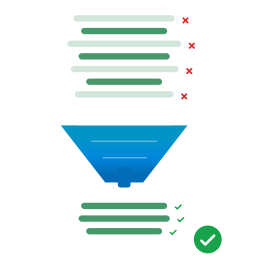
Pull the rows that match your conditions out into a file of their own.
Frequently asked questions
Is matching case-sensitive?
By default, no. Case-insensitive is on. Turn it off to match exact case.
What plan do I need?
Every plan, including Free, gets all 24 conditions, All rules and Any rule, brackets, as many rules as you need, and the second file with the rows you filtered out.
Ready to get started?
Upload a file and run your first transformation. Free, no credit card required.