
How to use Text to Columns in Excel and Google Sheets
Text to Columns splits one column into several. In Excel, select the column, go to Data > Text to Columns, choose Delimited, pick the separator and click Finish.
By Operelio team · Updated October 9, 2026
On this page11
- 1.Where is Text to Columns in Excel?
- 2.How to use Text to Columns, step by step
- 3.How to split text to columns in Google Sheets
- 4.Split with a formula instead
- 5.How to combine text from two columns
- 6.How to split first and last names
- 7.Middle names, suffixes and "Smith, John"
- 8.Split names on the way into a CRM
- 9.Common problems
- 10.Split or merge columns across a whole file
- 11.Frequently asked questions
Where is Text to Columns in Excel?
On the Data tab, in the Data Tools group. On Windows the keyboard way is Alt, then A, then E, pressed one after another. The Mac ribbon doesn't show group names: the button sits on the Data tab after Advanced, and the menu bar has it under Data > Text to Columns.
If the button is grayed out, the sheet is protected, several sheets are grouped (the title bar says Group), or you are still typing in a cell. Unprotect or ungroup the sheet, or press Enter, and try again. Selecting more than one column doesn't gray it out: Excel opens it, then says it can only convert one column at a time, so select a single column.

How to use Text to Columns, step by step
The example splits a column of addresses like "Boston, MA, 02134" into city, state and ZIP code.
Make room on the right
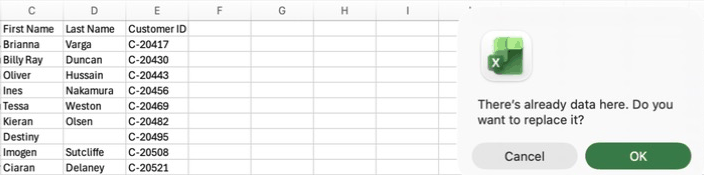
The split fills the columns to the right of the one you select. If those columns already hold data, Excel asks before replacing it. Insert as many empty columns as the split needs: right-click the column letter next to your data and choose Insert.
Select the column and open the wizard
Click the column letter to select it, then go to Data > Text to Columns.
Choose Delimited or Fixed width
Delimited splits wherever a character such as a comma or space appears, and is the right choice almost every time. Fixed width splits at the same character position in every cell, for codes like AB12345 where the first two characters always mean something. Click Next.
Pick the delimiter
Check Comma. For other characters, check Other and type it in the box. The preview at the bottom shows where the splits will fall. Check Treat consecutive delimiters as one if some cells have a double space or a double comma, so they don't leave an empty column. Click Next.
Set the format and the destination
Click the ZIP code column in the preview and choose Text, so 02134 keeps its leading zero. To keep the original column, change Destination to the first empty cell to its right, such as $B$1.
Click Finish
Each piece lands in its own column. The pieces keep any space that came after the comma, so " MA" starts with a space. Remove it with TRIM, or check Space as a second delimiter with Treat consecutive delimiters as one, when no piece has a space of its own.
How to split text to columns in Google Sheets
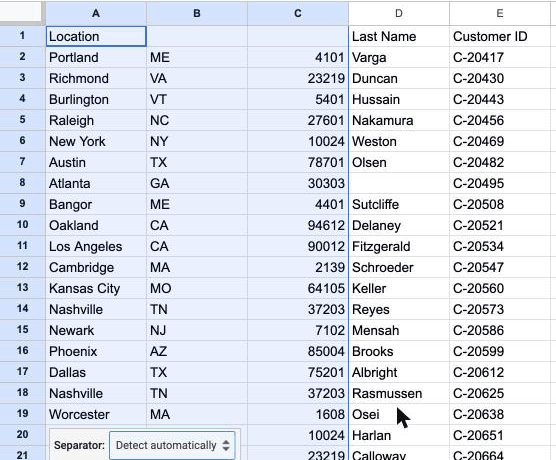
Select the column and go to Data > Split text to columns. Sheets guesses the separator and splits at once, and a small Separator box appears below the data: change it to Comma, Semicolon, Period, Space or Custom if the guess was wrong. It fills the columns to the right and, unlike Excel, doesn't ask before writing over what is there, so insert empty columns first. If it overwrites something, Edit > Undo puts it back.
Sheets also turns pieces that look like numbers into numbers, so a ZIP code like 04101 comes out as 4101, and there is no step to set a column to text. When a piece has to keep its leading zero, split it in Excel with the column set to Text, or format the result in Sheets with Format > Number > Custom number format and 00000.
To keep the original column, use the SPLIT function instead. =SPLIT(A2, ",") in B2 splits A2 on commas and fills the cells to its right, and updates when A2 changes. If those cells aren't empty, you get a #REF! error until you clear them.
SPLIT treats each character in the delimiter as a separator of its own, so =SPLIT(A2, ", ") splits on commas and on spaces. To split on the comma and space together, add FALSE: =SPLIT(A2, ", ", FALSE). SPLIT turns number-like pieces into numbers too, so a ZIP code loses its leading zero here as well.
Split with a formula instead
A formula leaves the original column as it is and updates when it changes, which suits a sheet that keeps getting new rows.
In Microsoft 365, and Excel 2024 or later, use TEXTSPLIT. =TEXTSPLIT(A2, ", ") splits A2 on a comma followed by a space and spills the pieces into the cells to the right. To split on more than one character, put them in braces: =TEXTSPLIT(A2, {",", ";"}).
In older versions, LEFT, MID and FIND do it one piece at a time. With "Boston, MA" in A2, =LEFT(A2, FIND(",", A2) - 1) returns Boston, everything before the comma. =TRIM(MID(A2, FIND(",", A2) + 1, 100)) returns MA, everything after it, with the space trimmed.
How to combine text from two columns
The other way round, joining first and last names or city and state into one cell, takes a formula. There is no Columns to Text button.
The & operator joins cells: =A2 & " " & B2 puts a space between them. =CONCAT(A2, " ", B2) does the same. To join several columns with the same separator, TEXTJOIN is shorter: =TEXTJOIN(", ", TRUE, A2:C2) joins A2 to C2 with a comma and a space, and TRUE skips empty cells so you don't get a double comma. CONCAT and TEXTJOIN are in Excel 2019 and later; older versions have CONCATENATE.
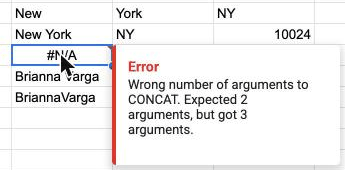
Google Sheets has the & operator and TEXTJOIN too. Its CONCAT takes only two values, so =CONCAT(A2, B2) works but =CONCAT(A2, " ", B2) doesn't; use & or CONCATENATE there.
The result is a formula, so it breaks if you delete the columns it reads from. Copy the results and paste them back as values (Paste Special > Values) before you delete the originals.
How to split first and last names
For a column of names like "Jane Cole", select it, go to Data > Text to Columns, choose Delimited, check Space and click Finish. The first name lands in one column and the last name in the next.
That works when every name has two parts. "Mary Ann Lee" spreads over three columns, so her last name sits where everyone else's is empty. Flash Fill or a formula handles mixed names better.
Flash Fill: type the first name
Insert an empty column next to the names and give it a header, such as First name: Flash Fill writes into an empty header cell too. In the first row, type the first name, such as Jane, and press Enter.
Flash Fill: press Ctrl+E
With the next cell down selected, press Ctrl+E, or go to Data > Flash Fill. Excel follows the pattern and fills the column. If it guesses wrong on a row, type that one by hand and press Ctrl+E again. Do the same in the next column for last names. If a column of first names is already next to the new one, Flash Fill may copy it rather than read the full names.
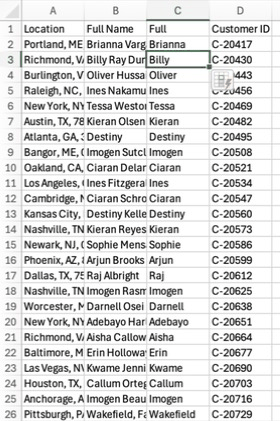
Flash Fill writes plain values, so it doesn't update if a name changes later. For a split that updates, use a formula: in Microsoft 365, =TEXTBEFORE(A2, " ") returns the first name and =TEXTAFTER(A2, " ", -1) returns the last word, the last name. In older versions, =LEFT(A2, FIND(" ", A2) - 1) for the first name and =RIGHT(A2, LEN(A2) - FIND(" ", A2)) for everything after the first space.
Middle names, suffixes and "Smith, John"
Each method treats names that aren't two words differently, so look at the longest names in your list before you pick one. Flash Fill, given Jane for Jane Cole, takes Billy from Billy Ray Duncan and Smith from "Smith, John", so check those rows by hand.
| Name | Text to Columns on Space | TEXTBEFORE and TEXTAFTER(A2, " ", -1) |
|---|---|---|
| Mary Ann Lee | Three columns: Mary, Ann, Lee | Mary and Lee. Ann is dropped. |
| John Smith Jr. | Three columns: John, Smith, Jr. | John and Jr. Use Flash Fill or fix these by hand. |
| Smith, John | Smith, (with the comma) and John | Smith, and John, the wrong way round |
For names written last name first, swap the formulas: =TRIM(TEXTAFTER(A2, ",")) returns the first name and =TEXTBEFORE(A2, ",") the last name. Or run Text to Columns with Comma as the delimiter and trim the leading space.
Split names on the way into a CRM
A CRM import wants first and last names in separate fields, or both in one Name field for a CRM like Pipedrive. Operelio's CRM Formatter does the split as part of formatting the file for import: "John Smith" in one column becomes First Name and Last Name, "Smith, John" is handled, and separate columns are joined back into one Name for a CRM that has only one. Names typed in lowercase are capitalized; names already in capitals stay as they are.
Common problems
Most of these come from Excel guessing what each piece is. Setting the column format in step 3 of the wizard fixes them.
| Problem | Why it happens | Fix |
|---|---|---|
| Leading zeros disappear | Excel reads 02134 as the number 2134. | In step 3, click that column in the preview and choose Text. |
| Pieces turn into dates | Values like 3-4 or 1/2 look like dates to Excel. | Choose Text for that column in step 3. |
| Long numbers turn into 1.23E+15 | Excel keeps 15 digits of a number, so longer IDs lose their last digits. | Choose Text for that column in step 3. |
| Data to the right is overwritten | The split fills the next columns and asks before replacing what is there. | Click Cancel at the prompt, insert empty columns or set a Destination, and run it again. |
| Pasted text splits on its own | Excel remembers the last Text to Columns settings for the rest of the session and applies them to plain text you paste in, such as text copied from Notepad. On a Mac, an ordinary paste comes in whole, but Edit > Paste Special > Text splits it. A ZIP code split this way loses its leading zero. | Run Text to Columns once with every delimiter unchecked, or restart Excel. |
| A CSV opens in one column | The file's separator doesn't match the one Excel expects. | Split column A on Comma, or open the file with Data > From Text/CSV and pick the delimiter there. |
Split or merge columns across a whole file
Operelio's Column Manager splits and merges columns in a CSV or Excel file without opening it in a spreadsheet. To split, pick the column and what to split on: comma, space, semicolon, dash, underscore, pipe, slash, tab or a character you type. Auto creates as many columns as the busiest cell needs, or set a number and the last column keeps the rest. Check the box to keep the original column alongside the new ones.
To merge, pick the columns in the order they should join and a separator: space, comma and space, comma, dash, underscore or nothing. Rename, reorder and remove columns in the same job, and preview the result before it runs. Every operation is on every plan, including Free, and your original file is never changed.
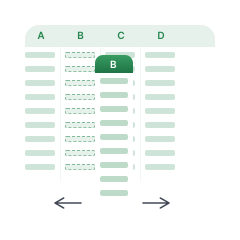
Split, merge, rename and reorder the columns of a whole file in one job.
Related
Frequently asked questions
What does Text to Columns do in Excel?
It splits the text in one column into several columns, either wherever a delimiter such as a comma or space appears, or at fixed character positions. "Boston, MA, 02134" becomes Boston, MA and 02134 in three columns.
How do I split text into two columns in Excel?
Insert an empty column to the right, select the column to split, go to Data > Text to Columns, choose Delimited, check the character that separates the two parts and click Finish. For a split that updates when the data changes, use =TEXTSPLIT(A2, ",") in Microsoft 365.
Ready to get started?
Upload a file and run your first transformation. Free, no credit card required.