
On this page7 sections
What the extension does
The Operelio extension puts Operelio's free spreadsheet tools in a panel in your browser. Drop a CSV or Excel file on it, pick a tool, and download the result, without opening the app. You don't need an account.
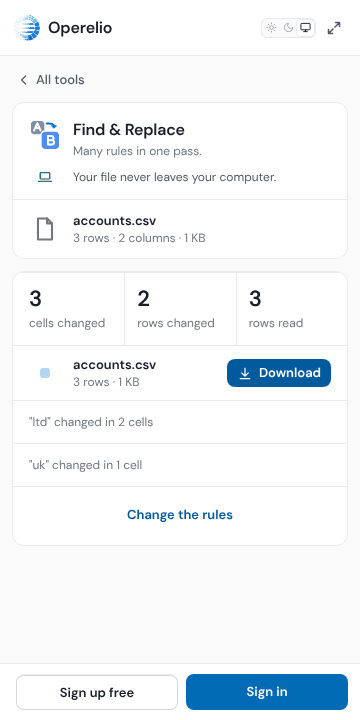
In the panel, a tool takes up to 2,000 rows and 2 MB a file, the same as Operelio's Free plan. Most tools run inside the panel, and their screens say Your file never leaves your computer. Email Verifier & Finder and CRM Formatter open in Operelio instead, which uploads the file.
Install it
The extension page links to the Chrome Web Store, Microsoft Edge Add-ons, Firefox Add-ons and Opera add-ons. A store shows Coming soon there until its listing is live.
Open your browser's store
On the extension page, choose the store for your browser.
Add it
Add the extension from its store page, and confirm.
Pin the button
Pin the Operelio button to the toolbar, so it stays in view.
Run a free tool
In Chrome, Edge and Opera, the Operelio button opens a side panel. In Firefox, open Operelio from Firefox's sidebar menu.
Open the panel
Choose the Operelio button in the toolbar.
Add your file
Drop a spreadsheet on the panel, or choose Choose file. With no file to hand, choose Try the sample, 2,000 rows of contacts.
Pick the tool
Choose a tool under Convert, Clean or Combine and check.
Run it
Set the tool's options, then choose its run button.
Download the result
Choose Download for each file the tool makes.
When a file is over the free limit
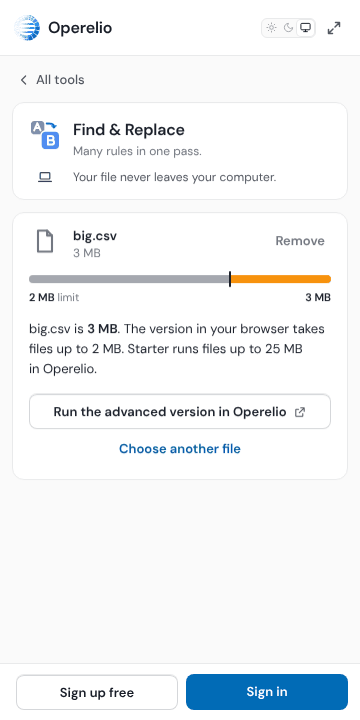
A file over 2 MB doesn't run in the panel. The panel gives the file's size and offers Run the advanced version in Operelio. Starter runs files up to 25 MB.
A file over 2,000 rows runs on its first 2,000 rows, and the result says how many of the file's rows ran. Starter runs up to 50,000 rows in Operelio.
Signed in, Run the advanced version in Operelio opens the tool in Operelio with your file loaded, which uploads it. If your plan can't take the file, it opens the plans page. Signed out, it opens sign-up, then the tool or the plans page, and you add the file there. A file over 100 MB gets no button.
Signed in on Starter and up, the panel's own tools keep the 2,000-row and 2 MB limit, and the panel says your plan runs the whole file in Operelio.
Sign in
Signing in is optional. Choose Sign in at the foot of the panel, or sign in on operelio.com in the same browser, which signs the panel in too. The header then shows your workspace, your name and your plan.
On Free, the panel keeps the same tools, with Starter's own tools marked Starter, and its foot says Files, folders and live trails are on Starter.
On Starter and up, the panel has three tabs.
| Tab | What it does |
|---|---|
| Send | Puts files in Files or in one of your folders, and a folder a trail watches starts that trail. Under Or run a tool, Excel to CSV, CSV to Excel and Merge Files run in Operelio and download the result. |
| Tools | The panel's tools, as when you're signed out. |
| Activity | What ran in your workspace, as on Home, for you or everyone. |
Client workspaces, counts and notifications
With client workspaces, the menu in the header picks the workspace a file goes to, and switching there switches your open Operelio tabs too. If a file's name names another client, the panel asks whether to switch to that client or keep the workspace you're in.
While you're signed in, the Operelio button shows a count of failed, held and stopped runs since you last opened the panel.
Notifications cover runs you start from Send that the panel didn't follow to the end. Your browser asks to allow them when you switch on Tell me when my runs finish at the foot of Activity, and you can switch them off there.
What the extension can see
It asks for the side panel, storage, alarms and cookies, the last to read your operelio.com sign-in. Notifications are optional.
It can reach operelio.com and Operelio's sign-in service only. It has no access to the pages you visit.