

On this page10 sections
What connecting a calendar does
When a rep's calendar is connected, leads routed to that rep see the rep's free times on Operelio's picker and book there. The meeting goes into the rep's calendar, and the lead's booked screen has a link to move or cancel it.
Reps without a connected calendar keep their own booking page (Calendly, Cal.com, HubSpot, Pipedrive, Google or Microsoft), from Other booking pages.
Calendars are in Settings, Booking, on Starter and up. On Free they show locked, with an example.
What Operelio can see
Connecting a calendar lets Operelio see the rep's free and busy times, and add the meetings it books, with a video link.
It never reads what the rep's other meetings are about, and never changes them. It only changes or cancels a meeting it booked itself.
Connect your own calendar
If the calendar's email isn't the one your CRM has for the rep, it still connects, and the row menu says it isn't the rep's email in your CRM. If it's the wrong calendar, disconnect it and connect the right one.
Open Calendars
Open Settings, Booking. Under Calendars, each rep your trails route to has a row.
Choose Connect
On your row, choose Connect. The connect window opens.
Sign in
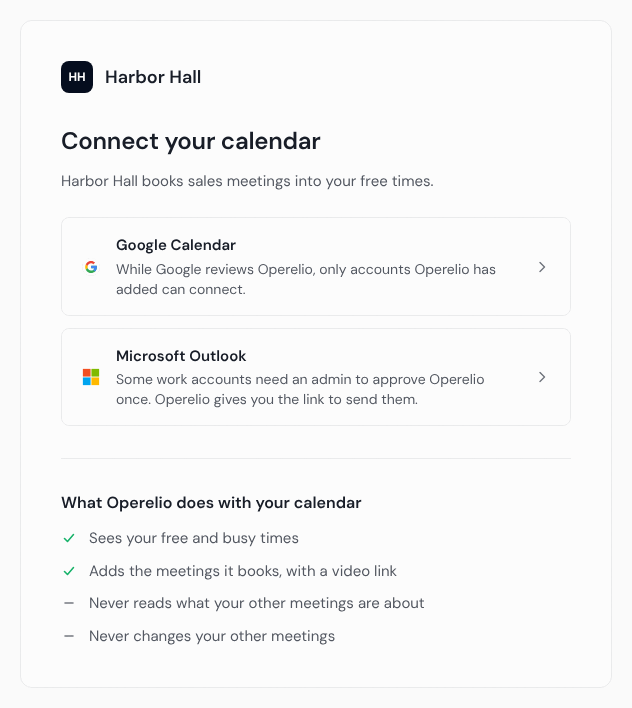
Under "If it's your calendar", choose Google Calendar or Microsoft Outlook. Sign in and allow access in the window that opens.
Check the row
The window says the calendar is connected. Choose Done, and your row shows Connected.
Send a rep a connect link
Reps don't need an Operelio account to connect. On Agency, the same link connects a client's account executive, so you can book leads into their calendar.
Choose Connect on the rep's row
In Calendars, choose Connect on the rep's row.
Make the link
In the window that opens, under "If it's Sarah's", choose Make link. Then choose Copy and send the link to Sarah.
The rep signs in
The rep opens the link, chooses Google Calendar or Microsoft Outlook, and signs in. The link works once, within 7 days.
Connected
The rep sees Your calendar is connected, with their free times, their video link and a place for their phone number. Their row shows Connected.
When Microsoft asks for an admin
Some Microsoft 365 companies let only an admin allow a new app. Then the rep's connect page says Your Microsoft admin needs to approve Operelio, with a link for the admin, and the rep's row shows Needs admin approval, with Copy admin link.
Send the admin the link
Send the admin link to the rep's Microsoft admin.
The admin approves
The admin opens it, chooses Approve in Microsoft, signs in and accepts. They approve once, for everyone at the company.
Connect again
The rep comes back to their connect page and chooses Connect Microsoft Outlook again.
Set the rep's hours
A rep with a connected calendar can't be booked until their hours are saved. Until then their row has a link, such as Set Sarah Lin's hours to take bookings, that opens the rep under Reps, and leads get the rep's booking page.
Hours are under Working hours, in the rep's panel under Reps. Operelio suggests Monday to Friday, 9:00 am to 5:30 pm, in your own time zone, so check it for reps who work elsewhere.
Leads see the rep's free times inside those hours, less anything already in the calendar and the booking rules under Meeting types.
Choose where each trail's leads book
Below the reps, each trail has a Leads book on choice. A trail's leads book only when its form's After sending is set to A booking.
| Choice | What the lead sees |
|---|---|
| Operelio's picker | Free times from the rep's connected calendar. Reps who can't be booked in Operelio fall back to their booking page. |
| Rep's booking page | The rep's own booking page, even if their calendar is connected. |
What each status means
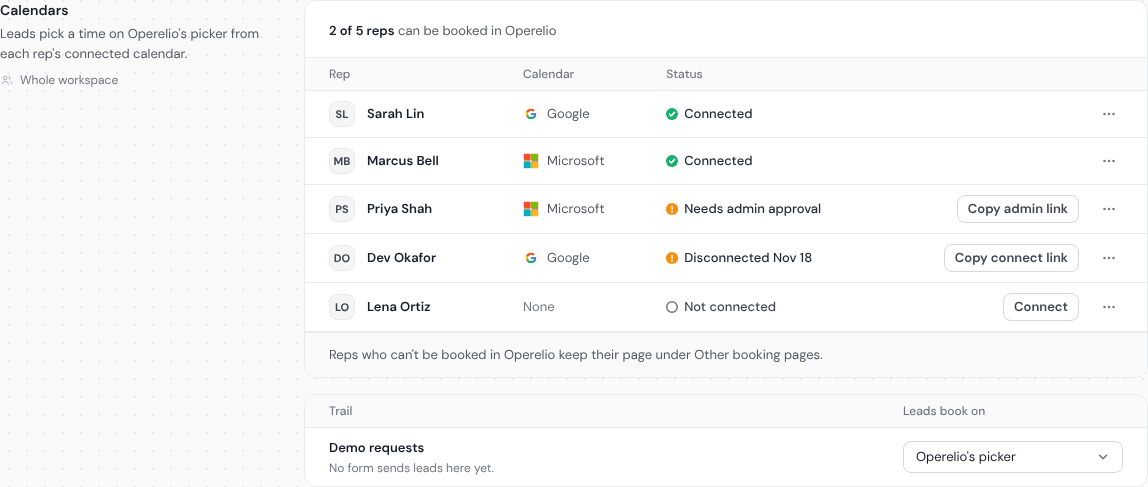
Each rep's row in Calendars shows one of four statuses.
| Status | What it means | What to do |
|---|---|---|
| Connected | Leads can book this rep, once their hours are saved. | Set their hours, if the row asks |
| Needs admin approval | The rep's Microsoft admin must approve Operelio first. | Copy admin link and send it to the admin |
| Disconnected | The connection ended, with the day it ended. | Copy connect link and send it to the rep |
| Not connected | No calendar yet. Leads get the rep's booking page. | Connect |
Count calendar time off
Count calendar time off is one of the booking rules under Meeting types, for the whole workspace. It is on to start with.
With it on, an out-of-office in a rep's connected calendar shows under Reps, in the rep's time off, marked Out of office (from calendar). Routing skips the rep on those days, as it skips days off saved by hand. Operelio reads each connected calendar's out-of-office daily, so a new one can take a day to show.
On or off, the picker never offers a time inside an out-of-office.
Disconnect a calendar
From the rep's row menu, choose Disconnect. The rep can also disconnect from their connect page. Meetings already booked stay where they are.
For Google, disconnecting also removes Operelio's access in the rep's Google account. Microsoft has no way to do that, so the rep's Microsoft account lists Operelio until they remove it there.
New leads for that rep get their booking page.