

On this page8 sections
What meeting types and booking links do
A meeting type is what a lead can book: its name, its length, where the call happens and who it books for. Booking links are addresses a lead can book from directly, without filling in a form first, for an email signature or your site.
Both use the free times from each rep's connected calendar, so a rep needs a connected calendar and saved hours before leads can book them.
Meeting types and Booking links are in Settings, Booking, below Calendars, on Starter and up. On Free they show locked, with an example.
Add a meeting type
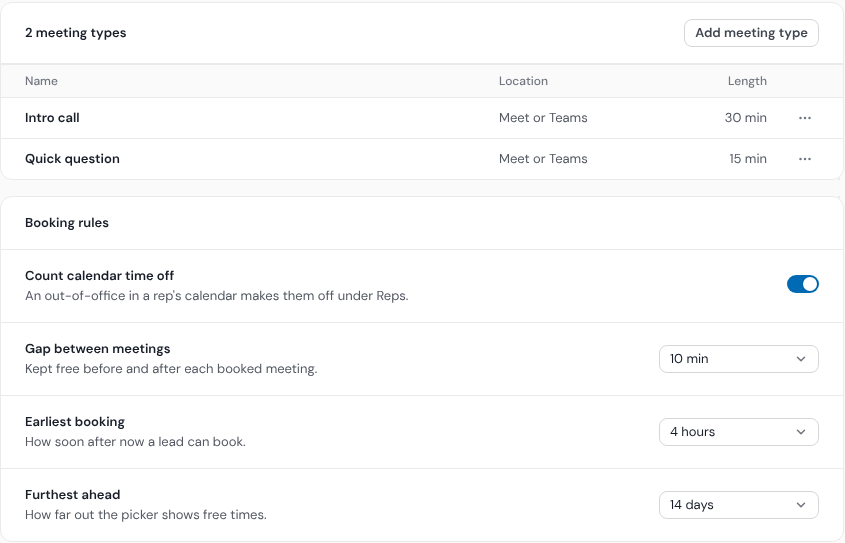
Under Meeting types, each type has a row with its name, where the call happens and its length.
Add or edit a type
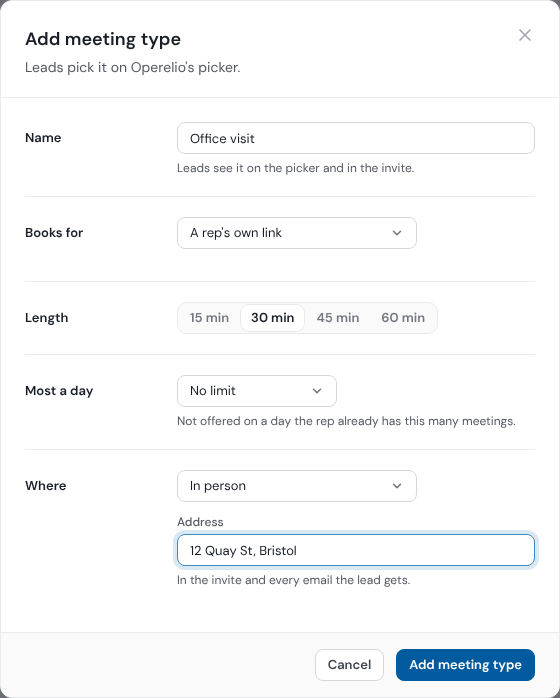
Choose Add meeting type, or Edit from a type's row menu.
Name it
Leads see it on the picker and in the invite.
Choose who it books for
Under Books for, pick A rep's own link, or A trail's team and then the trail and its team. A team type's team link books a free rep from that team in turn. You choose this once, when you add the type.
Pick a length
15, 30, 45 or 60 minutes.
Set a daily limit, if you like
Under Most a day, pick No limit or 1 to 8. The type isn't offered on a day the rep already has this many meetings.
Choose where
Under Where, pick a place from the table below.
Save
Choose Add meeting type, or Save followed by the type's name. Changes apply to new bookings only.
| Where | What the lead gets |
|---|---|
| Video call | A Google Meet or Microsoft Teams link from the rep's calendar, or no link if you pick No link under Video link. |
| In person | The address you give, in the invite and every email. |
| Phone, the rep calls | A box for their number when they book. The rep calls them on it. |
| Phone, the lead calls | The rep's number to call. Add each rep's number from their row menu in Calendars. |
| Something else | The words you give, in the invite and every email. |
Set the booking rules
Booking rules sit under Meeting types and apply to every booking in the workspace, whatever the meeting type or link. Each change saves at once.
Whether or not Count calendar time off is on, the picker never offers a time inside an out-of-office.
| Rule | What it does | Starts at | Choices |
|---|---|---|---|
| Count calendar time off | An out-of-office in a rep's calendar makes them off under Reps, so routing skips them that day. | On | On or off |
| Gap between meetings | Kept free before and after each booked meeting. | 10 minutes | None to 1 hour |
| Earliest booking | How soon after now a lead can book. | 4 hours | None to 7 days |
| Furthest ahead | How far out the picker shows free times. | 14 days | 7 to 90 days: up to 30 on Starter and Pro, 90 on Agency |
Set your booking address
Every booking link starts with your workspace's booking address, such as operelio.com/book/harbor-hall. Operelio suggests one from your workspace's name. Until you save one, no link takes bookings.
To change it later, choose Change under Booking links. Links already sent with the old address stop working.
Share a team link
Each meeting type for a trail's team has its own team link, such as operelio.com/book/harbor-hall/team/intro-call. A lead who opens it sees one set of free times, with no rep names: a time shows when any rep on the team is free then.
The booking goes to a free rep from the team in turn. Under Booking links, each team link names the reps it books. Reps who can't be booked yet join once they can.
To share it, choose Copy link and put it in your email signature or on your site.
Turn on a rep's personal link
Each rep your trails route to has a row under Personal link. Once the link is on, the row shows its address, such as operelio.com/book/harbor-hall/sarah-lin. A lead who opens it can book that rep, on your meeting type for reps' own links. With two or more types of that kind, the row shows one address per type, each ending in its type, such as operelio.com/book/harbor-hall/sarah-lin?type=intro-call, with its own Copy.
A rep who can't be booked yet shows why instead: Works once the calendar is connected, Works once the calendar is reconnected, or Works once their hours are set. With no meeting type for reps' own links, a link that's on shows Works once a meeting type is set for reps' own links.
Choose where bookings go
Personal links stay off until New bookings go to has a trail. See below.
Switch it on
Switch on the rep's link in the On column.
Copy the link
The address shows once the link is on, one per meeting type when there are two or more. Choose Copy beside the one you want, and add it to the rep's email signature or your site for them. Reps need no Operelio seat.
Choose where bookings go
New bookings go to, under Booking links, is the trail each personal-link booking becomes a lead in. Only a trail with a folder for its leads can take bookings.
A booking becomes a lead in the trail's folder and runs the trail's steps, as a lead from a website form does. At the Route step the rep they booked gets the lead first. A team link's bookings go to its team's own trail.
If the workspace drops below Starter, its booking links stop taking bookings. What's set up stays as it is until it upgrades.
What the lead gets
The invite comes from the rep's own calendar, with the meeting type's place. The lead's booked screen, the reminder and the email when a call moves have a link to move or cancel the call. Emails to the lead come from the rep's first name at your workspace, for example Sarah at Harbor Hall via Operelio.
The reminder goes 24 hours before the call, and only when the call was booked more than 24 hours ahead. A call booked at shorter notice gets the invite but no reminder.