
Workflow Builder
Chain up to 8 tools into one automated pipeline. Upload once and each step feeds the next, with a single file at the end. Starter, Pro and Agency.
By Operelio team · Updated October 20, 2026
On this page13
- 1.What it does
- 2.When to use it
- 3.Example workflows
- 4.How to use it
- 5.Column tracking between steps
- 6.Limits and rules
- 7.Plans and limits
- 8.When a step fails
- 9.Recovering from a failed run
- 10.Output format and download
- 11.What the results page shows
- 12.Run it automatically with a trail
- 13.Frequently asked questions
What it does
Workflow Builder chains individual Operelio tools into a single pipeline. Upload one file, add the steps you want in order, and the output of each step feeds into the next. The downloading, re-uploading and reconfiguring you would otherwise do between tools happens in one click.
A workflow can have up to 8 steps. The tools you can chain are Clean Headers, Deduplicate, Find & Replace, Filter & Extract, Column Manager, Remove suppressed contacts, and CRM Formatter. You can combine them in any order (with one exception: CRM Formatter always runs last if included).
When you run a workflow, Operelio executes each step on the server, passes the intermediate result to the next step, and returns a single output file at the end. Intermediate files are not kept. Only the final result is saved to your history.
When to use it
Workflow Builder pays off when you find yourself running more than one tool in sequence on the same file.
| Scenario | What it looks like |
|---|---|
| CRM imports | Clean column names, remove duplicates, fix abbreviations, and format for HubSpot, Salesforce, or Pipedrive in one pass. |
| Weekly exports | A marketing tool exports the same messy shape every Monday; a saved workflow cleans it the same way each time. |
| Multi-stage filtering | Keep only active US customers, drop internal-only columns, then reformat phone numbers. |
| Pre-analysis cleanup | Normalize headers, deduplicate, and filter before handing a file to someone for analysis. |
Example workflows
CRM import cleanup (four steps). Clean Headers standardizes column names (First Name → first_name). Find & Replace fixes abbreviations ("Inc." → "Inc"). Deduplicate removes repeats by email, keeping the first occurrence. CRM Formatter maps the result to HubSpot's contact fields. Upload one messy export, get a CRM-ready file.
Weekly lead extract (three steps). Filter & Extract keeps only rows where country is "US". Column Manager drops internal columns you don't need outside the team. Set the output format to Excel in the run bar and the result is a formatted spreadsheet you can share directly.
Broad cleanup (five steps). Clean Headers, then Find & Replace to normalize country names, then Find & Replace again to fix status values, then Deduplicate by email, then Filter & Extract to keep only active rows. Find & Replace can be added multiple times, and each instance runs its own set of rules.
How to use it
Upload a file
Drop a CSV or Excel file into the Workflow Builder's upload area, or click Browse files. Operelio reads the column headers so later steps can reference them.
Add your first step
Click Add your first step and pick a tool from the dropdown. The step's settings open beside the list of steps. Clean Headers has no config (it just runs), Deduplicate asks what to match on, Find & Replace takes rules, and so on. Simple tools (Clean Headers, Deduplicate, Remove suppressed contacts) auto-confirm. Rule-based tools (Find & Replace, Filter & Extract, Column Manager) need you to click Confirm step when you're done configuring.
Add more steps and reorder
Click Add step to append more tools. To reorder, click a step to open it and use Move up and Move down at its top. The column dropdowns in later steps update based on what earlier steps do. For example, if step 1 (Clean Headers) lowercases your columns, step 2 will show the lowercase names in its dropdowns. CRM Formatter, if added, always lands at the end.
Preview a step (optional)
On any configured step, click Preview after this step to run the workflow up to that step on the first 100 rows of your file. The Preview card under the steps shows those rows, and After step switches it to any other step. Useful for catching configuration mistakes before running the whole workflow on a large file.
Save for reuse (optional)
Click Save workflow under your file, give it a name, and the configuration is stored. You'll use the same workflow on future files without reconfiguring. Starter keeps up to 10 saved workflows, Pro up to 50, Agency up to 200. See the Saved workflows guide for more.
Run
Click the run button at the bottom of the card (it reads Run 4 steps for a four-step workflow). Each step executes in order. You'll see live progress with which step is active, which are done, and which are still queued. When the workflow finishes you land on its results page: an answer line with Download beside it, a bar of where the rows went, the Files table, one row per step with its rows before and after, and a preview of the result. See "What the results page shows" below.
Order matters. Run Find & Replace before Deduplicate when your data has typos like "Westmarch" vs "Westmarch Ltd" vs "westmarch". Fixing the values first means Deduplicate sees them as duplicates instead of three separate companies. Same logic for Clean Headers: putting it as step 1 means later steps see normalized column names like first_name instead of "First Name " with stray whitespace.
Column tracking between steps
When you configure a step that references columns (like Filter & Extract or Find & Replace with a column scope), the dropdown shows the columns that will exist at that point in the pipeline, not the columns in your original file.
Example: your file has "First Name" and "Email Address". Step 1 is Clean Headers, which lowercases headers. When you configure step 2 (Filter & Extract), the column dropdown shows first_name and email_address, not First Name and Email Address. Operelio simulates the transformation client-side so you're always referencing the right names.
The same is true for Column Manager. If you rename, split, or duplicate a column in an earlier step, later steps see the new shape.
Limits and rules
Maximum 8 steps per workflow. At the limit, the Add step button gives way to "Step limit reached (8 max)" until you remove a step.
Clean Headers, Deduplicate, Column Manager, Remove suppressed contacts, and CRM Formatter can each appear once per workflow. Find & Replace and Filter & Extract can appear any number of times (they're common enough that you'd reasonably run multiple passes).
If CRM Formatter is included, it always runs as the final step. The builder enforces this when you add it. You can't place it in the middle.
Each step must be a single-file tool. Multi-file tools (Merge Files, Match & Pull Columns, Compare Files) cannot be workflow steps because they require paired inputs. The output of one step always feeds into the next as a single file.
Row-limit rules still apply. On Starter, a workflow processes up to 50,000 rows per step; on Pro, up to 75,000; on Agency, up to 150,000. If your input is bigger, the worker truncates to the plan limit before step 1 runs and shows a banner on the results page.
Plans and limits
Workflow Builder is a Starter feature. Every paid plan gets the full feature set; the difference is scale.
| Limit | Starter | Pro | Agency |
|---|---|---|---|
| Steps per workflow | 8 | 8 | 8 |
| Tools available | All 7 | All 7 | All 7 |
| Saved workflows | 10 | 50 | 200 |
| Rows per job | 50,000 | 75,000 | 150,000 |
| File size | 25 MB | 35 MB | 100 MB |
| Monthly jobs | 300 | 1,000 | 3,000 |
| Output format | CSV or Excel | CSV or Excel | CSV or Excel |
| File retention | 30 days | 30 days | 90 days |
| Price | $39/month, or $351/year (effective $29.25/month, 25% off) | $99/month, or $891/year (effective $74.25/month, 25% off) | $299/month, or $2,691/year (effective $224.25/month, 25% off) |
When a step fails
Workflows are atomic. If any step fails, the workflow stops at that step and the remaining steps are skipped. You won't end up with a half-processed output.
Here's exactly what happens for each common failure case:
| What went wrong | What you'll see | How to fix it |
|---|---|---|
| A later step references a column that an earlier step removed (Column Manager dropped it, or you renamed it) | The results page says the step stopped because the file has no such column at that step, and lists the columns it did have. Steps after it show as not run. | Open the workflow from the results page, point the step at a column that still exists at that point in the pipeline, and rerun. |
| Find & Replace has an invalid advanced pattern (unclosed bracket, etc.) | The rule is skipped with a warning on the results page. Other rules in the same step still run. | Edit the rule, fix the pattern, and rerun. The pattern field accepts up to 500 characters. |
| Filter & Extract uses "greater than" or "less than" with a number, on a text column with non-numeric values | The step still runs but no rows match, so a downstream step may receive an empty file. | Switch the operator to "equals", "contains", or "is one of". Use "greater than" / "less than" only on columns that are numeric throughout. |
| A Filter & Extract step cuts every row, leaving zero rows for the next step | The next step runs on an empty file. Some tools (like Deduplicate) succeed with zero rows; others may fail. | Loosen the filter or move it later in the pipeline so earlier transformations have run first. |
| Input file is bigger than your plan's row limit (50,000 Starter / 75,000 Pro / 150,000 Agency) | The file is truncated before step 1 runs. A row-limit line on the results page gives the totals. | Either trim the file before uploading, run the workflow on the truncated subset (which is what already happened), or upgrade to Agency for the higher limit. |
Recovering from a failed run
The results page names the step that stopped and why, shows the rows each earlier step read and wrote, and marks the steps after it as not run, so you can see how far the workflow got.
Open the workflow, on the results page, takes you back to the builder with the same file and steps. Fix the step that stopped and run it again. The workflow starts fresh from step 1 every time; there's no partial resume. To keep the fix for next time, save the workflow.
A failed run doesn't count against your monthly job limit. Only completed runs do. If you're worried about burning credits while debugging, use Preview after this step on each step (free, runs on the first 100 rows) to catch configuration mistakes before running on the full file.
Output format and download
Once you have added a step, choose the output format in the run bar: CSV (the default) or Excel (.xlsx). The format applies to the final output file only; intermediate steps always use CSV internally for speed.
If CRM Formatter is your last step, there is no format choice. The run bar says your result will open in the CRM Formatter, where you pick your CRM, map columns and push.
The output file is named after your input. If you upload contacts-raw.csv and run the workflow, the final file is named contacts-raw_workflow.csv (or .xlsx if you chose Excel).
The output file is saved to your job history and stays available for your plan's retention window (30 days on Starter, 30 days on Pro, 90 days on Agency). Download it from the results page, which you can reopen from Activity on Home, at any time during that window.
What the results page shows
When the workflow finishes you land on a results page summarizing the run. Here's what each element means:
| What you'll see | What it means |
|---|---|
| The answer line | "2,087 of 2,340 rows came through 4 steps." Beside it, Download takes the result, named {filename}_workflow.csv (or .xlsx). |
| Where the rows went | One bar of the rows that came out and the rows each Deduplicate, Filter & Extract or Remove suppressed contacts step took out, each with its count. Steps that only change values or columns take no rows out, so they have no part of the bar. |
| Files | Your file after the steps, with Send to Files and Download, and your file before the workflow, each with its rows. |
| Steps | One row per step in the order they ran: what it did, in that tool's own words, and its rows before and after, with how many it took out. Useful for spotting which step removed rows you didn't expect to lose. |
| While it runs | The card says which step is running ("Step 3 of 4: Deduplicate"), and each step's rows show in Steps as it finishes. You can leave the page. |
| If a step stops | The card names the step and why. When it was a missing column, it lists the columns the step had. Open the workflow takes you back to the builder with the same file and steps. |
| Preview | The result's rows, 100 to a page (or 250 or 500), with search and Go to row. |
| "Continue to CRM Formatter" CTA | Only shown if your workflow ended in CRM Formatter. Takes you to CRM Formatter pre-loaded with your output, so you can map columns and push to your CRM. Once you've formatted it, the button is "Open the CRM Formatter job" and opens that job. |
| Row-limit line | Only shown if your input was larger than your plan's row limit. Tells you the original row count, the cap, and how many rows were processed. |
Run it automatically with a trail
Once the settings are right for the files you get every week, a trail can run them for you. A trail watches a folder and runs a workflow like this one on every file that lands there, then pushes the result into HubSpot, Salesforce or Pipedrive, with nine always-on safety checks, two more you set, and approval built in. Set it up once and the cleanup, the verification, the lead routing and the CRM import are automated from then on.
Trails run on Starter and above.
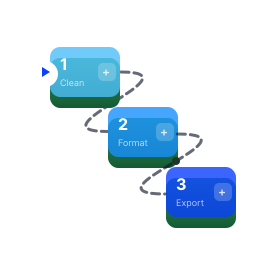
Chain several tools into one run and apply it to a file.
Frequently asked questions
What plan do I need?
Workflow Builder requires a paid plan: Starter ($39/month), Pro ($99/month), or Agency ($299/month). The individual tools it chains (Clean Headers, Deduplicate, Find & Replace, Filter & Extract, Column Manager) are free to use on their own on the Free plan.
Can I include multi-file tools like Match & Pull Columns or Merge?
No. Workflow steps only support single-file tools because the output of each step feeds into the next as a single file. If you need to join or compare files, run those tools separately and then use Workflow Builder on the result.
Can I add the same tool twice?
Find & Replace and Filter & Extract can appear any number of times in a workflow; they're often used in passes. Clean Headers, Deduplicate, Column Manager, Remove suppressed contacts, and CRM Formatter are capped at one instance each. If you need a second pass on one of those, run a separate workflow on the output.
Does a workflow count as one job or one job per step?
One workflow run counts as one job against your monthly limit, regardless of how many steps it has. That includes a workflow with CRM Formatter as its last step: the run takes you to the CRM Formatter with the cleaned file, and only formatting it there uses a second job. Starter has 300 jobs/month, Pro has 1,000, Agency has 3,000.
Can I preview what a step will do before running the whole workflow?
Yes. Each configured step has Preview after this step, which runs the workflow up to that step on the first 100 rows and shows the result. It's a fast way to catch config mistakes before processing a large file.
What happens if my file has more rows than my plan allows?
The worker truncates the input to your plan's row limit (50,000 on Starter, 75,000 on Pro, 150,000 on Agency) before step 1 runs. The results page shows a banner explaining that the file was truncated. Upgrade if you need to process more rows.
Can I cancel a running workflow?
Not currently. Once you click the run button (Run 4 steps, or Run and format for CRM when CRM Formatter is the last step), the workflow runs to completion. If a workflow is stuck, contact support.
Can I edit a saved workflow?
Yes. Open the workflow from the Workflows view of Home's Templates and mappings tab (or load it from inside Workflow Builder), change any step's configuration, add or remove steps, and click Update workflow to save the changes. The next time you run it, the new configuration applies.
What if a step's preview shows the wrong result?
Open that step, adjust the settings, and click Preview after this step again. The preview is free and as many times as you want; it doesn't count toward your monthly job limit. Once the preview looks right, run the full workflow.
Will the same workflow always produce the same output for the same file?
Yes. Workflows are deterministic. Same file in, same configuration, same output, every time. If you rerun a workflow on a file and get a different result, the file changed.
What if I make a mistake?
Nothing to undo, and nothing to clean up. Your original input file is kept untouched; a workflow run produces a new output file with the _workflow suffix. If you don't like the result, change the configuration and rerun. The bad output sits in your job history until its retention window expires (30 days on Starter, 30 days on Pro, 90 days on Agency) or you delete it manually.
Ready to get started?
Upload a file and run your first transformation. Free, no credit card required.