
How to remove duplicates in Google Sheets
To remove duplicates in Google Sheets, select the range, go to Data > Data cleanup > Remove duplicates, choose the columns to compare and click Remove duplicates. Sheets keeps the first row of each set.
By Operelio team · Updated October 8, 2026
On this page8
- 1.Three ways to find and remove duplicates
- 2.How to remove duplicates with Data cleanup
- 3.How to remove duplicates with the UNIQUE function
- 4.How to highlight duplicates before deleting them
- 5.How to remove duplicates in one column
- 6.Why Sheets misses some duplicates
- 7.Remove duplicates across files, or by email, with Deduplicate
- 8.Frequently asked questions
Three ways to find and remove duplicates
Remove duplicates is the quickest, but it deletes rows in place. The other two leave your data alone.
| Method | Use it for | Changes your data |
|---|---|---|
| Conditional formatting | Seeing the duplicates before you delete anything | No, it only highlights |
| Data cleanup > Remove duplicates | A one-off cleanup of a list | Yes, it deletes rows |
| UNIQUE function | A duplicate-free copy that updates when the list changes | No, it writes a new list |
How to remove duplicates with Data cleanup
Remove duplicates deletes the duplicate rows from the sheet immediately, so highlight them first if you want to see what goes (further down).
Select the whole range
Select every column of your list, headers included, not only the column with the duplicates. Sheets only works on the cells you select, so a single column selected on its own loses cells from that column while the rest of each row stays put, and the rows no longer line up. If you do start from one column, the dialog offers an Expand button (such as Expand to A:D): click it.
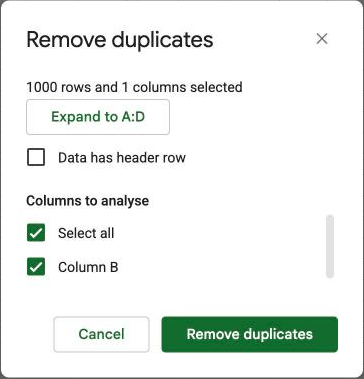
Open Remove duplicates
Go to Data > Data cleanup > Remove duplicates. On a UK English account the menu is called Data clean-up.
Check Data has header row
It starts unchecked. If the first row is headers, check Data has header row. Sheets then shows your column names in the list and leaves the header row out of the comparison.
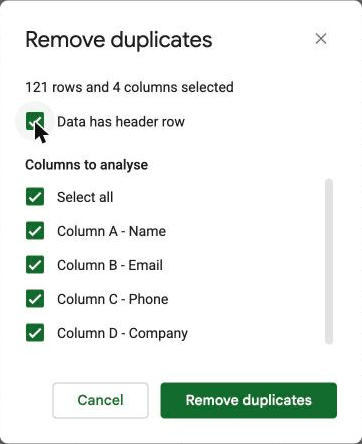
Choose the columns to analyze
Check only the columns that define a duplicate. With Select all checked, two rows count as duplicates only when every cell matches, so one different phone number keeps both. For a contact list, Email on its own is usually what you mean.
Click Remove duplicates
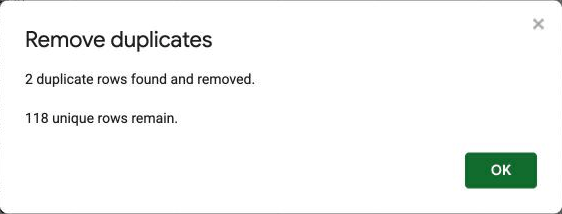
Sheets deletes the duplicate rows and tells you how many it found and removed and how many unique rows remain. If the number is far off what you expected, undo with Edit > Undo, or Ctrl+Z (Cmd+Z on a Mac) once the message has closed, and look at which columns you checked.
How to remove duplicates with the UNIQUE function
UNIQUE leaves your original list alone and writes a copy without the duplicates somewhere else. Click an empty cell with enough room below and to the right of it, and type the formula.
For whole rows, give it every column: =UNIQUE(A2:D) returns each distinct row once. An open range like A2:D also returns one empty row at the end, from the blank rows below your data. For one column, give it that column: =UNIQUE(B2:B) returns the list of distinct values in column B, which is how you get a clean list of companies or countries from a long sheet.
The result updates when the original changes. To keep it as a fixed list, select the result, copy it, and paste it back with Edit > Paste special > Values only.
UNIQUE counts letter case, unlike Remove duplicates: Jane@example.com and jane@example.com both stay. It also compares whole rows, so it can't remove duplicates by email while keeping the rest of each row, because two rows with the same email and a different phone number are different rows to it. For that, use Data cleanup with only the Email column checked.
How to highlight duplicates before deleting them
Conditional formatting colors every value that appears more than once, so you can look before anything is deleted. This example checks emails in column B, starting at row 2.
Select the column
Select B2:B, the emails without the header.
Open conditional formatting
Go to Format > Conditional formatting. The rules panel opens on the right with your range filled in.
Use a custom formula
Under Format rules, set Format cells if to Custom formula is, and enter =COUNTIF($B$2:$B,B2)>1. COUNTIF counts how often each email appears in the column, ignoring letter case, and the rule colors the ones that appear more than once.
Pick a color and click Done
Every repeated email is now filled in. Sort or filter by color to look through them, then remove the duplicates with Data cleanup.
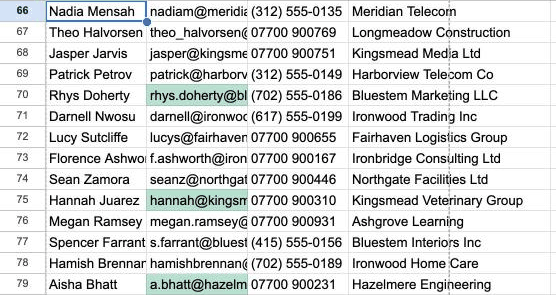
To color the whole row instead of only the email, select A2:D (all your columns) in the first step and use =COUNTIF($B$2:$B,$B2)>1. The $ before the second B keeps every cell in the row checking the email column.
How to remove duplicates in one column
There are two different jobs here, and Data cleanup does both depending on what you select.
To remove rows that share a value in one column, such as the same email, select the whole list and check only that column under Columns to analyze. Sheets compares that one column and deletes the whole row for each duplicate.
To get a clean list of the values in one column, such as every company once, use =UNIQUE(B2:B) in an empty column or on a new tab. The original column and the rest of the sheet stay as they are.
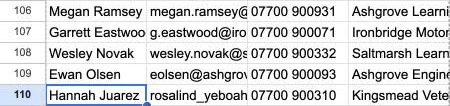
Selecting one column on its own and running Remove duplicates on it is the one to avoid when the column is part of a list. The dialog offers to expand the selection to the whole list; if you go ahead without it, Sheets deletes cells from that column only, the cells below move up, and from then on each value sits next to someone else's row.
Why Sheets misses some duplicates
Remove duplicates looks for identical values, ignoring letter case, so WESTMARCH and Westmarch count as the same. Anything else that differs keeps both rows:
| What it misses | Example | What to do in Sheets |
|---|---|---|
| Extra spaces | jane@example.com with a space at the end | Run Data > Data cleanup > Trim whitespace on the column first. It leaves non-breaking spaces, which come in with text copied from web pages. A CSV brought in with File > Import, with Convert text to numbers, dates, and formulas checked, has its spaces at the ends trimmed already. |
| Spelling and typos | Jon Smith and John Smith, or Westmarch Ltd and Westmarch Limited | Nothing built in. You find them by eye, sorted by name. |
| The same person with two emails | jane@westmarch.com and jane.doe@westmarch.com | Check more columns, such as first name, last name and company, and check what comes up before you delete. |
| Duplicates in two files | The same lead in this week's list and last week's | Copy both lists into one tab, one under the other with one header row, then remove duplicates. |
If the list is going into HubSpot, its import matches existing contacts by email. Duplicates that share an email update one contact, but the same person under two emails becomes two contacts, so the same person under two emails is the duplicate to look for before a CRM import.
Remove duplicates across files, or by email, with Deduplicate
Operelio's Deduplicate does the job on the file itself, without a sheet open. Upload a CSV or Excel file (download it from Sheets with File > Download), pick the columns that define a duplicate, and check the preview, which shows your own rows grouped as duplicates before anything is removed. You choose whether the first or the last row of each group stays.
It also catches what Sheets misses. It ignores case and trims spaces by default. Smart matching treats emails, phone numbers and company names that mean the same thing as the same, such as Westmarch Ltd and Westmarch, Ltd., or +1 (415) 555-0123 and 415-555-0123. Similarity matching catches typos like Jon and John. The rows it removes come back as a separate file you can check, and your original file is never changed.
For duplicates spread across several files, combine them first with Merge Files, then run Deduplicate on the result.
Remove the duplicates Sheets misses, and choose which row in each group to keep.
Related
Frequently asked questions
How do I remove duplicates in Google Sheets?
Select the whole list, go to Data > Data cleanup > Remove duplicates, check Data has header row if you have headers, check the columns that define a duplicate, and click Remove duplicates. Sheets deletes the repeats and keeps the first row of each set.
Does Remove duplicates delete the whole row?
Yes, when you select the whole list. It compares the columns you check and deletes every cell of each duplicate row in your selection. If you select only one column, it deletes cells from that column only, which misaligns the rest of the sheet.
Can I undo removing duplicates in Google Sheets?
Yes. Press Ctrl+Z (Cmd+Z on a Mac) right after. Later on, go to File > Version history > See version history, open a version from before the change, and restore it or copy the rows you need back.
How do I keep the first or last duplicate?
Sheets always keeps the first row of each set, so sort the list before you remove duplicates to put the row you want first. To keep the most recent row, sort by a date column newest first with Data > Sort range. Operelio's Deduplicate lets you choose first or last directly.
Ready to get started?
Upload a file and run your first transformation. Free, no credit card required.