
How to import a CSV into Google Sheets
To import a CSV into Google Sheets, open a sheet, go to File > Import > Upload, choose the file, pick where it goes (new sheet, append or replace) and click Import data.
By Operelio team · Updated October 8, 2026
On this page8
- 1.How to import a CSV into Google Sheets, step by step
- 2.Import location: new spreadsheet, new sheet, append or replace
- 3.Separator type and "Convert text to numbers, dates, and formulas"
- 4.Opening a CSV from Google Drive instead
- 5.Import a CSV that updates
- 6.Common problems
- 7.Before the CSV goes into a CRM
- 8.Frequently asked questions
How to import a CSV into Google Sheets, step by step
Importing, rather than opening the file, lets you choose where the data lands and how Sheets reads it.
Open a spreadsheet
Open the spreadsheet the data should go into, or a blank one from sheets.new.
Go to File > Import
Click the Upload tab, then Browse, or drag the CSV onto the window. To use a CSV already in Google Drive, pick it from the My Drive tab instead.
Choose the import location
Pick where the data goes, such as Insert new sheet(s) to add it as a new tab. The next section explains each option.
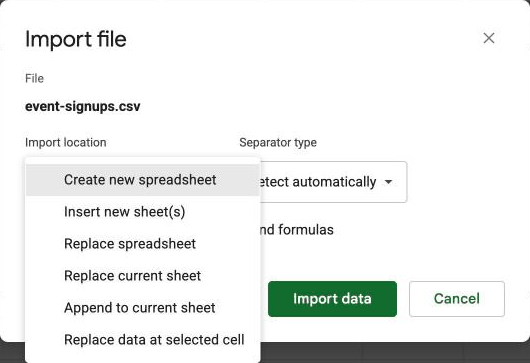
Check the separator and the conversion box
Leave Separator type on Detect automatically unless the columns come out wrong. Uncheck Convert text to numbers, dates, and formulas if the file has IDs, ZIP codes or phone numbers.
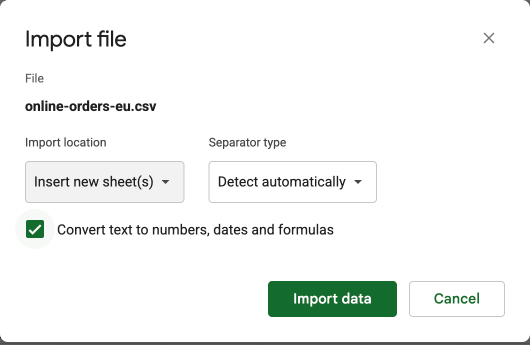
Click Import data
The data appears where you chose. With Create new spreadsheet, click Open now to go to it.
Import location: new spreadsheet, new sheet, append or replace
The Import location list decides what happens to the data already in the spreadsheet.
| Option | What it does |
|---|---|
| Create new spreadsheet | Makes a separate spreadsheet file in your Drive. Nothing open is touched. |
| Insert new sheet(s) | Adds the CSV as a new tab in this spreadsheet. |
| Replace spreadsheet | Deletes every tab in this spreadsheet and puts the CSV in their place. |
| Replace current sheet | Clears the tab you are on and puts the CSV there. |
| Append to current sheet | Adds the CSV's rows under the last row with data on this tab. The CSV's header row comes in too, so delete it afterwards. The new rows don't take on formatting you set on the tab, such as Plain text. |
| Replace data at selected cell | Writes the CSV starting at the cell you selected, over anything in its way. |

Append to current sheet doesn't match columns by name. It puts the CSV's first column under column A, so check that both files have their columns in the same order first.
Separator type and "Convert text to numbers, dates, and formulas"
Separator type tells Sheets what splits one value from the next. Detect automatically gets commas and tabs right, and it also split a semicolon file correctly in our test. If the columns still come out wrong, choose Custom and type the character the file uses.
A file from a country that uses a comma as the decimal mark, with amounts like 124,18 and dates like 01.09.2026, imports into an English-language spreadsheet with those values as text, so they don't add up or sort as dates.
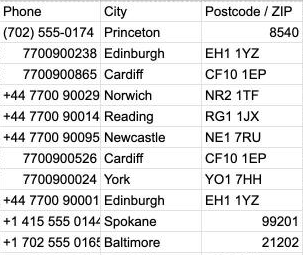
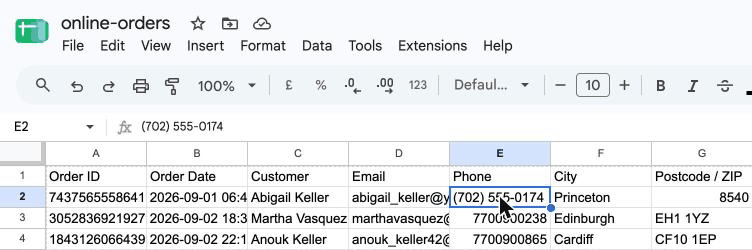
The Convert text to numbers, dates, and formulas box is checked by default, and it makes Sheets read each value as a number or date where it can. That's what you want for amounts and dates in a report. It is what breaks contact data: ZIP code 02134 becomes 2134, a phone number written without spaces, like 07700900238, loses its leading 0, and a size or bin code like 5-6 or 12/5 turns into a date. Long order IDs survive: Sheets keeps a 19-digit ID as text.
Uncheck the box and every value comes in as text, exactly as it is in the file. That includes amounts, and =SUM skips text without an error, so =SUM(K2:K87) on a Total column returns 0. Convert one cell with =VALUE(K2), or total the column with =SUMPRODUCT(VALUE(K2:K87)). Going the other way doesn't work: once a leading zero is gone, formatting the column as Plain text doesn't bring it back, so you have to import again.
Opening a CSV from Google Drive instead
If the CSV is in Google Drive, you can double-click it and choose Open with > Google Sheets. That creates a new spreadsheet next to the CSV, converted with the default settings: the separator is detected and the conversion box is checked, so leading zeros and codes like 5-6 go the same way as above. If Drive is set to convert uploads, the CSV is converted the same way as it uploads.
It is quick for a report. For a list with IDs, ZIP codes or phone numbers, open a blank spreadsheet and use File > Import, where you can uncheck the box.
Import a CSV that updates
When the CSV lives at a public web address, such as an export link from another tool, the IMPORTDATA function pulls it in and keeps it current. Type =IMPORTDATA("https://example.com/export.csv") in an empty cell and the data fills the cells to the right and below.
Sheets fetches the file again on its own from time to time, roughly once an hour, so the sheet follows the file. The address has to work without signing in: a link that needs a password, including a private Google Drive link, returns an error.
The result is a formula, so you can't edit the cells it fills. To work with a fixed copy, select the data, copy it and use Edit > Paste special > Values only.
Common problems
Most import problems show up in the first few rows, so look at them before you do anything else with the data.
| Problem | Why it happens | Fix |
|---|---|---|
| Everything is in one column | The file uses a separator Sheets didn't detect. | Import again with Separator type set to Custom and the right character. |
| Columns slide out of line on some rows | A value contains the separator, such as a comma in a company name, and isn't wrapped in quotes. | Fix the quoting in the source, or export the file again with a different separator. |
| Accented names show as ̩ or Ł | The file was opened and saved in Excel on the way. Excel for Mac reads a UTF-8 CSV in the wrong encoding when you double-click it, and saving it again, even as CSV UTF-8, keeps the garbled names. | Import the CSV straight from the source, without opening it in Excel first. |
| Leading zeros are missing | The conversion box was checked, so Sheets read the values as numbers. | Import again with Convert text to numbers, dates, and formulas unchecked. |
| The import fails or stops | A spreadsheet holds up to 20 million cells across all its tabs, or 100 MB. | Import into a new spreadsheet, or split the file into smaller files first. |
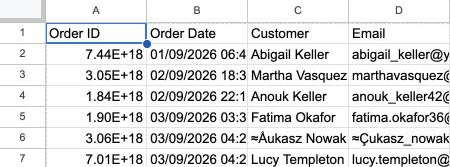
Opening a CSV in Excel and saving it again changes more than accents. Excel saves what it displays, so a 19-digit ID is written as 7.43757E+18 and its digits are gone, and ZIP codes lose their leading zeros, before Sheets ever sees the file.
Before the CSV goes into a CRM
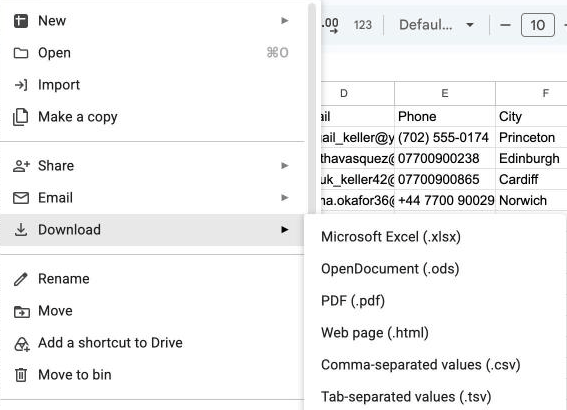
Often the CSV is in Google Sheets to be tidied before it goes into HubSpot, Salesforce or Pipedrive. Then download it with File > Download > Comma-separated values (.csv) and import that into the CRM. It saves only the tab you are on, as a file named after the spreadsheet and the tab, and any formulas are saved as their results.
Operelio's CRM Formatter does the tidying on the CSV itself: it matches your columns to the CRM's fields, lowercases and trims emails, cleans phone numbers, splits names and removes duplicates, then gives you a file ready to import. On a paid plan it can push the rows straight into HubSpot, Salesforce or Pipedrive instead. The import templates show the columns each CRM expects before you start.
Get a CSV ready for your CRM's import without opening it in a spreadsheet.
Related
Frequently asked questions
Why does my CSV open in one column?
The values are split by a character Sheets didn't detect. Import the file again and set Separator type to Custom with that character. In Excel, use Data > From Text/CSV (on a Mac, Data > Get Data (Power Query) > Text/CSV) and pick the delimiter there.
How do I keep leading zeros when importing a CSV?
In Google Sheets, uncheck Convert text to numbers, dates, and formulas in the File > Import dialog, so every value comes in as text. In Excel, use Data > From Text/CSV (on a Mac, Data > Get Data (Power Query) > Text/CSV), click Transform Data and set those columns to Text before you load them.
What is a CSV import?
Bringing the rows of a CSV file into another program, such as a spreadsheet or a CRM. Each line of the file becomes a row, and the separator, usually a comma, decides where one column ends and the next begins.
Ready to get started?
Upload a file and run your first transformation. Free, no credit card required.