
How to format phone numbers in Excel
To format phone numbers in Excel, select the cells, press Ctrl+1, choose Special > Phone Number, or a custom format such as (000) 000-0000.
By Operelio team · Updated October 8, 2026
On this page8
- 1.How to format phone numbers with the Phone Number format
- 2.How to add dashes or parentheses with a custom format
- 3.When the format doesn't apply: numbers stored as text
- 4.Keep leading zeros and the +
- 5.Format phone numbers for a CRM import
- 6.How to format phone numbers in Google Sheets
- 7.Clean phone numbers across a whole file
- 8.Frequently asked questions
How to format phone numbers with the Phone Number format
Excel has a built-in format for US phone numbers. It changes how a number is shown, not the number stored in the cell, so 4155550123 still sorts and matches as 4155550123.
Select the cells
Click the column letter to format the whole column, or select a range.
Open Format Cells
Press Ctrl+1 (Cmd+1 on a Mac), or right-click the selection and choose Format Cells.
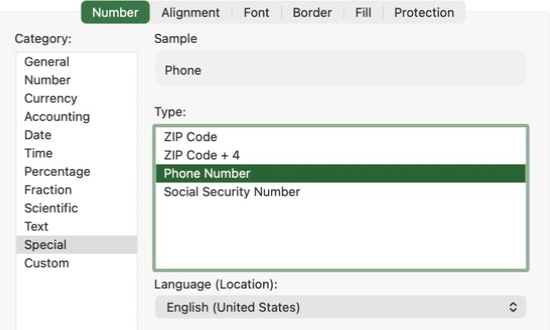
Choose Special > Phone Number
On the Number tab, click Special in the Category list, then Phone Number in the Type list. If Phone Number isn't there, set Locale (location) to English (United States).
Click OK
A 10-digit number such as 4155550123 shows as (415) 555-0123. A 7-digit number shows as 555-0123. The format treats every number as a US one, so a UK mobile stored as 7700900607 shows as (770) 090-0607. In a mixed list, select only the US numbers.
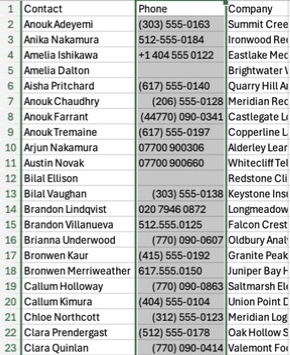
The Locale list offers other countries' special formats, and most countries have no phone number format there: with English (United Kingdom), the Type list is empty. For those, use a custom format, below.
How to add dashes or parentheses with a custom format
A custom format lays the digits out however you like. Press Ctrl+1, click Custom in the Category list, type the format in the Type box and click OK. Each 0 stands for one digit.
| Custom format | 4155550123 shows as |
|---|---|
| (000) 000-0000 | (415) 555-0123 |
| 000-000-0000 | 415-555-0123 |
| 000.000.0000 | 415.555.0123 |
| +1 (000) 000-0000 | +1 (415) 555-0123 |
The digits fill the format from the right, and any extra digits go in front of the first group. Check a few numbers of different lengths after you apply it: an 11-digit number in a 10-digit format puts four digits in the brackets.
When the format doesn't apply: numbers stored as text
A format only changes numbers. A phone number typed or imported as (415) 555-0123 or 415 555 0123 is text, so Format Cells does nothing to it. Cells holding text usually line up on the left, and selecting them shows a Count but no Sum in the status bar.
Strip the brackets, dashes and spaces to leave the digits, with the formula below for a number in A2. Each SUBSTITUTE removes one character, and the two minus signs in front turn the digits that are left into a number. Then apply the Phone Number or custom format to the results.
=--SUBSTITUTE(SUBSTITUTE(SUBSTITUTE(SUBSTITUTE(A2, "(", ""), ")", ""), "-", ""), " ", "")In Microsoft 365, =--REGEXREPLACE(A2, "[^0-9]", "") removes every character that isn't a digit in one go. To get the formatted text in one step, wrap it in TEXT: =TEXT(--REGEXREPLACE(A2, "[^0-9]", ""), "(000) 000-0000"). The result is text, which suits a CSV for a CRM import. Paste the results back over the originals as values before you delete the helper column.
Keep leading zeros and the +
Excel treats a phone number as a number, so it drops what a number doesn't have. A UK mobile typed as 07700900123 becomes 7700900123, and +447700900123 becomes 447700900123. Numbers longer than 15 digits lose their last digits.
To keep a number exactly as typed, store it as text. Select the column, go to Home, open the Number Format list and choose Text, then type or paste the numbers. For a single cell, type an apostrophe first: '07700900123. The apostrophe doesn't show in the cell.
If the numbers are already stored as numbers, a custom format can put the zero back on screen: 00000 000000 shows 7700900123 as 07700 900123. The cell still holds 7700900123, so a formula, a lookup or a copy into another sheet gets the number without the zero. For a file going into another system, store the numbers as text.
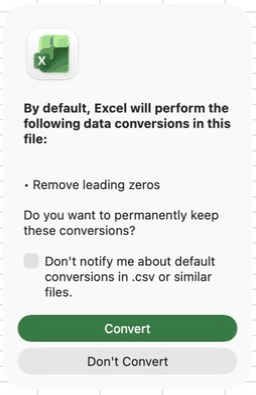
Opening a CSV by double-clicking it can drop the zeros as it opens. Recent versions of Microsoft 365 ask first, in a message that lists conversions such as Remove leading zeros: Convert is the default button and drops them, Don't Convert keeps them. Don't Convert covers only the zeros, not the +: +447700900123 still becomes 447700900123 and shows as 4.477E+11. Older versions drop the zeros without asking.
To keep the + as well, or to choose each column's type yourself, open the file with Data > From Text/CSV instead, click Transform Data, and set the phone column's type to Text before you load it. If Excel asks, choose Replace current, so the earlier automatic change to a number is undone. On a Mac the route is Data > Get Data (Power Query) > Text/CSV, and the columns may come in as text already: click Use First Row as Headers, then set Phone to Text.
Format phone numbers for a CRM import
A CRM stores the number as you send it, so a list with (415) 555-0123, 415.555.0123 and +1 415 555 0123 imports as three formats. That makes the records harder to search and match, and a dialer may not read all of them.
The safe choice is one format for every number, with the country code. The international standard, E.164, is a + followed by the country code and the number with no spaces or punctuation: +14155550123, or +447700900123 for the UK mobile above. Store the column as text so the + stays.
How to format phone numbers in Google Sheets
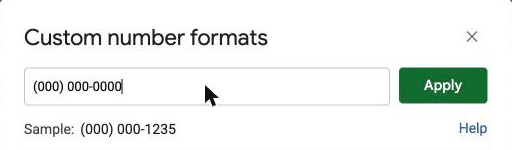
Google Sheets has no built-in phone number format, but custom formats work the same way. Select the cells, go to Format > Number > Custom number format, type (000) 000-0000 and click Apply.
To keep a leading 0 or a +, select the column and choose Format > Number > Plain text before you type or paste the numbers, or start the entry with an apostrophe. File > Import with Convert text to numbers, dates, and formulas checked turns 07700900607 into 7700900607. A number with spaces, brackets, dashes or a + stays text.
For numbers stored as text, REGEXREPLACE leaves the digits: =REGEXREPLACE(TO_TEXT(A2), "[^0-9]", ""). TO_TEXT is there because REGEXREPLACE gives #VALUE! on a cell that holds a number. Wrap the result in VALUE to turn it into a number you can format. It can't bring back a 0 the import already dropped.
Clean phone numbers across a whole file
Operelio's CRM Formatter cleans phone numbers as part of preparing a file for HubSpot, Salesforce, Pipedrive and other CRMs. Each number keeps only its digits and a leading +, a 00 prefix becomes +, and a trailing extension is dropped, so (415) 555-0123 and 415.555.0123 come out the same. It doesn't add a country code a number is missing. Phone fields without digits are flagged for you to check.
It works on the CSV or Excel file, so there is no number format to lose and no leading zero to put back. Your original file is never changed.

Clean every phone number in a file the same way before it goes into your CRM.
Related
Frequently asked questions
How do I format UK phone numbers in Excel?
Store them as text so the leading 0 stays: format the column as Text before you paste, or type an apostrophe first. If they are already numbers, the custom format 00000 000000 shows 7700900123 as 07700 900123. For a CRM import, +447700900123 is the safest form.
How do I format all phone numbers the same in Excel?
Strip every number down to its digits with SUBSTITUTE, or REGEXREPLACE in Microsoft 365, then apply one format to the whole column, or use TEXT to write each number out in that format. For a whole file, the CRM Formatter keeps each number's digits and a leading +, turns a 00 prefix into + and drops an extension, in one run. It doesn't add a missing country code.
Ready to get started?
Upload a file and run your first transformation. Free, no credit card required.