
How to convert a PDF to Excel
On Microsoft 365 for Windows, select Data > Get Data > From File > From PDF, pick the tables Excel finds, and load them into a sheet. Excel for Mac and Excel 2016 or 2019 bought outright don't have that option, and Excel for the web has it only for work or school files in SharePoint or OneDrive. In those, copy the table from the PDF, paste it into Excel and split it with Text to Columns. A scanned PDF needs a tool with text recognition first.
By Operelio team · Updated October 21, 2026
On this page11
- 1.Which method fits your PDF
- 2.How to convert a PDF to Excel with Get Data
- 3.Tables over several pages, long PDFs and many files
- 4.How to copy a table from a PDF to Excel
- 5.Fix numbers, leading zeros and dates
- 6.Go through Word when the paste breaks
- 7.Scanned PDFs need text recognition
- 8.How to convert a PDF to CSV
- 9.When it doesn't work: a checklist
- 10.When the same PDFs keep arriving: send them to a folder
- 11.Frequently asked questions
Which method fits your PDF
Two things decide it: whether the PDF has real text in it, and which Excel you have. If you can select a single word in the PDF with your cursor, it has text. If a drag selects the whole page as one picture, it's a scan.
| Your PDF and Excel | Use | What you get |
|---|---|---|
| A PDF with text, Microsoft 365 on Windows | Get Data > From PDF | Each table the PDF holds, ready to load, with tables that run over pages joined |
| A PDF with text, any other Excel | Copy and paste, then Text to Columns | The rows, often in one column until you split them |
| The paste comes out in a mess | Open the PDF in Word, then copy the table | A Word table, which pastes one cell per cell |
| A scanned PDF | A tool with text recognition | Text to check by hand against the scan |
| The same kind of list as a PDF every week | Email it to an Operelio folder | A CSV of the list's rows in the folder each time |
How to convert a PDF to Excel with Get Data
Excel's PDF connector, part of Power Query, reads the tables in a PDF and loads the ones you pick into a sheet. Microsoft describes it in one line: it "returns any tables found in a PDF file."
It needs Microsoft 365 on Windows. Microsoft's list of data sources by Excel version ticks PDF for the Microsoft 365 plans only, not for Office 2016 or 2019 bought outright. Excel for Mac doesn't list PDF at all, Excel for the web offers it only for files stored in SharePoint or OneDrive for work or school, and Excel for Android and iOS has no Power Query.
Open the PDF connector
Select Data > Get Data > From File > From PDF.
Pick the file
Select your PDF file and click Open. The Navigator dialog box opens and lists the tables it found.
Choose the tables
Select the tables you want to import.
Load them, or tidy them first
Select Load > Load to put the data straight into a sheet, or Load > Load To to choose where it goes. To work with the data in Power Query before it reaches the sheet, select Transform Data instead.
If Excel says "This connector requires one or more additional components to be installed before it can be used", the PDF connector needs .NET Framework 4.5 or higher on your computer. Install it from Microsoft, then try again.
Tables over several pages, long PDFs and many files
A table that runs over several pages comes in as one table. The connector's MultiPageTables option, on unless you change it, "controls whether similar tables on consecutive pages will be automatically combined into a single table."
A long PDF can be slow or time out. Microsoft's advice is to read "pages one at a time or one small range at a time using the StartPage or EndPage options". Those are options of the Pdf.Tables function, which you edit in Power Query's formula bar or Advanced Editor.
For many PDFs with the same layout, Microsoft points to the Folder connector instead: Data > Get Data > From File > From Folder imports the files in a folder and appends them into one table.
How to copy a table from a PDF to Excel
This works in every Excel, on Windows or a Mac, and for a short table it is the quickest way. Open the PDF in your PDF reader, select the table's text, copy it, click a cell in Excel and paste.
A pasted table often lands with each whole row in one cell of column A. Microsoft explains why: a PDF "stores a table as a set of lines without any relationship to the content inside the table cells." The copy gives Excel text, not cells. Text to Columns splits it back into columns with these steps:
Select the pasted column
Select the cells or the column that holds the pasted rows.
Open Text to Columns
Select Data > Text to Columns. In the Convert Text to Columns Wizard, select Delimited > Next.
Choose the delimiters
Select what separates the values, such as Tab or Space, and check the Data preview. If names like Maya Collins split into two columns, a space can't be the delimiter. Paste the table through Word instead, as the section below shows.
Set each column's format and finish
Select Next. Click a column in the Data preview and choose its Column data format: Text for codes and phone numbers whose leading zeros must stay, Date for dates. Pick the Destination cell where the split data should appear, and select Finish.
Fix numbers, leading zeros and dates
Figures copied out of a PDF can arrive as text, so SUM skips them. A small green triangle in the top left corner of a cell marks a number stored as text. Select those cells, select the error indicator next to them, and choose Convert to Number. Or, in a new column, =VALUE(A2) returns the number, and Paste Special > Values puts the results over the originals.
Dates split with Text to Columns can come in as text too. In the wizard's last step, select the date column in the Data preview, choose Date under Column data format, and pick the order your PDF writes dates in, such as MDY for 10/21/2026.
Codes need the opposite treatment. Microsoft says Excel "automatically removes leading zeros, and converts large numbers to scientific notation, like 1.23E+15", and keeps only 15 significant digits, so a ZIP code of 02134 becomes 2134 and a long account number loses its end. Make those columns text before the data arrives: Text under Column data format in Text to Columns, or, in Get Data, select Transform Data, select the column, and choose Home > Transform > Data Type > Text. Formatting the column as Text afterwards doesn't bring the zeros back.
Text copied from a PDF can also carry non-breaking spaces, which TRIM leaves alone. How to remove spaces in Excel shows how to find and remove them.
Go through Word when the paste breaks
Word can turn a PDF into a document with real tables, and a Word table pastes into Excel one cell per cell. Open the PDF in Word. In Microsoft's words, "Word makes a copy of the PDF, converting it to a Word document and attempting to match layout of the original PDF." The PDF itself stays as it was.
Then select the table in Word, copy it and paste it into Excel. How to convert Word to Excel covers the paste and what to check after it.
It doesn't always work. Microsoft lists "Tables with cell spacing" among the elements that don't convert well, and a page that is mostly charts or graphics can come in as one picture. Converting works best with PDFs that are mostly text.
Scanned PDFs need text recognition
A scanned PDF is a picture of each page. Get Data reads the tables in a PDF's text and a copy takes text, so a scan gives Excel nothing to read until a tool has recognized the text in it. That's called text recognition, or OCR.
Adobe Acrobat's Export PDF does this as part of the export. Adobe says "If your PDF documents contain scanned text, Acrobat will run text recognition automatically." In Acrobat, open the PDF, click Export PDF in the right pane, choose spreadsheet and then Microsoft Excel Workbook, and click Export. Adobe's pricing page lists exporting to Excel for Acrobat Standard, Pro and Studio; the free Acrobat Reader opens and views PDFs.
Google Drive can recognize text too: right-click the PDF in Drive and click Open with > Google Docs. Google says the file should be 2 MB or smaller, and that "lists, tables, columns, footnotes, and endnotes are not likely to be detected", so expect text to copy, not a table.
Whichever tool reads the scan, check its figures against the page before you use them.
How to convert a PDF to CSV
Get the table into Excel by any route above, then save the sheet as CSV. A CSV keeps the values and nothing else: no formatting, formulas or extra sheets. Excel saves only the sheet you have open, so save each sheet you need as its own file.
Open Save As
Go to File > Save As.
Choose CSV
In the Save as type box, choose CSV (Comma delimited).
Confirm
When Excel reminds you that only the current worksheet will be saved, click OK. If it warns that the sheet has features a text file can't hold, click Yes to keep only the data.
When it doesn't work: a checklist
The problems that come up most when a PDF goes into Excel, why each happens, and where the fix is on this page.
| What you see | Why | Fix |
|---|---|---|
| There's no From PDF under Get Data | Your Excel isn't Microsoft 365 on Windows | Copy and paste, or go through Word |
| "This connector requires one or more additional components" | The PDF connector needs .NET Framework | Install .NET Framework 4.5 or higher |
| Nothing to select, or the paste is empty | The PDF is a scan, a picture of the page | Use a tool with text recognition |
| Each row lands in one cell | A PDF stores a table as text placed on the page, not as cells | Split it with Text to Columns |
| 02134 became 2134, or 1.23E+15 | Excel turns codes into numbers | Make the column Text before the data arrives |
| Numbers sit to the left and SUM ignores them | They came in as text | Convert to Number, or =VALUE(A2) |
| Day and month swapped | The PDF writes dates in another order | Text to Columns, Column data format Date, and the PDF's order |
When the same PDFs keep arriving: send them to a folder
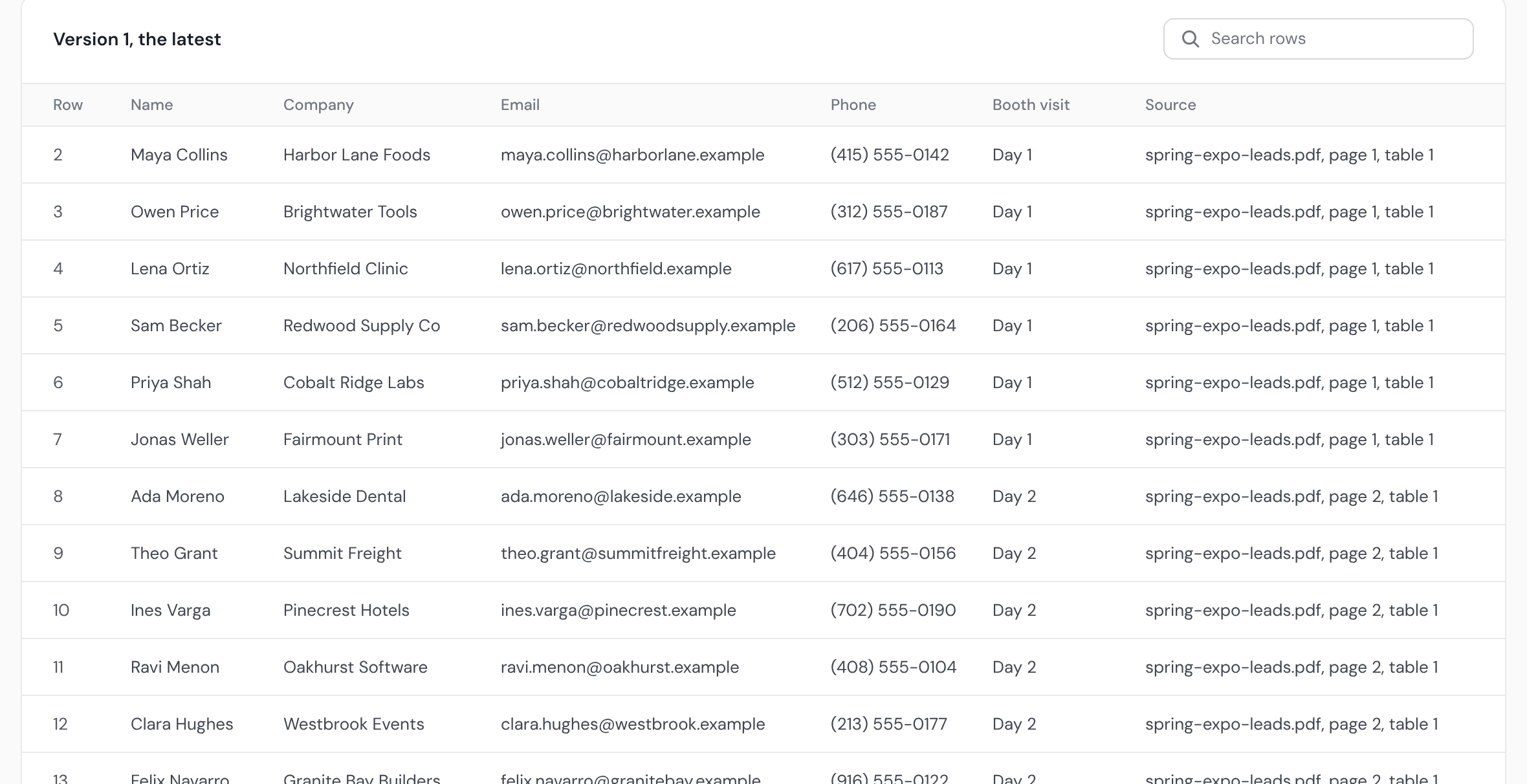
Event lists, supplier price lists and enquiries that come every week are the same job each time. An Operelio folder has its own email address. Email a PDF to it, and the PDF's first table becomes rows in a CSV in that folder, joined with any table on a later page that carries on under the same header: spring-expo-leads.pdf arrives as spring-expo-leads.csv, with a Source column naming the page and table each row came from. A different table in the same PDF is left out, so send one list per PDF.
A PDF with no table, written out as lines such as Name: Maya Collins and Email: maya.collins@harborlane.example, becomes one row with a column for each field. Anything else becomes one row with its text in a Notes column. A filled-in fillable PDF form becomes one row too, each field a column named by its label.
It reads a PDF's text, not pictures, so a scan is refused, and so is a PDF over 50 pages. Folders are on Starter and above. Download the CSV from Files, or let a trail that watches the folder clean the rows and push them to HubSpot, Salesforce or Pipedrive.
Convert an .xlsx workbook to CSV, picking the sheet you want, without opening Excel.
Frequently asked questions
Can I convert a PDF to Excel on a Mac?
Not with Get Data: Microsoft's list of the data sources Excel for Mac can import has no PDF. Copy the table from the PDF, paste it into Excel and split it with Text to Columns. If the paste comes out in a mess, open the PDF in Word first and copy the table from there.
Why does my PDF table paste into one column?
A PDF stores a table as text placed on a page, not as cells, so a copy gives Excel each row as one line of text. Select the column and use Data > Text to Columns to split it.
How do I copy a table from a PDF to Excel and keep the formatting?
A plain copy gives Excel text, not a table, so the layout doesn't come across. Get Data on Microsoft 365 for Windows brings in a real table, and going through Word gives you a Word table that pastes cell by cell; Excel's Paste Options then offer Keep Source Formatting to keep the Word table's look.
How do I convert several PDFs to Excel at once?
On Microsoft 365 for Windows, put the PDFs in one folder and use Data > Get Data > From File > From Folder, which imports files with the same layout and appends them into one table. Microsoft suggests the Folder connector for importing many PDF files at once.
Can Excel open a PDF directly?
Not as a workbook. On Microsoft 365 for Windows, Data > Get Data > From File > From PDF reads the PDF's tables into a sheet. In other versions, copy the table from the PDF instead.
Is it safe to use a free online PDF to Excel converter?
Your PDF goes to that company's servers, so read what the tool says it does with files before you upload anything with customer details in it. Adobe's free online tool, for example, says "Your file will be securely handled by Adobe servers and deleted unless you sign in to save it."
Ready to get started?
Upload a file and run your first transformation. Free, no credit card required.