
How to remove duplicates in Excel
Remove duplicate rows in Excel with the built-in tool, understand what it misses, and see the one-click way to catch near-duplicates too.
By Operelio team · Updated July 2026
On this page6
Before you start: see what you are about to delete
Excel's Remove Duplicates deletes rows the moment you click OK. There is no preview and no report of which rows went, so two minutes of preparation saves a lot of guessing afterwards.
First, work on a copy of the file, or at least keep Ctrl+Z (Cmd+Z on Mac) ready. Second, highlight the duplicates before you remove anything: select the column that defines a duplicate, then go to Home, Conditional Formatting, Highlight Cells Rules, Duplicate Values. Every repeated value lights up, so you can scan what is about to go.
If you want a flag you can filter on instead, add a helper column with =COUNTIF($C$2:$C$1000,C2)>1 (swap C for your key column and 1000 for your last row). It shows TRUE on every row whose value appears more than once, so you can review the repeats before deleting anything.
Excel always keeps the first occurrence of each duplicate and silently deletes the rest. If you care which row survives, sort first: for example, sort by a Last activity column with newest at the top, so the most recent row is the one Excel keeps.
Remove duplicates with Excel's built-in tool
Excel has a built-in Remove Duplicates button that drops rows where the values in the columns you pick are identical. It is the quickest way to clear exact repeats from a list.
Select your data
Click any single cell inside your list and Excel finds the edges of the data for you. One catch: that auto-detection stops at the first fully blank row, so if your list has blank rows in it, select the whole range yourself, headers included.
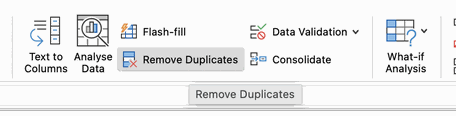
Open Remove Duplicates
On the Data tab, click Remove Duplicates in the Data Tools group. The button lives in the same place on Windows and Mac.
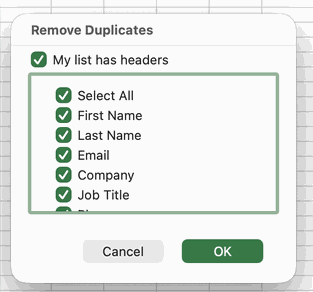
Choose the columns
Tick only the columns that define a duplicate. Ticking every column means a row is removed only when it matches another row on every single value, so one differing phone number keeps both copies. For a contact list, matching on Email alone usually catches what you actually mean by a duplicate. Leave the headers box checked if your first row is headers; Excel calls it My data has headers on Windows and My list has headers on Mac.
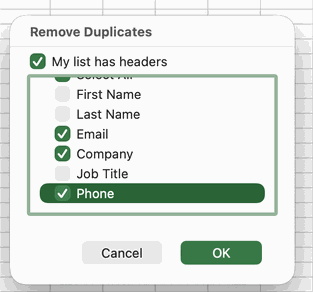
Confirm
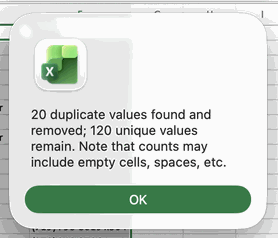
Click OK. Excel tells you how many duplicate values it found and removed and how many unique values remain. Sanity-check that number against what the conditional formatting showed you. If far more disappeared than you expected, press Ctrl+Z and review which columns you ticked.
Watch out for these
A few Excel behaviors catch people out mid-delete:
| Pitfall | What happens |
|---|---|
| Active filters | Clear any filters before you delete. With rows hidden you cannot see what changed, and deleting rows by hand on a filtered list removes only the visible ones. |
| Same date, different format | Remove Duplicates compares what is displayed, so 3/8/2026 and 08 Mar 2026 count as two different values even though the underlying date is the same. |
| Stray spaces | jane@example.com with a trailing space is not equal to the clean version. Run TRIM on the key column first, then copy the results and use Paste Special, Values before deduplicating. |
| Merged cells | Merged cells block sorting and can misalign the range. Select the data and toggle off Home, Merge & Center before you start. |
| Blank rows | Clicking one cell selects only down to the first blank row, so everything below it never gets checked. Select the full range yourself. |
What Excel's tool misses
Remove Duplicates matches on the displayed value. It does forgive casing, so WESTMARCH and Westmarch count as the same value, but everything else has to be identical, and that is where it falls short on real contact lists:
| What it misses | Example |
|---|---|
| Punctuation and abbreviation variants | Westmarch Ltd versus Westmarch, Ltd. versus Westmarch Limited |
| Stray spaces | jane@example.com with a trailing space survives next to the clean version |
| Near matches | Jon versus John, or Smith versus Smyth |
| Reformatted values | +44 20 7946 0199 versus 020 7946 0199, or the same date displayed two ways |
TRIM and a careful sort fix the spaces and the which-row-survives problem, but no formula makes Westmarch, Ltd. equal Westmarch Ltd. That takes matching that understands similarity, not just equality.
Catch the duplicates Excel leaves behind
Operelio's Deduplicate tool is built for the rows Excel leaves behind. Pick one or more columns to match on and it compares every row on those columns; exact matching is free on every plan. Before anything runs, you see how many duplicates were found and which rows will be removed. Nothing changes until you confirm.
You also choose whether the first or the last occurrence in each group survives, which matters when later rows carry the more recent data. Smart matching catches the same record dressed differently, Westmarch Ltd versus Westmarch, Ltd. or +44 20 7946 0199 versus 020 7946 0199, and similarity matching catches the near misses like Jon versus John. Blank emails never count as a match, so two rows with no address are not folded into one. You can download the removed rows as a separate file to review exactly what was dropped. All three are on every plan. It reads .csv, .xlsx, and .xls files.
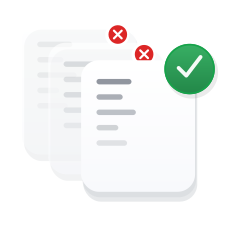
Remove the near-duplicates Excel misses, and choose which row in each group to keep.
Frequently asked questions
How do I remove duplicates in Excel?
Click a cell in your list, go to the Data tab, and click Remove Duplicates. Tick the columns that define a duplicate, leave the headers box checked, and click OK. Excel deletes rows that match on all ticked columns and keeps the first occurrence of each.
Does Excel's Remove Duplicates ignore upper and lower case?
Yes. WESTMARCH, Westmarch, and westmarch count as the same value, so casing differences are removed correctly. What it does not ignore is spacing, punctuation, or formatting: a trailing space or an extra comma makes two values different.
How do I see duplicates in Excel before deleting them?
Select the column, then Home, Conditional Formatting, Highlight Cells Rules, Duplicate Values to light up every repeat. For a flag you can filter on, add a helper column with =COUNTIF($C$2:$C$1000,C2)>1 and filter for TRUE.
Can I choose which duplicate Excel keeps?
Not directly. Excel always keeps the first occurrence, so sort the list first to put the row you want on top, for example newest activity first. Operelio's Deduplicate tool lets you keep the first or the last row in each group.
Why does Excel leave some duplicates behind?
Because it only matches values that display identically. Westmarch Ltd and Westmarch, Ltd., a trailing space, or Jon versus John are not exact matches, so both rows stay. Catching those takes similarity matching, which compares how close two values are instead of requiring them to be equal.
Ready to get started?
Upload a file and run your first transformation. Free, no credit card required.