
How to compare two Excel files for differences
Find what was added, removed, or changed between two versions of a spreadsheet, without writing formulas.
By Operelio team · Updated July 2026
On this page5
What comparing two files tells you
When you have two versions of a list, an old export and a new one, or your copy and a teammate's, the useful question is what changed. A good comparison shows three things: rows that are new, rows that were removed, and rows that exist in both but have different values.
Choose what identifies a row
A comparison needs a key: the column that says two rows are the same record, usually an email or an ID. Position is not identity. The moment either file gets sorted or a row is inserted, row 7 in one file no longer corresponds to row 7 in the other, so any comparison that lines rows up by position quietly breaks. Every reliable comparison, formula or tool, matches rows by key. If no single column is unique, combine two, like company plus email.
Comparing with formulas
Put both versions in one workbook as two sheets, say March and April, so formulas can reach across. Then each question has a formula:
Find added rows
In the April sheet, add a column with =IF(COUNTIF(March!A:A,A2)=0,"Added",""), where column A holds your key. Any row whose key does not appear in March is new.
Find removed rows
Same formula, opposite direction: in the March sheet, count against April!A:A. Rows flagged there existed before and are gone from the new version.
Flag changed values
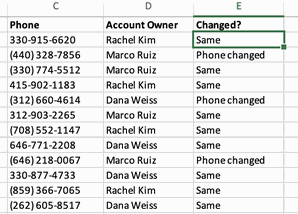
For rows in both files, compare each column against the other sheet's value for the same key: =IF(VLOOKUP($A2,March!$A:$E,3,FALSE)<>C2,"Changed","") checks the third column. The FALSE matters: without it, VLOOKUP does an approximate match and quietly returns values from the wrong row.
Highlight the differences
Select the data, then Home, Conditional Formatting, New Rule, Use a formula to determine which cells to format, and enter the same comparison, like =C2<>VLOOKUP($A2,March!$A:$E,3,FALSE). Matching cells stay plain; changed ones get the fill color you pick.
Or eyeball it
For a quick manual scan, View, View Side by Side with Synchronous Scrolling scrolls both files together. Some Windows Office editions also include Spreadsheet Compare, a separate app that diffs two workbooks cell by cell.
Three things create false differences: trailing spaces (run TRIM first), numbers stored as text (they never equal real numbers; look for the green corner markers), and the same date displayed in two formats. Clean these up before trusting any Changed flags.
Compare in one click
Operelio's Compare Files tool takes the two files and a key column and does the whole job: it lists rows that were added, rows that were removed, and rows where the key matches but one or more values changed. All five views are free: full diff, new rows only, changed only, removed only, and a counts-only summary. So is matching on multiple key columns together when no single column is unique. Matching is case-insensitive and whitespace is trimmed by default, so John Smith and john smith do not show up as a change, and the order of your columns does not matter.
The Excel output is color-coded: green for new rows, red for removed rows, and yellow for changed rows, with a darker yellow on the exact cells that changed. You can spot every difference in a large file without reading it row by row.

See what was added, removed, and changed between two files, with no formulas.
Frequently asked questions
How do I compare two Excel files for differences?
Pick a key column that identifies each row, like email or ID, then answer three questions: which keys are new, which disappeared, and which rows changed values. In Excel that is COUNTIF and VLOOKUP formulas across two sheets. Operelio's Compare Files answers all three from two uploads and a key, with no formulas.
What formula finds rows in one file but not another?
=IF(COUNTIF(OtherSheet!A:A,A2)=0,"Added","") flags any row whose key in column A does not appear on the other sheet. Run it in both directions to get added and removed rows. MATCH wrapped in ISNA does the same job.
Does Excel have a built-in compare tool?
Partly. View Side by Side with Synchronous Scrolling lets you scroll two workbooks together for a manual check, and some Windows Office editions include Spreadsheet Compare, a separate app that diffs workbooks. There is no built-in added, removed, and changed report; that is what the formulas or a comparison tool provide.
Can I compare files whose columns are in a different order?
Yes. Compare Files matches rows on the key column you choose, so the order of the other columns does not matter. In Excel, order does matter: VLOOKUP column numbers point at positions, so moving a column silently breaks the comparison formulas.
Why do identical-looking rows show up as changed?
Usually an invisible difference: a trailing space, a number stored as text in one file, or the same date displayed in a different format. In Excel, clean with TRIM and consistent formats before comparing. Compare Files trims whitespace and ignores case by default, which removes the most common false changes.
Ready to get started?
Upload a file and run your first transformation. Free, no credit card required.