
How to merge two Excel files without copy and paste
Combine two or more spreadsheets into one without copy and paste, even when the columns do not line up, and without duplicating rows.
By Operelio team · Updated July 2026
On this page5
Why copy and paste goes wrong
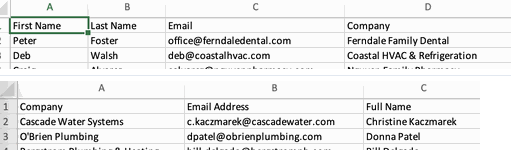
Pasting one sheet under another works only when both files have the same columns in the same order. The moment one file calls a column Email and the other calls it E-mail, or the columns are in a different order, paste lines up the wrong data. It also happily creates duplicates where the two files overlap.
Even when it works, the checking is on you: did the second file's header row come along and land in the middle of the data, did a column shift by one, and does the combined row count equal the two originals added together. One misaligned paste and every value below it sits in the wrong column.
Line up the columns first
To merge cleanly, columns have to match by name, not position. Decide which columns are the same field across your files and give that field one exact header in every file: same spelling, same casing, same spacing. Email and email count as different names to both Power Query and Operelio, so standardize the headers before you combine anything. Columns that exist in only one file are fine; they carry through to the output with blanks for the files that lack them.
The Excel route: Power Query
Excel's own no-copy-paste answer is Power Query. For a merge you will repeat, it is worth the setup:
Load each file into Power Query
Data, Get Data, From File, then From Excel Workbook or From Text/CSV. Do this once per file, so each one becomes its own query.
Append the queries
In the Power Query editor, go to Home, Append Queries, and choose Append Queries as New. Pick your queries and Power Query stacks them into one table, matching columns by name.
Check for split columns
Power Query's matching is case-sensitive: Email in one file and email in another come out as two separate columns, each half full of blanks. If you see near-identical column pairs in the result, rename the headers to match exactly and refresh.
Close & Load
Home, Close & Load puts the combined table on a new sheet. When the source files change later, right-click the table and choose Refresh instead of redoing anything.
Merging a whole folder
If you combine the same kind of file every month, drop them all in one folder and use Data, Get Data, From File, From Folder. Excel appends every file in the folder in one step, and new files are picked up on refresh.
For a genuine one-off with two small files, careful copy-paste still works: line up the headers exactly, copy the second file's data rows without its header row, paste below the first, and check that the combined row count equals the two originals added together. Either way, remember that appending stacks rows; it does not deduplicate. If your files overlap, remove duplicates after the merge.
Merge without copy and paste
Operelio's Merge Files tool, on every plan, combines up to 2 files per job on Free (10 on Starter, 15 on Pro, 25 on Agency), in any mix of .csv, .xlsx, and .xls, with no queries to build. It matches columns by exact header name, writes one combined header row, and when a column exists in only some files it is added to the output with the missing cells left blank. Before you run, a preview shows the combined row count and flags any column drift, so you can see which file has extra or missing columns, reorder the files with the arrows, or swap one out.
Two honest notes. Matching is case-sensitive, exactly like Power Query, so run Clean Headers on your files first if the casing or spacing varies. And merging stacks rows rather than removing the overlap between files, so run the merged output through Deduplicate to end with one row per record.

Combine two or more spreadsheets by matching their columns, with no copy and paste.
Frequently asked questions
How do I merge two Excel files with different columns?
The combined output should contain every column that appears in either file, with blanks where a file lacked the column. That is how both Power Query's Append and Operelio's Merge Files behave. The catch is naming: if the same field is called Email in one file and E-mail in the other, rename it to one exact header first or it becomes two half-empty columns.
How do I combine many CSV files at once?
In Excel, put them all in one folder and use Data, Get Data, From File, From Folder to append every file in a single step. In Operelio, upload up to 2 files per job on Free, 10 on Starter, 15 on Pro, or 25 on Agency, and download one combined sheet.
How do I avoid duplicates when merging files?
Remove them after the merge, because appending stacks rows and no merge step deduplicates for you. In Excel, run Remove Duplicates on the combined sheet. In Operelio, run the merged file through the Deduplicate tool and choose the columns that define a duplicate.
Does the column order need to match across files?
No. Matching is by header name, so a column can sit anywhere in each file. What must match is the name itself: same spelling, same casing, same spacing, in Power Query and in Merge Files alike.
Can I merge CSV and Excel files together?
Yes. Operelio's Merge Files accepts any mix of .csv, .xlsx, and .xls in the same job and reads each format for you. In Excel, load each file as its own Power Query query and append them; the source format stops mattering once the file is loaded.
Ready to get started?
Upload a file and run your first transformation. Free, no credit card required.